
In some scenarios, the user may already have a remote instance of OpenShift running with various applications on it and wants to monitor it. The IDE allows users to set up a connection to a remote instance of OpenShift and then use logs (such as the application and build logs) to troubleshoot and monitor running applications. Use the following tasks to connect to and work with a remote OpenShift instance:
Set up OpenShift Client Binaries
Before setting up port forwarding or streaming application and build logs, it is mandatory to set up OpenShift Client Binaries as follows:
-
In the IDE, click .
-
Click the
herelink. -
In the
Download from GitHubsection, click theRelease pagelink. -
Scroll to the
Downloadssection and click the appropriate link to begin the client tools download for the binary for your operating system. -
After the download is complete, extract the contents of the file.
-
Click .
-
Click
Browseand select the location of the OpenShift Client executable file. -
Click
Applyand then clickOK.
Result: OpenShift Client Binaries are now set up for your IDE.
Set up Port Forwarding
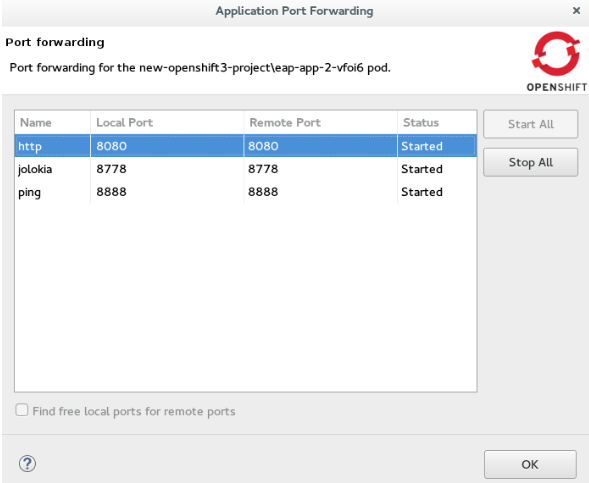
Using the Application Port Forwarding window, you can connect the local ports to their remote counterparts to access data or debug the application.
Port forwarding automatically stops when the OpenShift connection terminates, or when the IDE is shut down or when the workspace is changed. Port forwarding must be enabled each time to connect to OpenShift from the IDE.
Prerequisite: Ensure that the OpenShift Client Binaries are set up (see Set up OpenShift Client Binaries for instructions).
Set up port forwarding as follows:
-
In the
OpenShift Explorerview, expand the connection and then expand the project, the services, and then the Pods. -
Right-click the relevant pod and then click
Port Forwarding.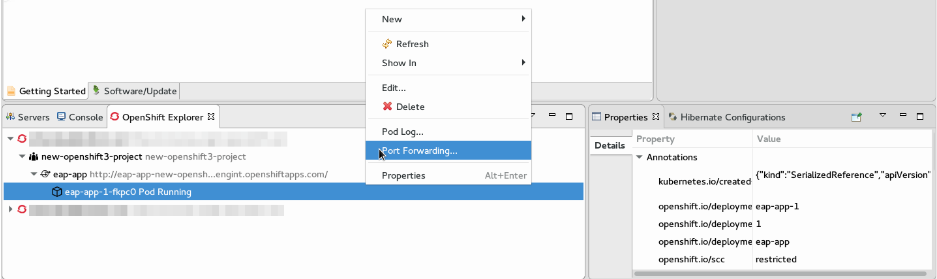 Figure 1. Set up Port Forwarding
 -
In the
Application Port Forwardingwindow, click theFind free local ports for remote portscheck box. -
Click
Start All.
Result: The Status column now shows Started, indicating that port forwarding is now active. Additionally, the Console view shows the status of port forwarding for the particular service.
Stream Pod Logs
Pod logs are general logs for an application running on a remote OpenShift instance. The streaming application logs feature in the IDE is used to monitor applications and use the previous pod log to troubleshoot if the application fails or returns errors.
Prerequisite: Ensure that the OpenShift Client Binaries are set up (see Set up OpenShift Client Binaries for instructions).
To stream the application logs:
-
In the
OpenShift Explorerview, expand the project, the services, and then the Pods. -
Right-click the relevant Pod and then click
Pod Log.
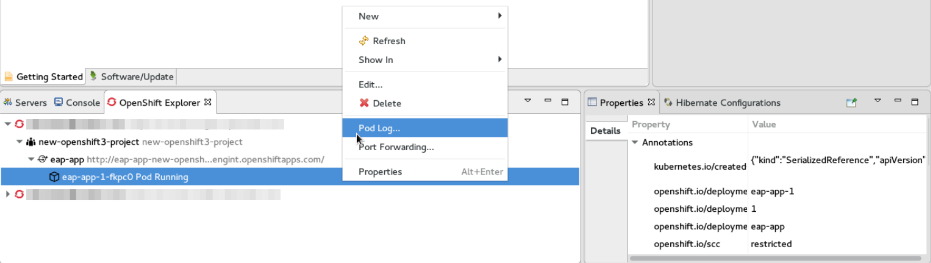
Result: The Console view displays the Pod log.
Stream Build Logs
Build logs are logs documenting changes to applications running on a remote OpenShift instance. The streaming build logs feature in the IDE is used to view the progress of the application build process and to debug the application.
Prerequisite: Ensure that the OpenShift Client Binaries are set up (see Set up OpenShift Client Binaries for instructions).
To stream build logs:
-
In the
OpenShift Explorerview, expand the project, the services, and then the build. -
Right-click the relevant build instance and click
Build Log.
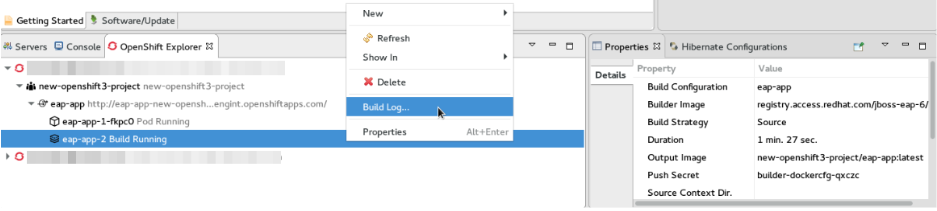
Result: The Console view is now the view in focus showing the build log.
