A JBoss Project
Red Hat

Posts tagged with 'release'

JBoss Tools 4.21.0 and Red Hat CodeReady Studio 12.21.0 for Eclipse 2021-09 are here waiting for you. Check it out!

crstudio12

Installation

Red Hat CodeReady Studio comes with everything pre-bundled in its installer. Simply download it from our Red Hat CodeReady product page and run it like this:

java -jar codereadystudio-<installername>.jar

JBoss Tools or Bring-Your-Own-Eclipse (BYOE) CodeReady Studio require a bit more:

This release requires at least Eclipse 4.21 (2021-09) but we recommend using the latest Eclipse 4.21 2021-09 JEE Bundle

since then you get most of the dependencies preinstalled.

Java11 is now required to run Red Hat Developer Studio or JBoss Tools (this is a requirement from Eclipse 4.17). So make sure to select a Java11 JDK in the installer. You can still work with pre-Java11 JDK/JRE and projects in the tool.

Once you have installed Eclipse, you can either find us on the Eclipse Marketplace under "JBoss Tools" or "Red Hat CodeReady Studio".

For JBoss Tools, you can also use our update site directly.

http://download.jboss.org/jbosstools/photon/stable/updates/

What is new?

Our main focus for this release was an improved tooling for container based development and bug fixing.

OpenShift

Operator based services

When developing cloud native applications on OpenShift, developer may need to launch services (databases, messaging system,…​) that the application under development may need to connect to. The OpenShift tooling allowed to launch such services but it was based on the service catalog which is not available anymore on OpenShift 4.

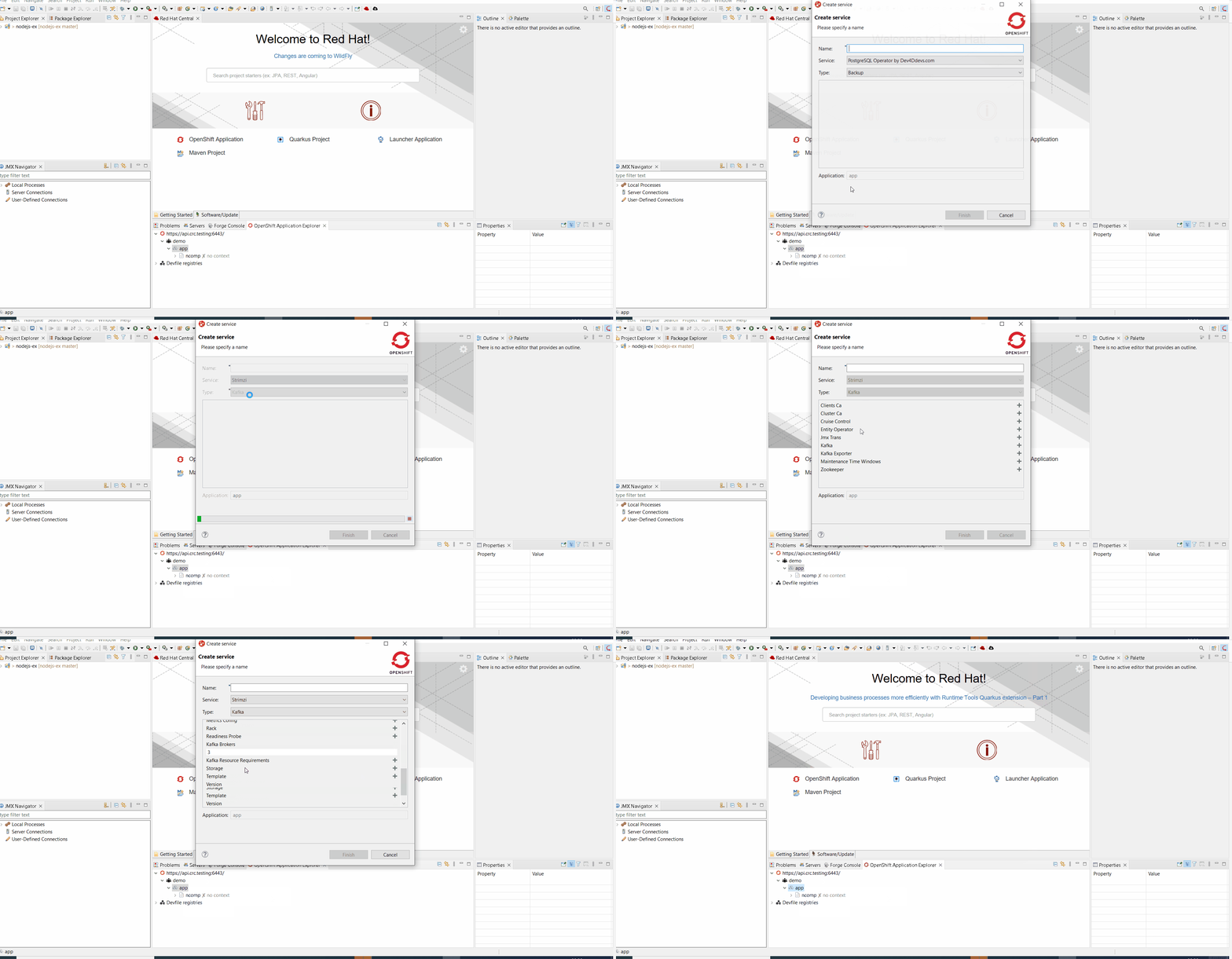
The new feature is based on operators which is the devops way of installing and managing software on Kubernetes clusters. So when you want to launch a service for your application, you will have to choose from the list of installed operators on your cluster and then select type of deployment you want.

In the following example, there are two operators installed on our cluster: the Strimzi operator for setting up Kafka clusters on Kubernetes and a Postgresql operator.

For each operator, we can select the type of deployment we want to setup. For each type of deployment, specific parameters may be specified. In this example, we decided to set the replicas number to 4 for a Kafka cluster.
operator based services3

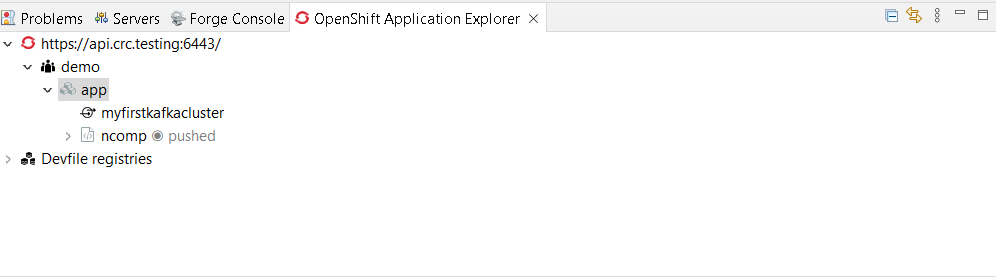
After you’ve entered the name of your service, it will appear in the application explorer view:
operator based services2

Hibernate Tools

Hibernate Runtime Provider Updates

A number of additions and updates have been performed on the available Hibernate runtime providers.

New Runtime Provider

A new runtime provider has been added for Hibernate 5.6. It incorporates Hibernate Core version 5.6.0.Beta2 and Hibernate Tools version 5.6.0.Beta2. This runtime is in preview mode.

Runtime Provider Updates

The Hibernate 5.5 runtime provider now incorporates Hibernate Core version 5.5.7.Final and Hibernate Tools version 5.5.7.Final.

The Hibernate 5.3 runtime provider now incorporates Hibernate Core version 5.3.22.Final and Hibernate Tools version 5.3.22.Final.

Platform

Views, Dialogs and Toolbar

New clean message dialog api

A new API in the class PlainMessageDialog is introduced. It uses a builder pattern to create an immutable instance of PlainMessageDialog. It has a clean API and consists of methods for e.g. the button labels, the message and the image.

Example Usage: int answer = PlainMessageDialog.getBuilder(myShell, "The new dialog").image(SWT.ICON_Question).message("Like it?").buttLabels(Arrays.asList(IDialogConstants.YES_LABEL, IDialogConstants.NO_LABEL)).build().open();

plain message dialog usage
Accepted licenses remembered permanently

Before accepted licenses were only remembered during runtime and not persisted between restarts. The user selection of accepted licenses is now persisted between restarts.

Export certificate during installation

When installing a software into the workbench and the software is signed but with an untrusted certificate, the dialog to review trusted certificates now shows a button to 📥 Export…​ the selected certificate into their own *.der file. This can facilitate review of the certificate, for example in order to get it audited by some other external service, tool or workflow before approval.

Quick Search mentions max occurrences reached

The Quick Search dialog features a label to depict the number of matches that were found. Additionally, if the result set exceeds a now configurable limit, the label shows that the limit has been reached and the search process stops. Besides this new "Max Results" configuration option, the preference page has been overhauled with information decorators to describe the properties in more detail.
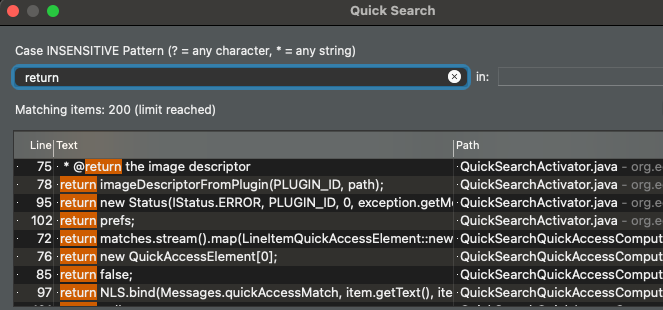
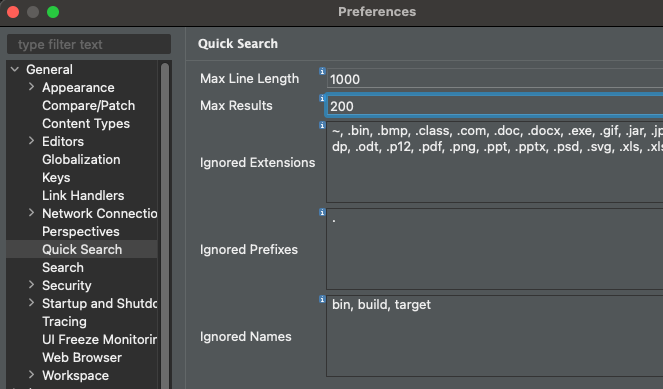
quick search
quick search preferences

Themes and Styling

New close icon on tabs

The drawing of the close icon of tabs has been updated to align better with the operating system.

Old:

old light x
old dark x

New:

new light x
new dark x
Eclipse Windows now supports dark-theme tool-tips

Eclipse on Windows now support dark-theme tool-tips. Refer below screens-shot which show various tool-tips@dark-theme:

swt win darkthemed tooltips

Preferences

History for derived files

The Local history for derived files is now disabled by default. The behaviour can now be configured to the previous (enabled) behaviour in Preferences > General > Workspace > Local History page, by checking the History for derived files checkbox.

Derived files are for example automatically created as the output of java annotation processing or XText. As they are automatically created one could also recreate old versions of the output by compiling older versions of the input, thereby wasting time and space to store the history of the derived files for most users.

history for derived files preferences

General Updates

Eclipse support for Mac AArch64(Arm64)

Eclipse SDK downloads for the Mac AArch64(Arm64) architecture are now available. Please note that a Mac AArch64 JVM is required to run Eclipse for Mac AArch64. Eclipse for Mac AArch64 will be formally supported in the Target Environments in a future release.

Eclipse and SWT for Mac x86_64 architecture can already run on Apple Silicon hardware under Rosetta translation mode using a x86_64 JVM.

New method create(int style) in GridDataFactory

GridDataFactory contains a new static method create(int style) which returns a new GridDataFactory instance. This method is similar to new GridData(int style).

Minimum Java version for SWT

SWT now requires minimum Java 11 to run SWT.

Ant 1.10.11

Eclipse has adopted Ant version 1.10.11.

Java Developement Tools (JDT)

Javaâ„¢ 17 Support

Java 17

Java 17 is out and Eclipse JDT supports Java 17 in 4.21 via Marketplace.

The release notably includes the following Java 17 features:

  • JEP 306: Restore Always-Strict Floating-Point Semantics.

  • JEP 406: Pattern Matching for switch (Preview).

  • JEP 409: Sealed Classes (Final).

Please note that preview option should be on for preview language features. For an informal introduction of the support, please refer to Java 17 Examples wiki.

Javaâ„¢ 16 Support

Java 16

Java 16 is out and Eclipse JDT supports Java 16 in 4.20.

The release notably includes the following Java 16 features:

  • JEP 394: Pattern Matching for Instanceof (Final).

  • JEP 395: Records (Final).

  • JEP 397: Sealed Classes (Second Preview).

Please note that preview option should be on for preview language features. For an informal introduction of the support, please refer to Java 16 Examples wiki.

JUnit

mockito ArgumentMatchers.* added to favorites in Java tooling

Mockito based tests frequently use org.mockito.ArgumentMatchers.*. This has been added to the Java favorites in the preferences under Java > Editor > Content Assist > Favorites. This way the organize imports action in the IDE will automatically add static imports for these classes if you use them in your tests.

BREE update for JDT JUnit runtime bundles

The bundle required execution environment (BREE) for the org.eclipse.jdt.junit.runtime and org.eclipse.jdt.junit4.runtime bundles is now JavaSE-1.8.

Java Editor

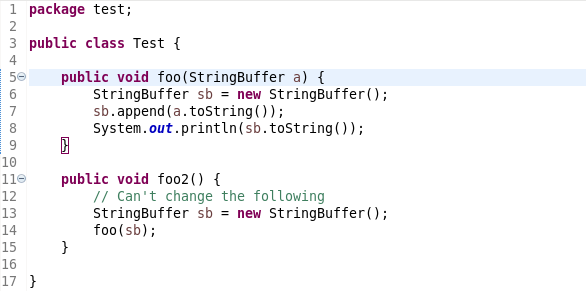
Use StringBuilder instead of StringBuffer clean up

A new clean up has been added that converts code to use StringBuilder (added in Java 1.5) rather than StringBuffer which has synchronized methods and is slower than using StringBuilder.

There is a sub-option where changes will only occur to local variables which is on by default. When this sub-option is on, changes will only occur to StringBuffer variables that are local to a method. When a method calls other methods with such variables or assigns to/from fields/parameters, the method contents will not be converted. It is permitted to append StringBuffer fields or parameters to local StringBuffer variables which can then still be converted to StringBuilder.

When the option is selected and the sub-option for local variables is off,all usage of StringBuffer in the selected files are changed to StringBuilder regardless of usage. It should be noted that in this case, the clean up will not track down non-selected classes and methods that are referenced and might require changes to compile successfully.

To apply the clean up, select the Use StringBuilder instead of StringBuffer check box on the Performance tab in your clean up profile. To specify just for local variables, select the Only for local variables check box found just below.
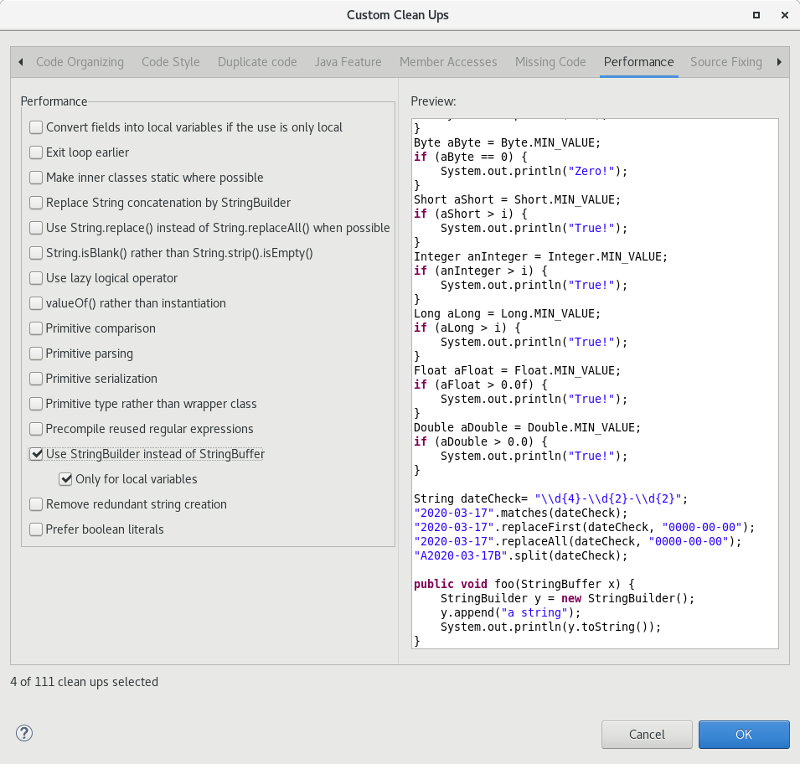
stringbuffer to stringbuilder prefs

For the given code:

stringbuffer to stringbuilder before

One gets:

stringbuffer to stringbuilder after
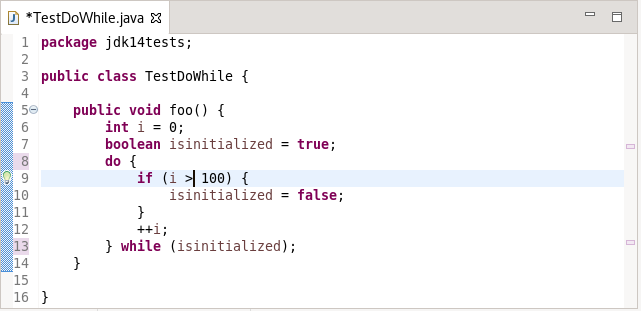
Convert while to do/while

A new quick-assist has been added to convert appropriate while loops into do/while loops. Appropriate while loops require the first evaluation of the while expression is guaranteed to be true and that the evaluation is passive.

For the following loop:
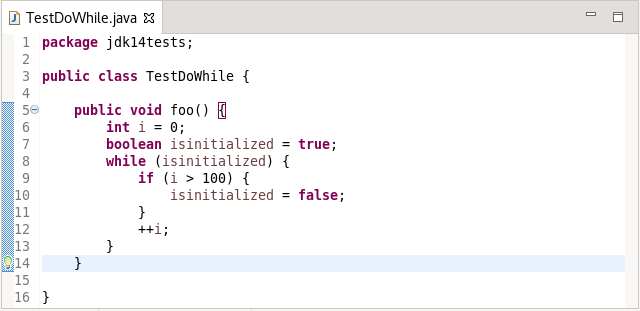
while to do while before

One is offered:

while to do while after
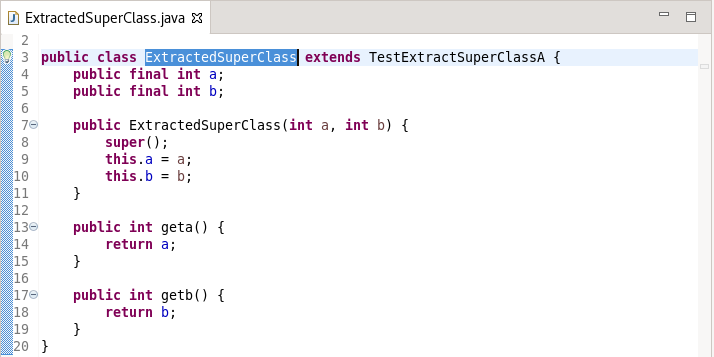
Extract Superclass Enhancement

The Extract Superclass refactoring has been enhanced to support movement of uninitialized non-static final fields. In the past, a warning was issued for extracting uninitialized non-static final fields as the resultant code would be in error. The refactoring has been enhanced to add additional parameters to the moved constructors and to pass initialization values from the original class constructors.

For the following class:
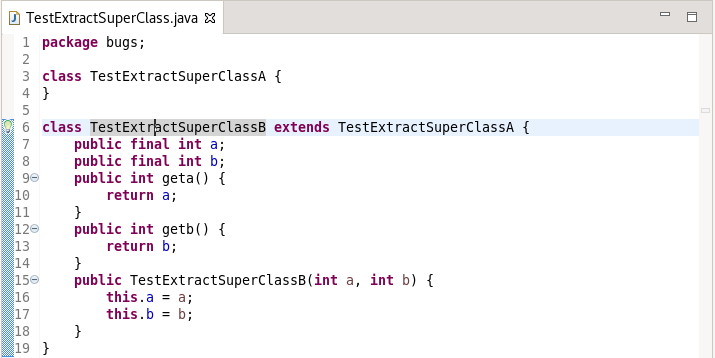
extract superclass original before

Extracting to Superclass and choosing all fields, one gets:
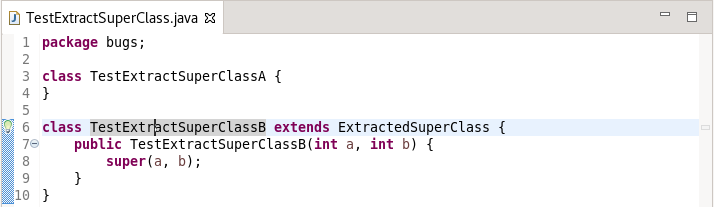
extract superclass original after

and

extract superclass superclass after
Raw Paste

A new menu item has been added for doing a raw paste when editing Java files. The menu item Raw Paste can be found in the Edit pull-down menu and by right-clicking in the edit window to bring up the context-menu. The menu item performs a paste action but toggles off the smart insert feature, if required, and restores it, if necessary, after the paste. For end-users in smart insert mode, this is the same as doing a Shift+Ctrl+Insert followed by Ctrl+V, followed by Shift+Ctrl+Insert to retoggle into smart insert mode again.

Default Type Filters

Default values have been added to the Java > Appearance > Type Filters preferences. Types matching these filters will be excluded from appearing in the Open Type dialog, content assist, quick fix, and organize imports. These filter patterns do not affect the Package Explorer and Type Hierarchy views.
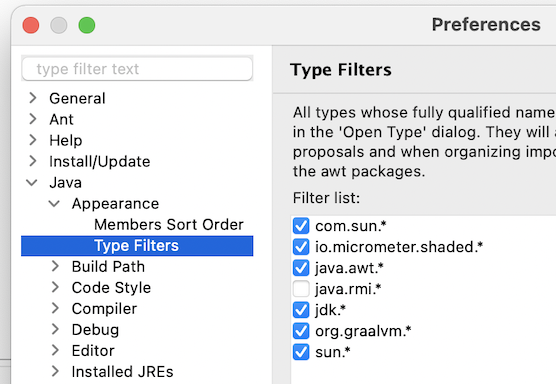
default type filters
Change project compliance and JRE on using multi-constant case labels

A new quick fix (Ctrl+1) has been added to change the project compliance and JRE when multi-constant case labels are used in a project below Java 14:
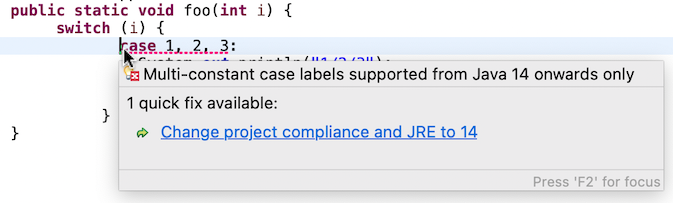
change compliance jre multi constant labels
Quick fix to declare sealed interface as super interface

You can use the following quick fix (Ctrl+1) to declare a sealed interface as super interface of its permitted types:

declare sealed interface as super interface
Quick fix to declare sealed class as super class

You can use the following quick fix (Ctrl+1) to declare a sealed class as super class of its permitted classes:

declare sealed class as super class
Quick fix to add the sub type to permitted types of sealed super type

You can use the following quick fix (Ctrl+1) to add a sub type to permitted types of a sealed super type:
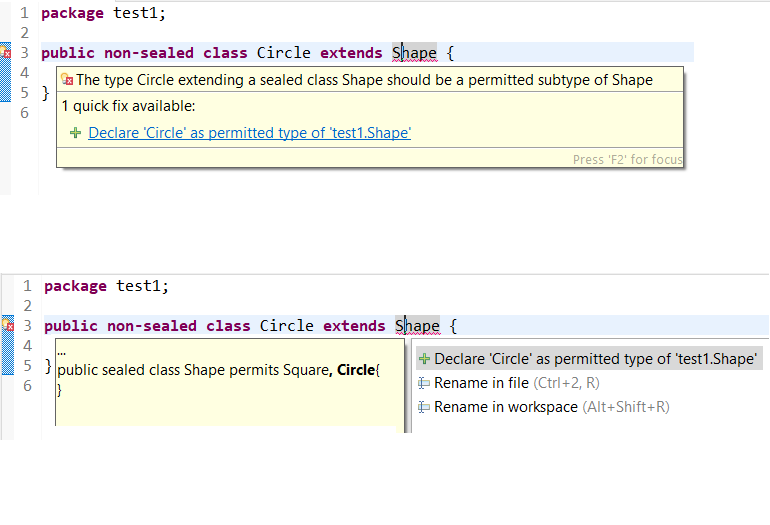
add subtype to permitted types of supertype
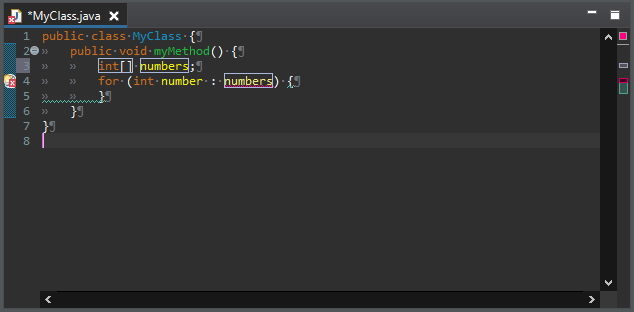
Better type for the local variable creation quick fix

The quick fix Create a new local variable has been enhanced. When it creates a variable that is the expression on which a foreach loop iterates, its type is an array of the type of the loop parameter:

For the given code:
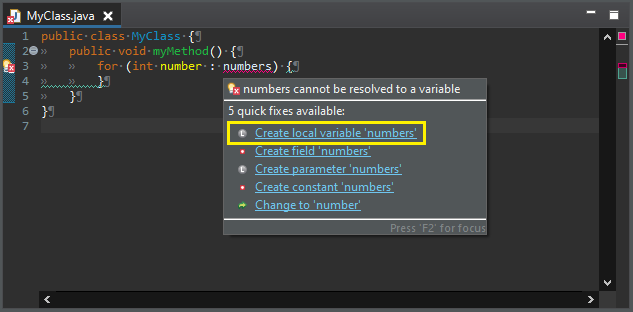
foreach expression type before

One gets:

foreach expression type after
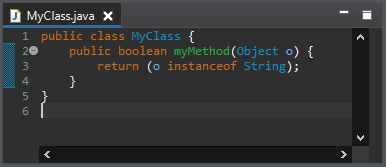
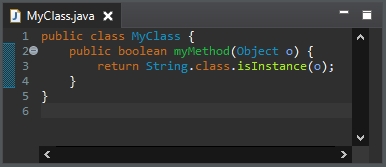
Use instanceof clean up

A new clean up has been added that uses an instanceof expression to check an object against a hardcoded class.

The expression must be a supertype of the targeted class.

To apply the clean up, select Use instanceof keyword instead of Class.isInstance() check box on the Code Style tab in your clean up profile.
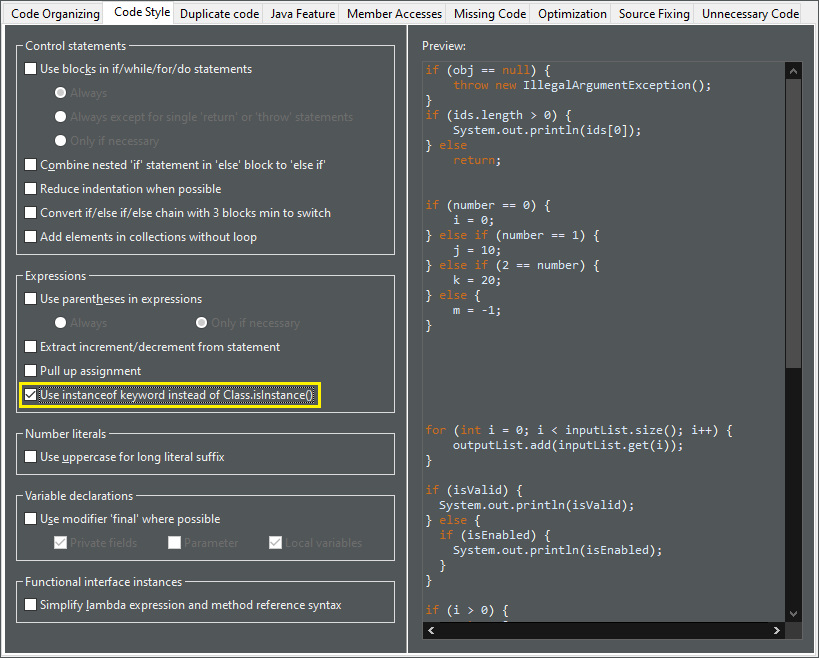
use instanceof preferences

For the given code:

use instanceof before

One gets:

use instanceof after
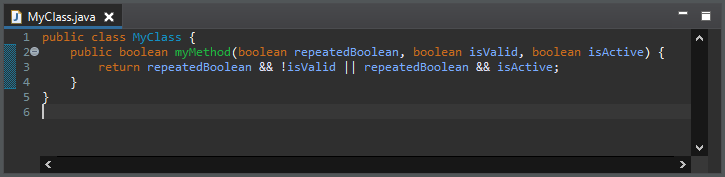
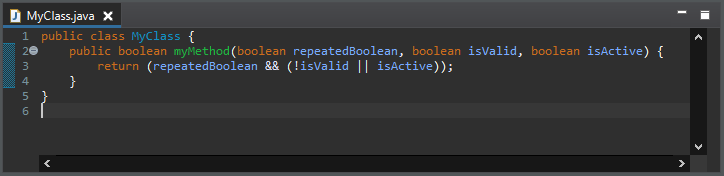
Operand factorization clean up

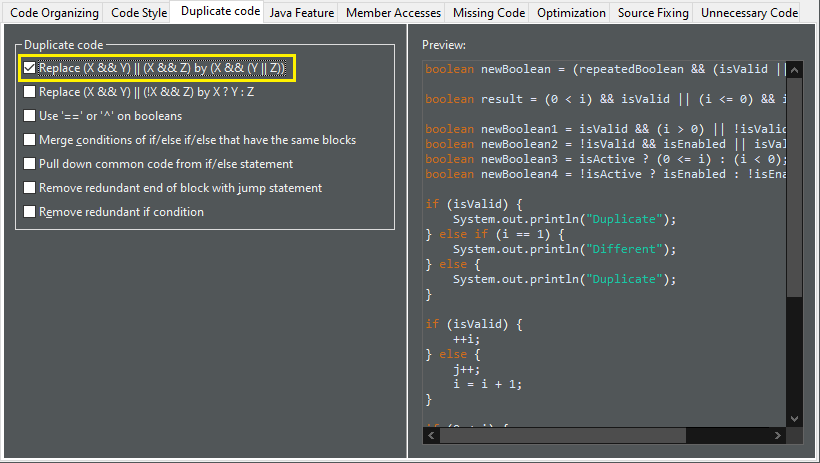
A new clean up has been added that replaces (X && Y) || (X && Z) by (X && (Y || Y)).

The operands must be passive and primitive.

To apply the clean up, select Replace (X && Y) || (X && Z) by (X && (Y || Z)) check box on the Duplicate code tab in your clean up profile.

operand factorization preferences

For the given code:

operand factorization before

One gets:

operand factorization after
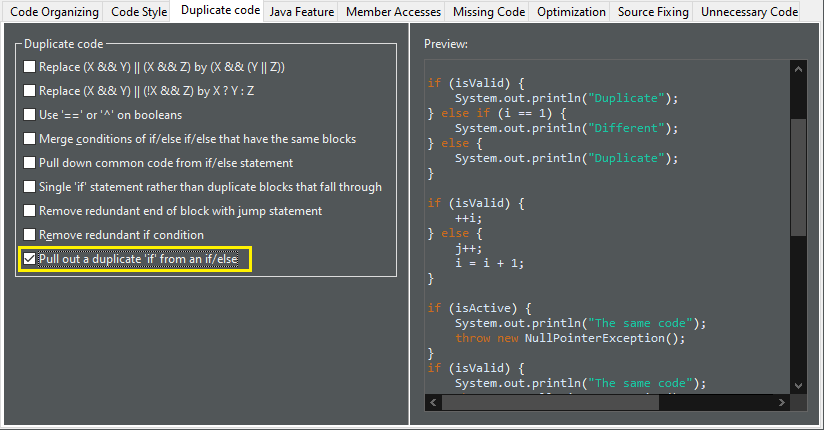
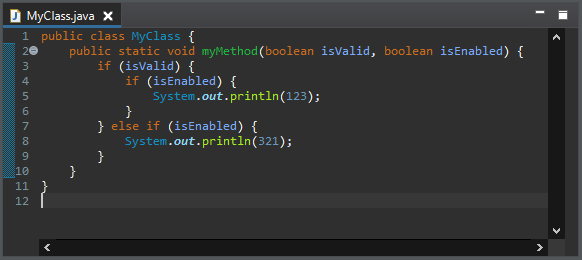
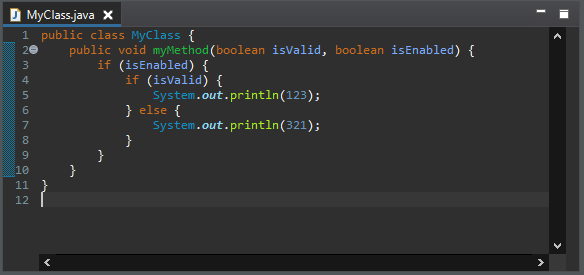
Pull out a duplicate 'if' from an if/else clean up

A new clean up has been added that moves a duplicate inner if condition around an outer if condition.

The inner if condition should be common to both if/else clauses of the outer if statement.

The if conditions should be passive.

To apply the clean up, select Pull out a duplicate 'if' from an if/else check box on the Duplicate code tab in your clean up profile.

pull out if preferences

For the given code:

pull out if before

One gets:

pull out if after
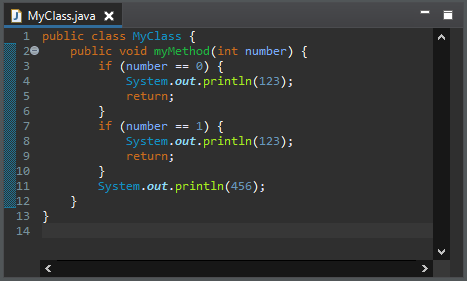
One if rather than duplicate blocks that fall through clean up

A new clean up has been added that merges consecutive if statements with same code block that end with a jump statement.

To apply the clean up, select Single 'if' statement rather than duplicate blocks that fall through check box on the Duplicate code tab in your clean up profile.

For the given code:
one falling through if before

One gets:

one falling through if after
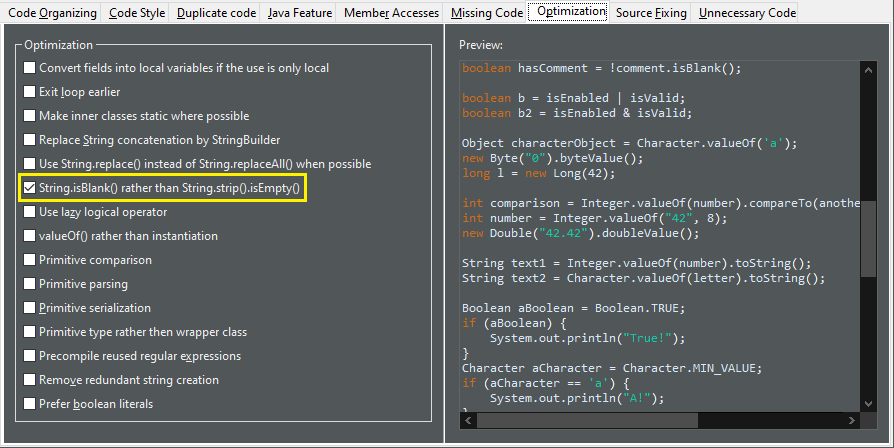
Uses String.isBlank() clean up

A new clean up has been added that replaces the check of the emptiness of String.strip() by the use of String.isBlank().

It avoids the cost of the creation of a stripped string.

You may use Java 11 or higher to use it.

In order to apply this cleanup also to trim().isEmpty(), you might consider to replace trim(), which exists since the beginning of Java, with strip() that has been introduced in Java 11 together with isBlank(),

But watch out, trim() and strip() differ: trim() removes leading and trailing characters with an ASCII code up to 32, including some non white space ASCII control characters and missing some Unicode white space characters, whereas strip() removes all and only leading and trailing white space.

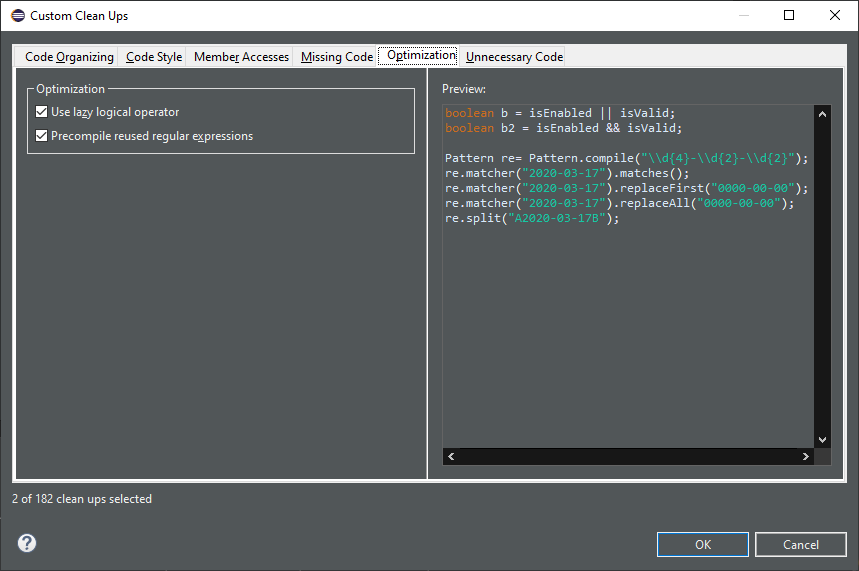
To apply the clean up, select String.isBlank()` rather than `String.strip().isEmpty() check box on the Optimization tab (the Performance tab in Eclipse 2021-09) in your clean up profile.

isblank preferences

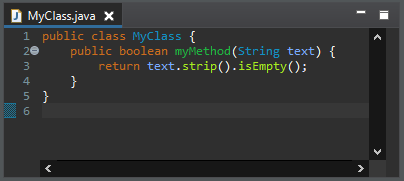
For the given code:

isblank before

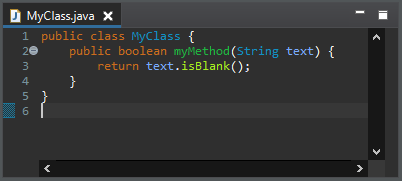
One gets:

isblank after
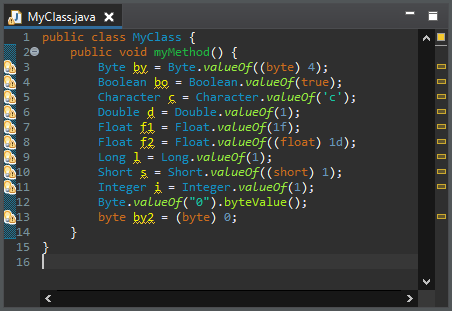
valueOf() rather than instantiation clean up

A new clean up has been added that replaces unnecessary primitive wrappers instance creations by using static factory methods (valueOf()).

It dramatically improves the space performance.

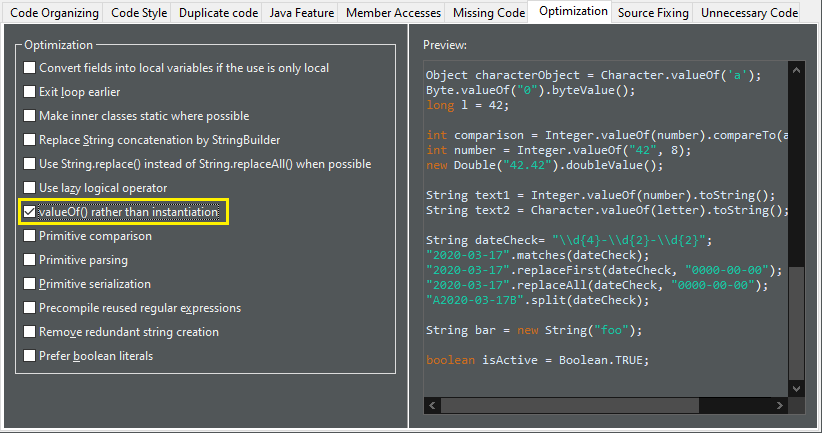
To apply the clean up, select valueOf() rather than instantiation check box on the Optimization tab (the Performance tab in Eclipse 2021-09) in your clean up profile.

valueof rather than instantiation preferences

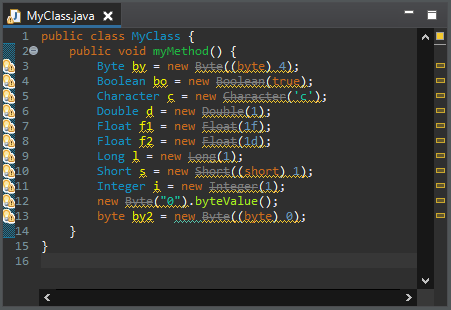
For the given code:

valueof rather than instantiation before

One gets:

valueof rather than instantiation after
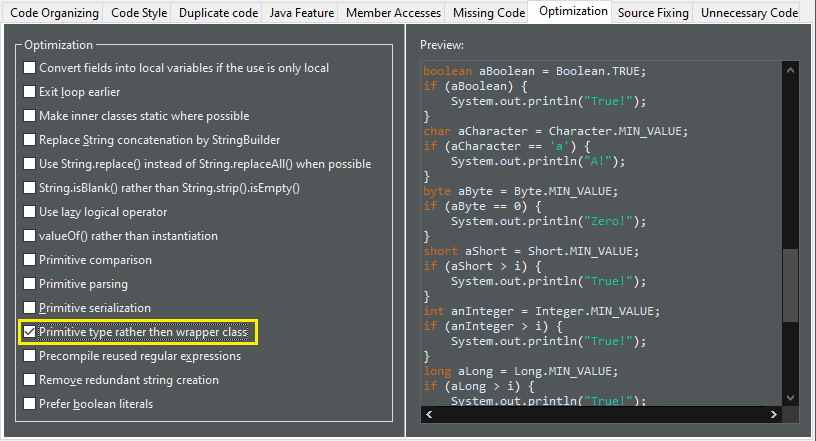
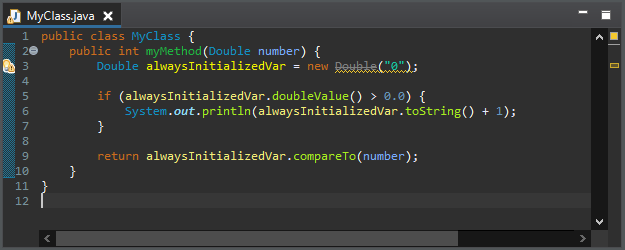
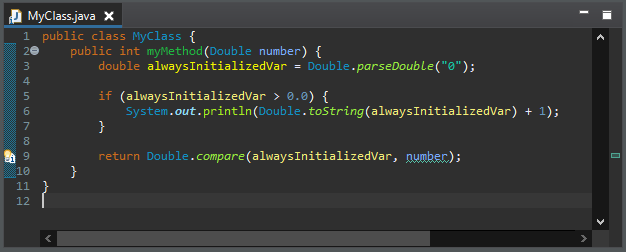
Primitive rather than wrapper clean up

A new clean up has been added that replaces a primitive wrapper object by the primitive type when an object is not necessary.

The variable must be not null. The result should not make more autoboxing/unboxing than the original code.

To apply the clean up, select Primitive type rather than wrapper class check box on the Optimization tab (the Performance tab in Eclipse 2021-09) in your clean up profile.

primitive rather than wrapper preferences

For the given code:

primitive rather than wrapper before

One gets:

primitive rather than wrapper after
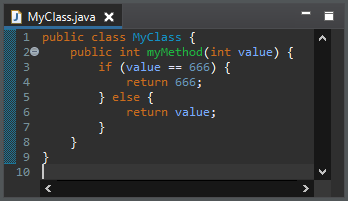
Redundant truth clean up

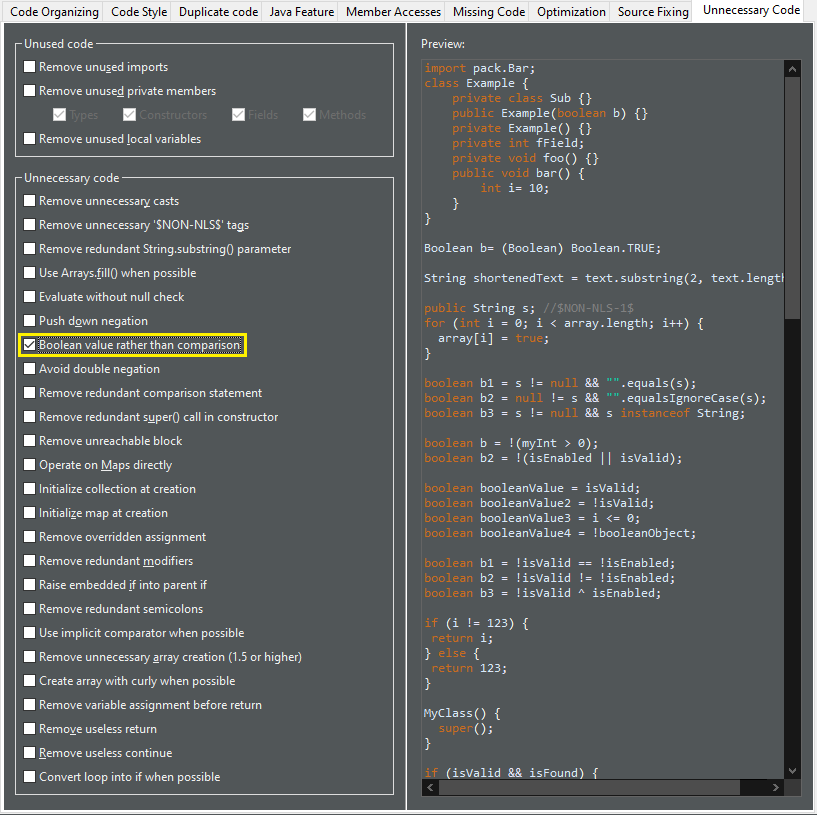
A new clean up has been added that directly checks boolean values instead of comparing them with true/false.

The operator can be equals, not equals or XOR. The constants can be a literal or a java.lang.Boolean constant. One operand should be primitive so no new null pointer exceptions may occur.

To apply the clean up, select Boolean value rather than comparison check box on the Unnecessary Code tab in your clean up profile.

redundant truth preferences

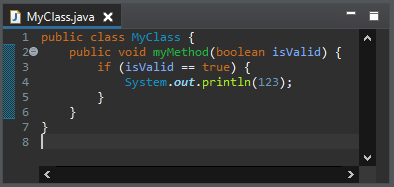
For the given code:

redundant truth before

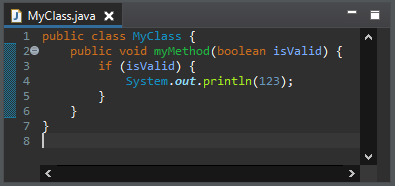
One gets:

redundant truth after
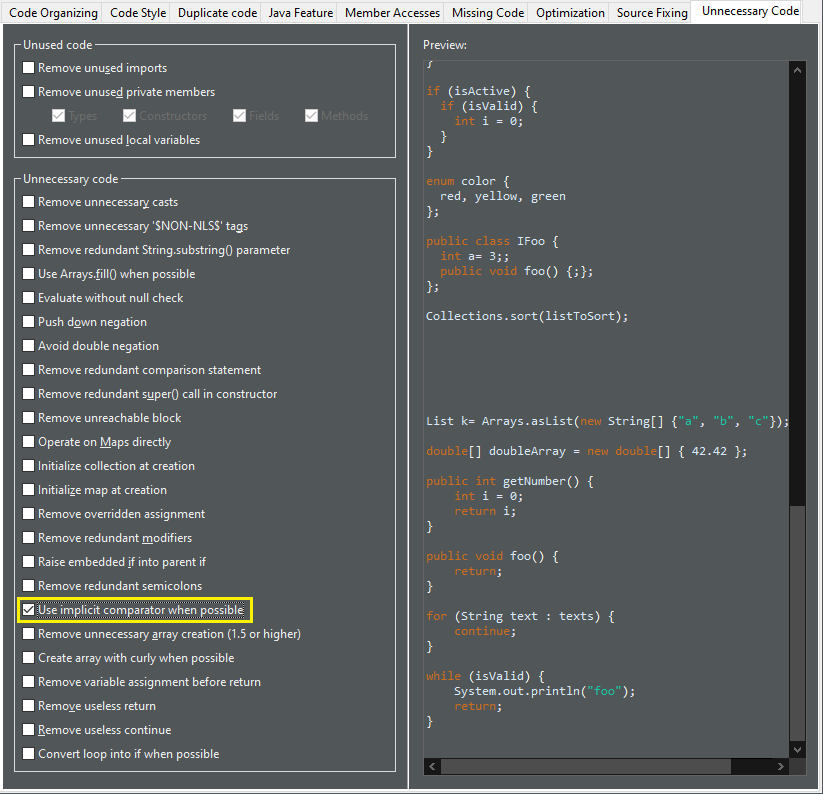
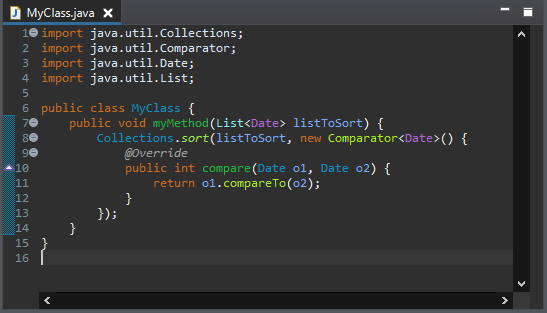
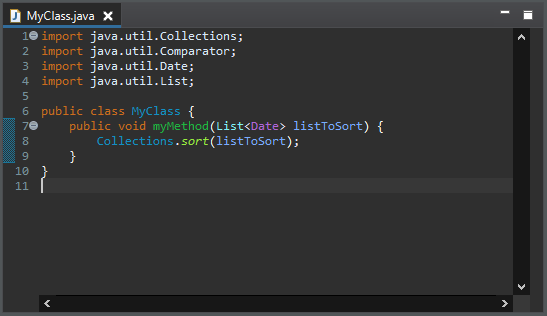
Implicit comparator clean up

A new clean up has been added that removes the comparator declaration if it is the default one.

The declared comparator should be an equivalent to the natural order. It removes anonymous class, lambda, Comparator.comparing(), Comparator.naturalOrder() and null. It applies on List.sort(Comparator), Collections.sort(List, Comparator), Collections.max(Collection, Comparator) and Collections.min(Collection, Comparator). If the comparator is used in the method List.sort(Comparator), the method is converted into Collections.sort(List).

To apply the clean up, select Use implicit comparator when possible check box on the Unnecessary Code tab in your clean up profile.

implicit comparator preferences

For the given code:

implicit comparator before

One gets:

implicit comparator after
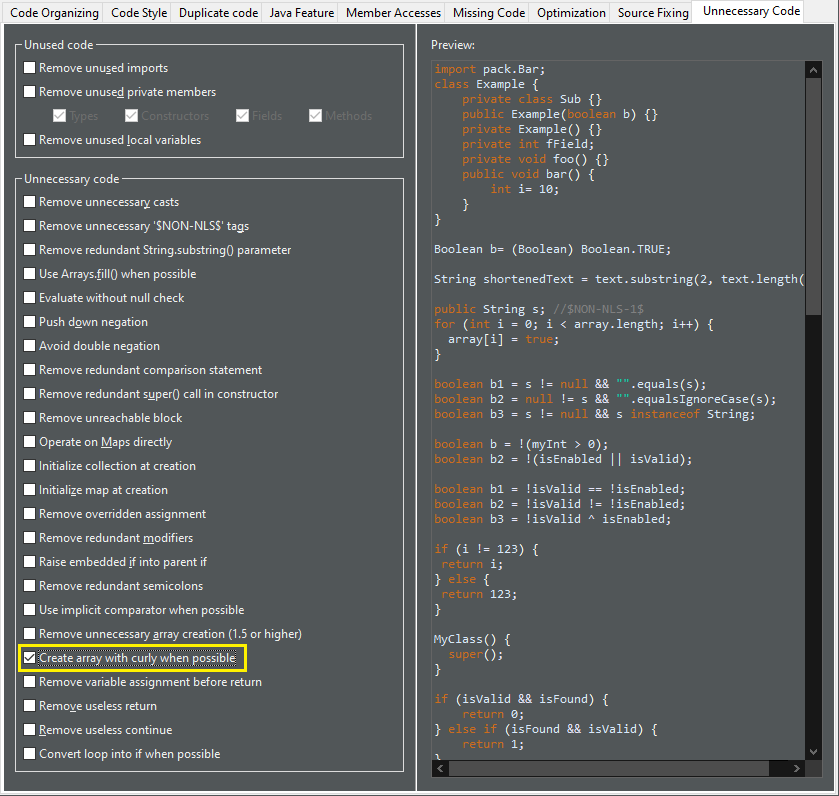
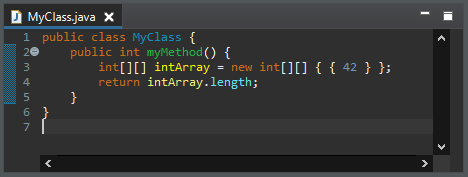
Initialize array with curly clean up

A new clean up has been added that replaces the new instance syntax by curly brackets to create an array.

It must be an initialization of a declaration. The declaration must have the same type.

To apply the clean up, select Create array with curly when possible check box on the Unnecessary Code tab in your clean up profile.

array with curly preferences

For the given code:

array with curly before

One gets:

array with curly after
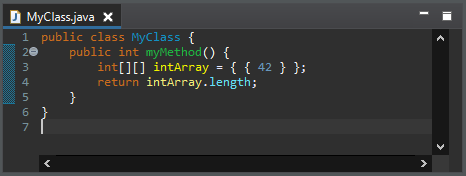
Remove variable assignment before return clean up

A new clean up has been added that removes unnecessary local variable declaration or unnecessary variable assignment before a return statement.

An explicit type is added for arrays.

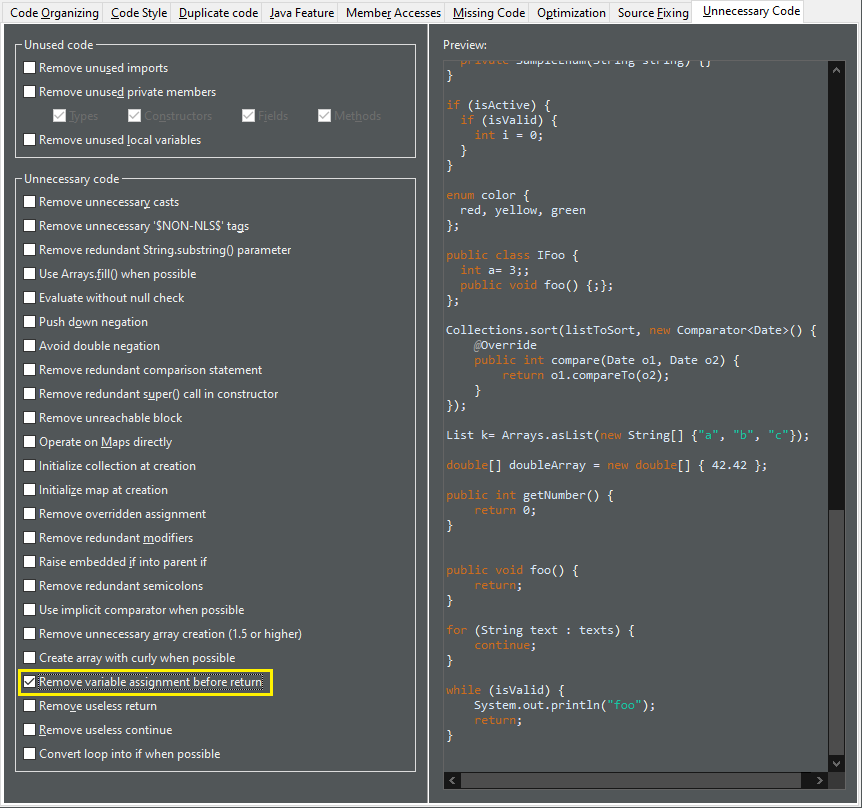
To apply the clean up, select Remove variable assignment before return check box on the Unnecessary Code tab in your clean up profile.

return without assignment preferences

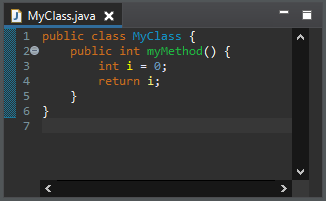
For the given code:

return without assignment before

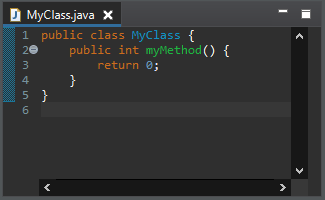
One gets:

return without assignment after
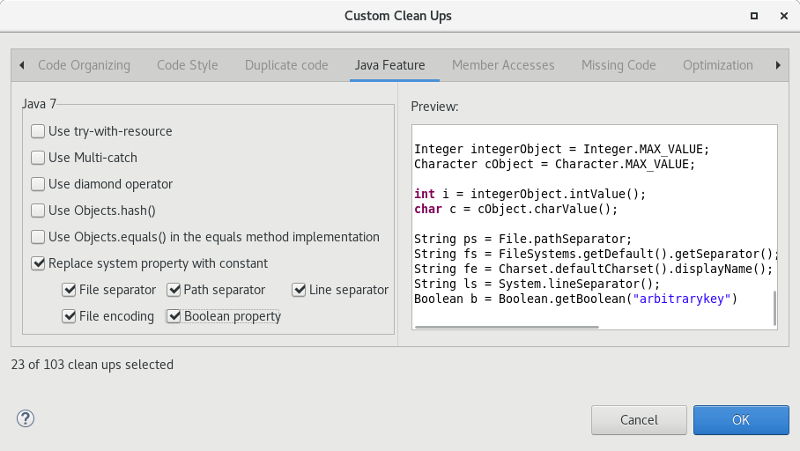
Replace System.getProperty() calls clean up

A new clean up has been added that replaces certain System.getProperty() calls with alternative Java method calls or constants instead. Using these calls/constants may end up using system defaults (e.g. system default file separator) and thus can no longer be overridden at runtime.

To apply the clean up, select Replace system property with constant check box on the Java Feature tab in your clean up profile. This enables you to check one or more sub-options: File separator, Path separator, Line separator, File encoding, or Boolean property. The last option is used for arbitrary boolean options specified by -Dsome-arbitrary-option.

system properties preferences

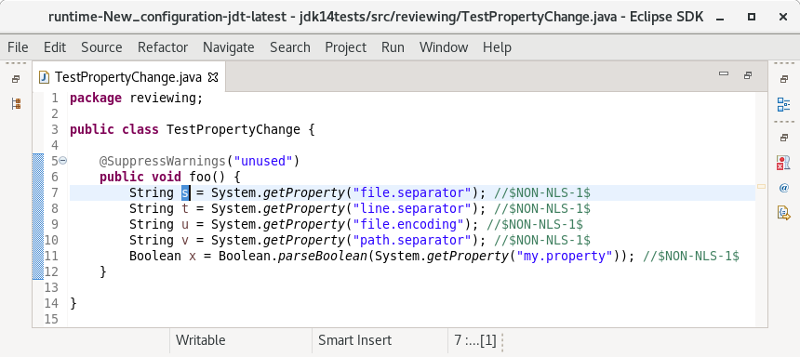
For the given code:

system properties before

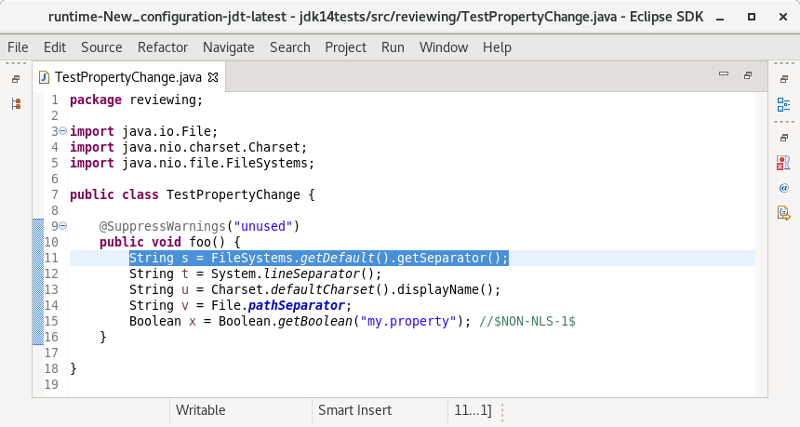
One gets:

system properties after

Java Compiler

Find external annotations anywhere

External annotations, which are used for annotation based null analysis, can now be associated to unannotated classes more freely.

Previously, all external annotations where declared per build path entry. I.e., whenever a project of yours uses a library for which external annotations exist, you would need to explicitly declare where the corresponding external annotations for this particular library can be found.

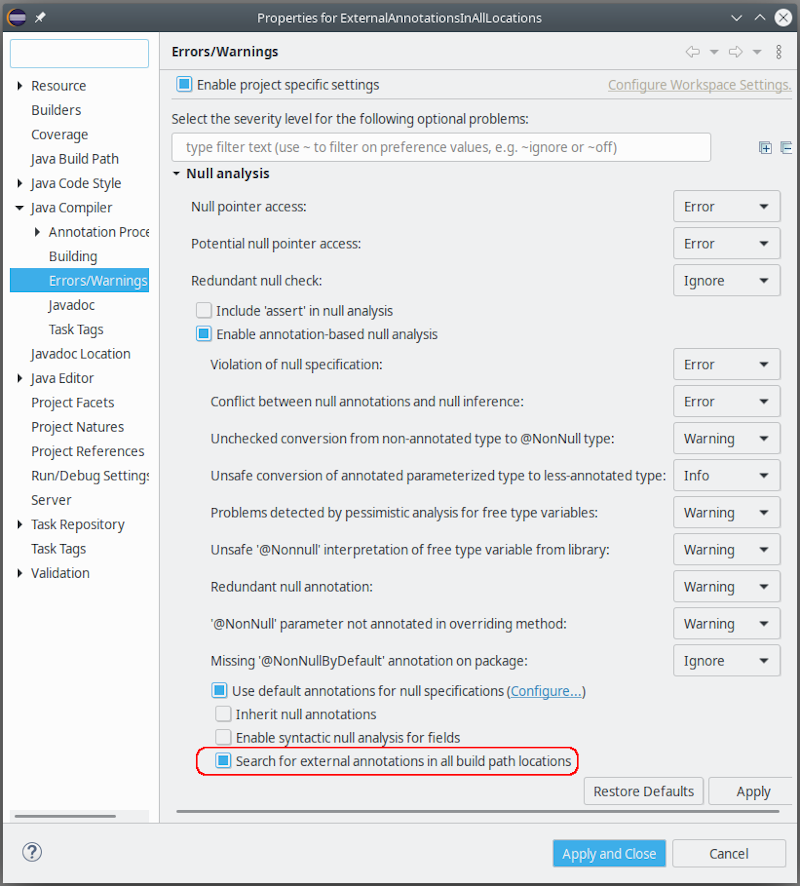
A new compiler preference has been added by which you can instruct the compiler to search for external annotations in all build path locations of the current project.

external annotations all locations

When enabled, this strategy will be applied to all class files encountered during compilation.

Some examples, where this option is useful:

  • A project A contains generated sources (in a separate source folder), which are decorated using external annotations in the same project. When project A ships a jar containing also the external annotations, any client of A will immediately see the generated classes with their external annotations applied.

  • When dedicated jars have been created, each containing external annotations for a set of libraries, you only have to add these annotation jars to your build path and enable the new option, without worrying which annotation jar corresponds to which individual dependency (dependencies). The compiler will match external annotations to class files with no further help.

For batch compilation a corresponding option already exists. To match the above strategy in CI-builds, just add the following to the compiler command line (verbatim): -annotationpath CLASSPATH

Java Views and Dialogs

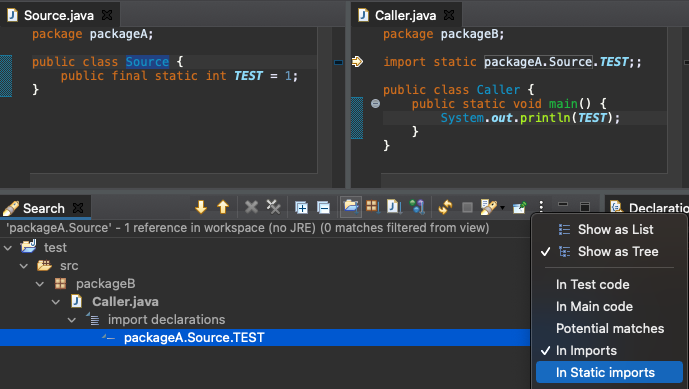
Differentiate search filter for normal imports from static imports

The Search view now supports a new filter dedicated for static imports. Consequently, the existing imports filter is dedicated for non-static imports only. As a result, you will now by default find statically imported references of a class or an interface.

static import filter
Create module-info.java option during New Java Project creation

Create module-info.java option has been moved to the first page of New Java Project creation wizard. This option will be enabled only for Java projects with JRE 9 or above. New Java Project creation wizard will also remember the previous choice made by the user and select this option by default accordingly.

create moduleinfo
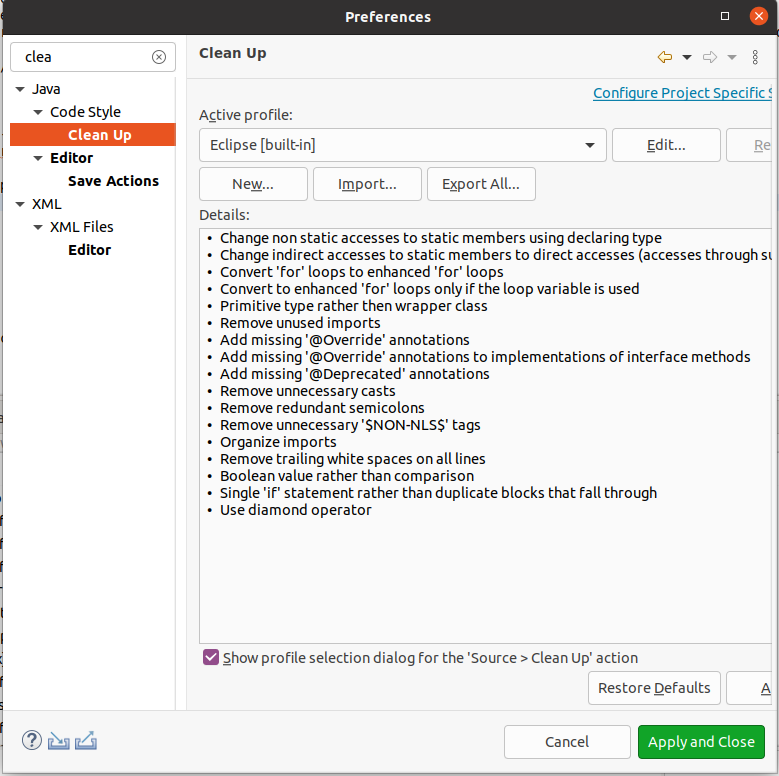
Default Java cleanup profile of Eclipse has been updated

The default cleanup profile of the Java development tools has been updated to include more cleanups. All included cleanups have been well tested and proven to be stable in the Eclipse code base. Please see the preference under Java > Clean-up for details.

cleanup profile

Debug

Evaluate variables in current execution stack

In debug mode, regardless of the selected stack frame now you can evaluate variables which are in the scope of the current execution stack frame and stack frames below it which are defined in the current focused java class.

debug eval intrim stack
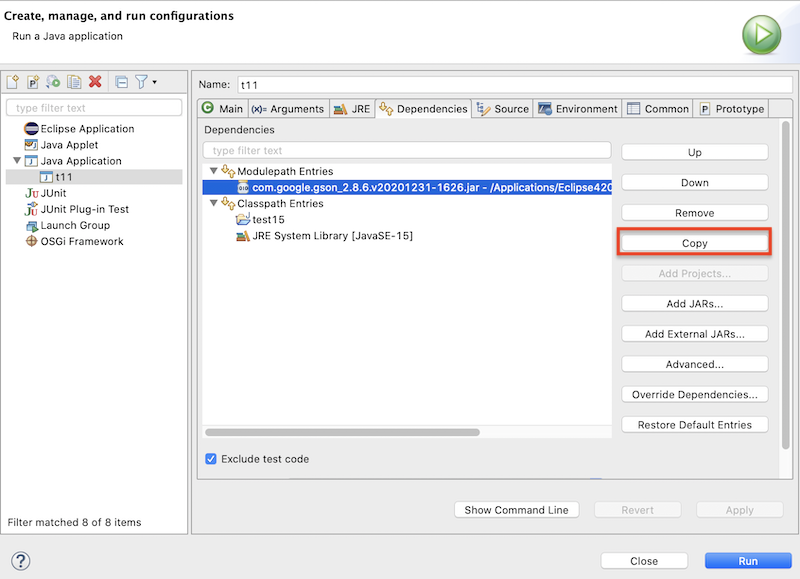
Copy Run Configuration item details

A new Copy button has been added to the Dependencies/Classpath tab of Run Configuration dialog. This can be used to copy the details of the selected item.

configuration copyjars
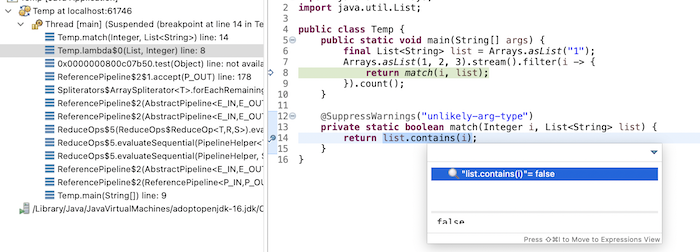
Debug hover for chain of variables

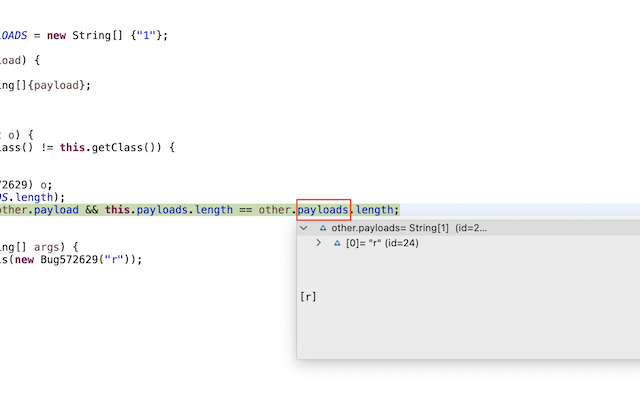
When hovering over chain of variables, the debug hover will now show the variable value under the cursor.

debug hover chain var

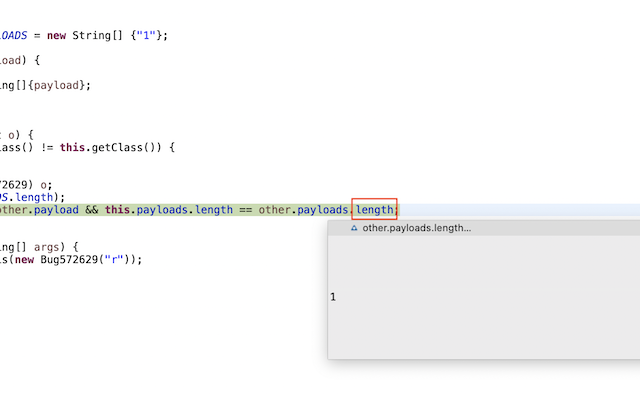
It even works for array length.

debug hover array length

And more…​

You can find more noteworthy updates in on this page.

What is next?

Having JBoss Tools 4.21.0 and Red Hat CodeReady Studio 12.21.0 out we are already working on the next release.

Enjoy!

Jeff Maury

Happy to announce 4.21.0.AM1 (Developer Milestone 1) build for Eclipse 2021-09.

Downloads available at JBoss Tools 4.21.0 AM1.

What is New?

Full info is at this page. Some highlights are below.

OpenShift

Operator based services

When developing cloud native applications on OpenShift, developer may need to launch services (databases, messaging system,…​) that the application under development may need to connect to. The OpenShift tooling allowed to launch such services but it was based on the service catalog which is not available anymore on OpenShift 4.

The new feature is based on operators which is the devops way of installing and managing software on Kubernetes clusters. So when you want to launch a service for your application, you will have to choose from the list of installed operators on your cluster and then select type of deployment you want.

In the following example, there are two operators installed on our cluster: the Strimzi operator for setting up Kafka clusters on Kubernetes and a Postgresql operator.

For each operator, we can select the type of deployment we want to setup.

operator based services1

After you’ve entered the name of your service, it will appear in the application explorer view:

operator based services2

Hibernate Tools

A number of additions and updates have been performed on the available Hibernate runtime providers.

Runtime Provider Updates

The Hibernate 5.5 runtime provider now incorporates Hibernate Core version 5.5.7.Final and Hibernate Tools version 5.5.7.Final.

The Hibernate 5.3 runtime provider now incorporates Hibernate Core version 5.3.22.Final and Hibernate Tools version 5.3.22.Final.

Enjoy!

Jeff Maury

JBoss Tools 4.19.1 and Red Hat CodeReady Studio 12.19.1 for Eclipse 2021-03 are here waiting for you. Check it out!

crstudio12

Installation

Red Hat CodeReady Studio comes with everything pre-bundled in its installer. Simply download it from our Red Hat CodeReady product page and run it like this:

java -jar codereadystudio-<installername>.jar

JBoss Tools or Bring-Your-Own-Eclipse (BYOE) CodeReady Studio require a bit more:

This release requires at least Eclipse 4.19 (2021-03) but we recommend using the latest Eclipse 4.19 2021-03 JEE Bundle

since then you get most of the dependencies preinstalled.

Java11 is now required to run Red Hat Developer Studio or JBoss Tools (this is a requirement from Eclipse 4.17). So make sure to select a Java11 JDK in the installer. You can still work with pre-Java11 JDK/JRE and projects in the tool.

Once you have installed Eclipse, you can either find us on the Eclipse Marketplace under "JBoss Tools" or "Red Hat CodeReady Studio".

For JBoss Tools, you can also use our update site directly.

http://download.jboss.org/jbosstools/photon/stable/updates/

What is new?

Our main focus for this release was an improved tooling for the Quarkus framework, improvements for container based development and bug fixing.

OpenShift

Improved OpenShift Application explorer

When the OpenShift cluster has no applications or projects, user is required to create them. However, it may not be obvious for the user that the corresponding function is available from a sub menu of the New context menu.

So now, a link will be provided within the tree with an explanation message.

If no projects are available, user will be guided to create one:

application explorer enhanced navigation1

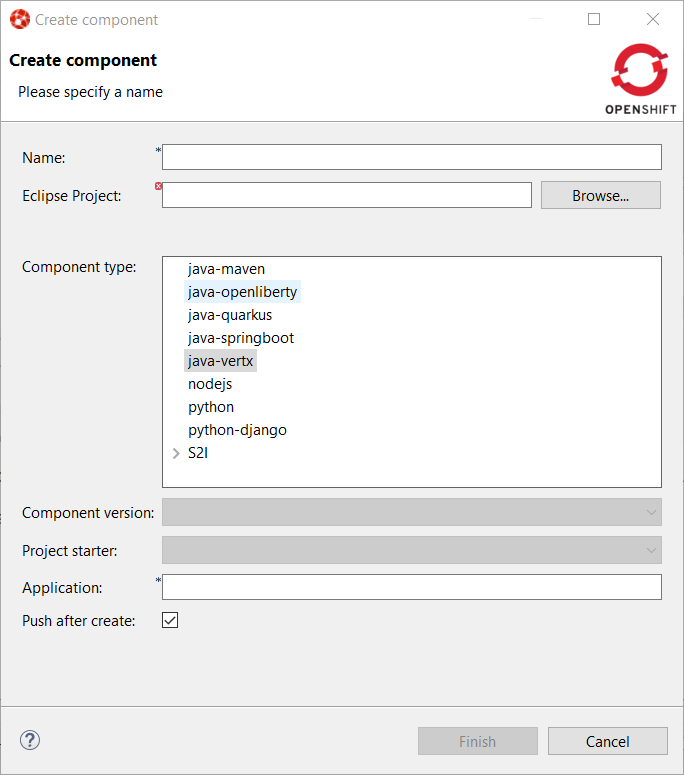
If no applications are available in a project, user will be guided to create a new component:

application explorer enhanced navigation2

Server Tools

Wildfly 24 Server Adapter

A server adapter has been added to work with Wildfly 24.

EAP 7.4 Beta Server Adapter

The server adapter has been adapted to work with EAP 7.4 Beta.

Hibernate Tools

Hibernate Runtime Provider Updates

A number of additions and updates have been performed on the available Hibernate runtime providers.

New Runtime Provider

The new Hibernate 5.5 runtime provider has been added. It incorporates Hibernate Core version 5.5.3.Final and Hibernate Tools version 5.5.3.Final

Runtime Provider Updates

The Hibernate 5.4 runtime provider now incorporates Hibernate Core version 5.4.32.Final and Hibernate Tools version 5.4.32.Final.

And more…​

You can find more noteworthy updates in on this page.

What is next?

Having JBoss Tools 4.19.1 and Red Hat CodeReady Studio 12.19.1 out we are already working on the next release.

Enjoy!

Jeff Maury

Happy to announce 4.19.1.AM1 (Developer Milestone 1) build for Eclipse 2021-03.

Downloads available at JBoss Tools 4.19.1 AM1.

What is New?

Full info is at this page. Some highlights are below.

OpenShift

Improved OpenShift Application explorer

When the OpenShift cluster has no applications or projects, user is required to create them. However, it may not be obvious for the user that the corresponding function is available from a sub menu of the New context menu.

So now, a link will be provided within the tree with an explanation message.

If no projects are available, user will be guided to create one:

application explorer enhanced navigation1

If no applications are available in a project, user will be guided to create a new component:

application explorer enhanced navigation2

Hibernate Tools

A number of additions and updates have been performed on the available Hibernate runtime providers.

Runtime Provider Updates

The Hibernate 5.4 runtime provider now incorporates Hibernate Core version 5.4.32.Final and Hibernate Tools version 5.4.32.Final.

Enjoy!

Jeff Maury

JBoss Tools 4.19.0 and Red Hat CodeReady Studio 12.19 for Eclipse 2021-03 are here waiting for you. Check it out!

crstudio12

Installation

Red Hat CodeReady Studio comes with everything pre-bundled in its installer. Simply download it from our Red Hat CodeReady product page and run it like this:

java -jar codereadystudio-<installername>.jar

JBoss Tools or Bring-Your-Own-Eclipse (BYOE) CodeReady Studio require a bit more:

This release requires at least Eclipse 4.19 (2021-03) but we recommend using the latest Eclipse 4.19 2021-03 JEE Bundle since then you get most of the dependencies preinstalled.

Java11 is now required to run Red Hat Developer Studio or JBoss Tools (this is a requirement from Eclipse 4.17). So make sure to select a Java11 JDK in the installer. You can still work with pre-Java11 JDK/JRE and projects in the tool.

Once you have installed Eclipse, you can either find us on the Eclipse Marketplace under "JBoss Tools" or "Red Hat CodeReady Studio".

For JBoss Tools, you can also use our update site directly.

http://download.jboss.org/jbosstools/photon/stable/updates/

What is new?

Our main focus for this release was an improved tooling for the Quarkus framework, improvements for container based development and bug fixing.

OpenShift

Login to Developer Sandbox from the tooling

Red Hat provides an online OpenShift environment called Developer Sandbox that makes it easy for developers to build, test and deploy cloud native applications and microservices.

In order to use Developer Sandbox, you must own a Red Hat SSO account (which can be linked to social accounts like GitHub,…​). Once logged in into Red Hat SSO, you will get an environment provisioned in Developer Sandbox but the first time you will try to login in to Developer Sandbox, your account needs to be verified (in order to prevent crypto miners and robots) thus you need to go through a verification phase where you will be asked to provide:

  • first your phone number and country code

  • then a verification code that you will receive on your smartphone.

So it is now possible to provision and log in to Developer Sandbox from the OpenShift tooling and connect it to the Developer Sandbox environment.

Open the OpenShift Application Explorer view (Window → Show View → Other…​, enter open and double click on OpenShift Application Explorer):

devsandbox1

Right click on the first node and select the Login context menu:

devsandbox2

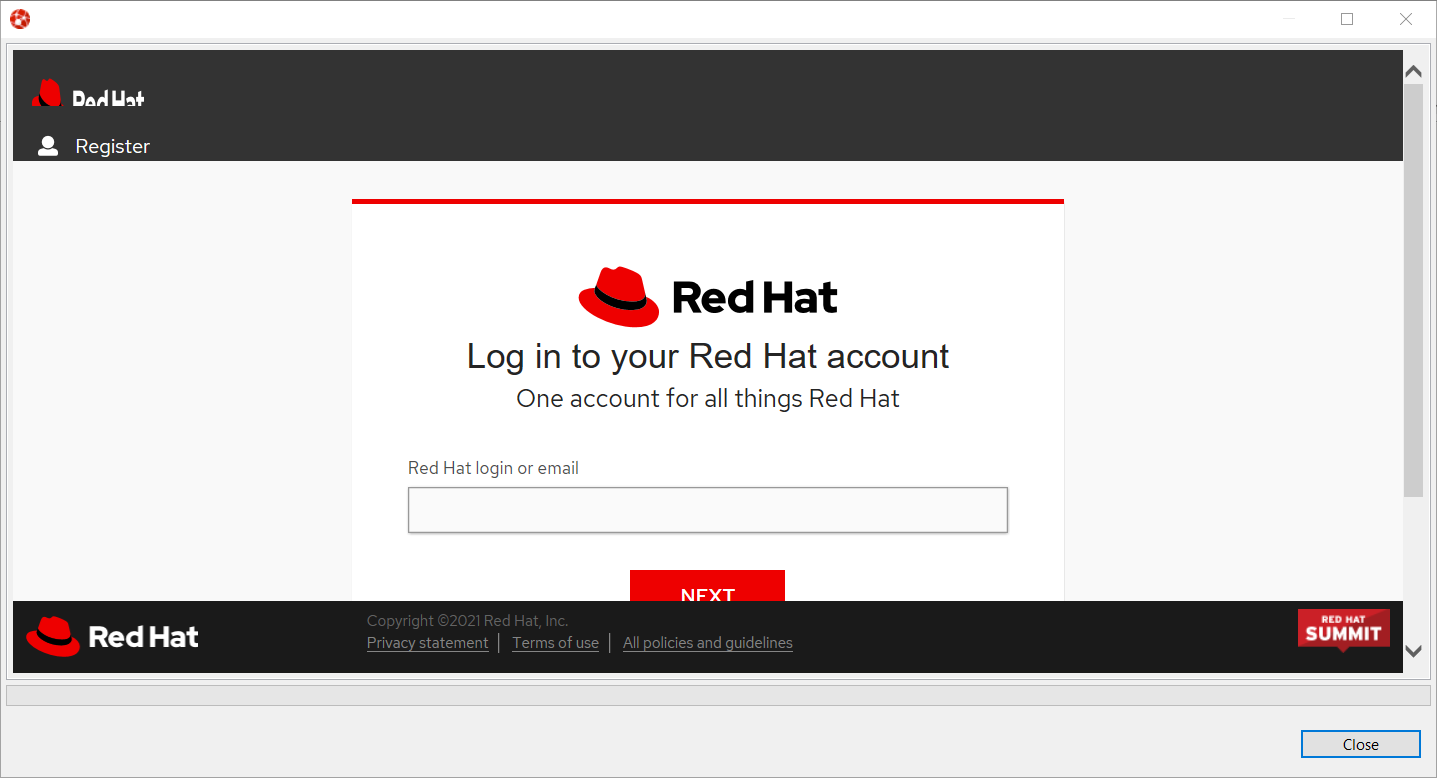
In order to provision the Developer Sandbox environment, click on the Red Hat Developer Sandbox link: a browser window will open and you will be required to login to your Red Hat SSO account:

devsandbox3

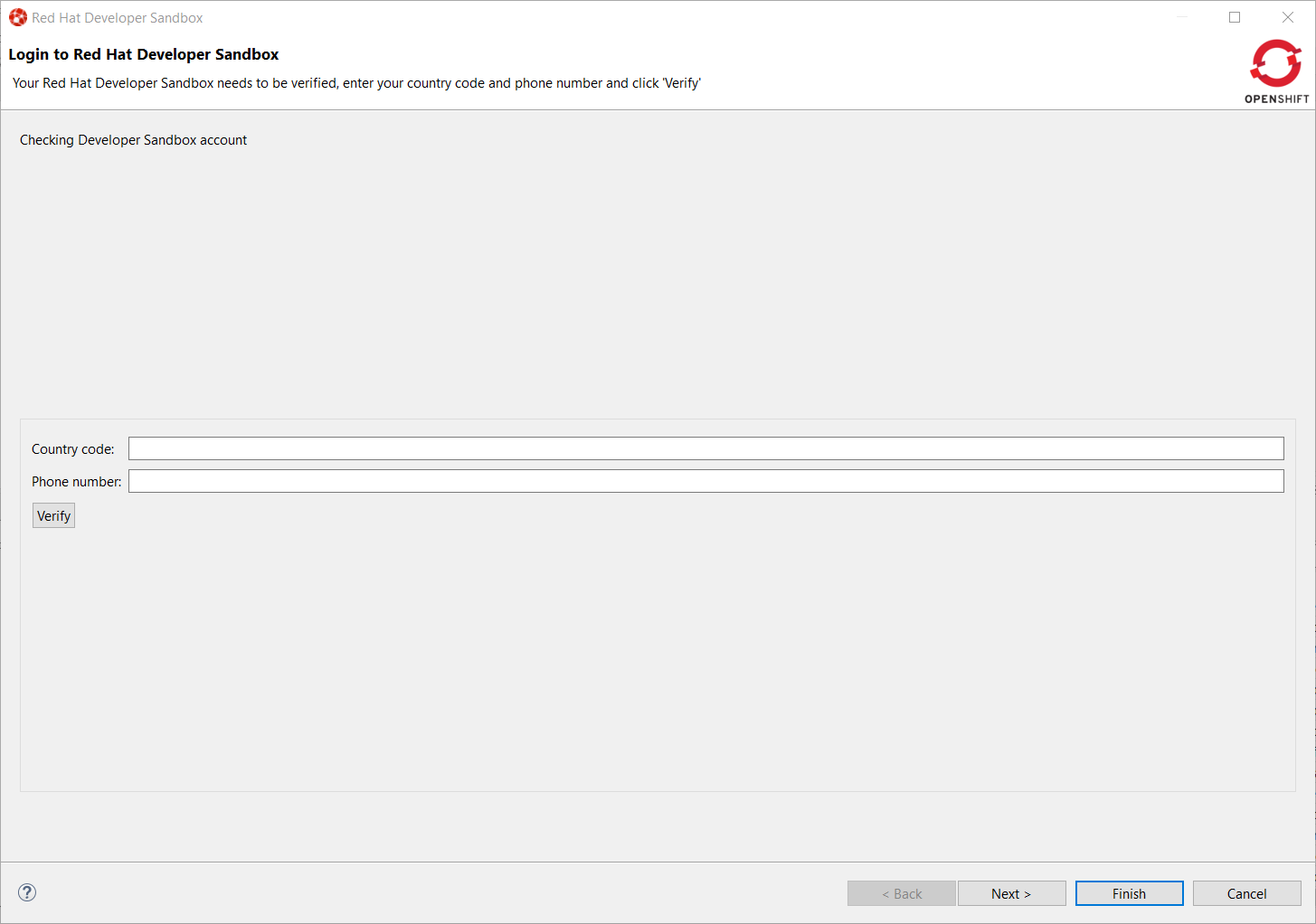
Login to your account (please note that if you don’t have a Red Hat account, you can create a new one). Once you’re logged in, you should see the following window:

devsandbox4

Enter your contry code (+XX) and phone number and click the Verify button:

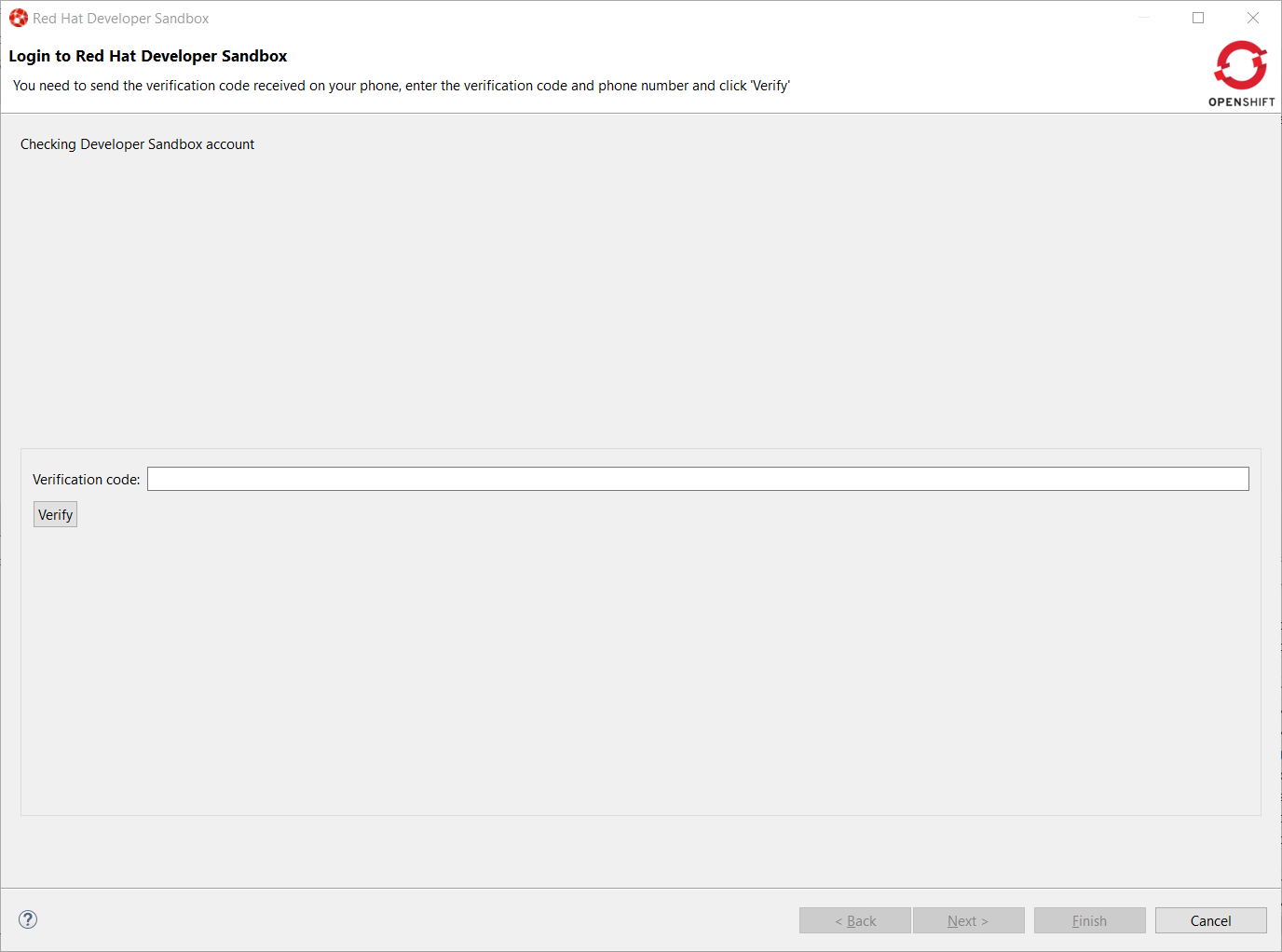
You will be required to provide the verification code that you should have received on your phone:

devsandbox5

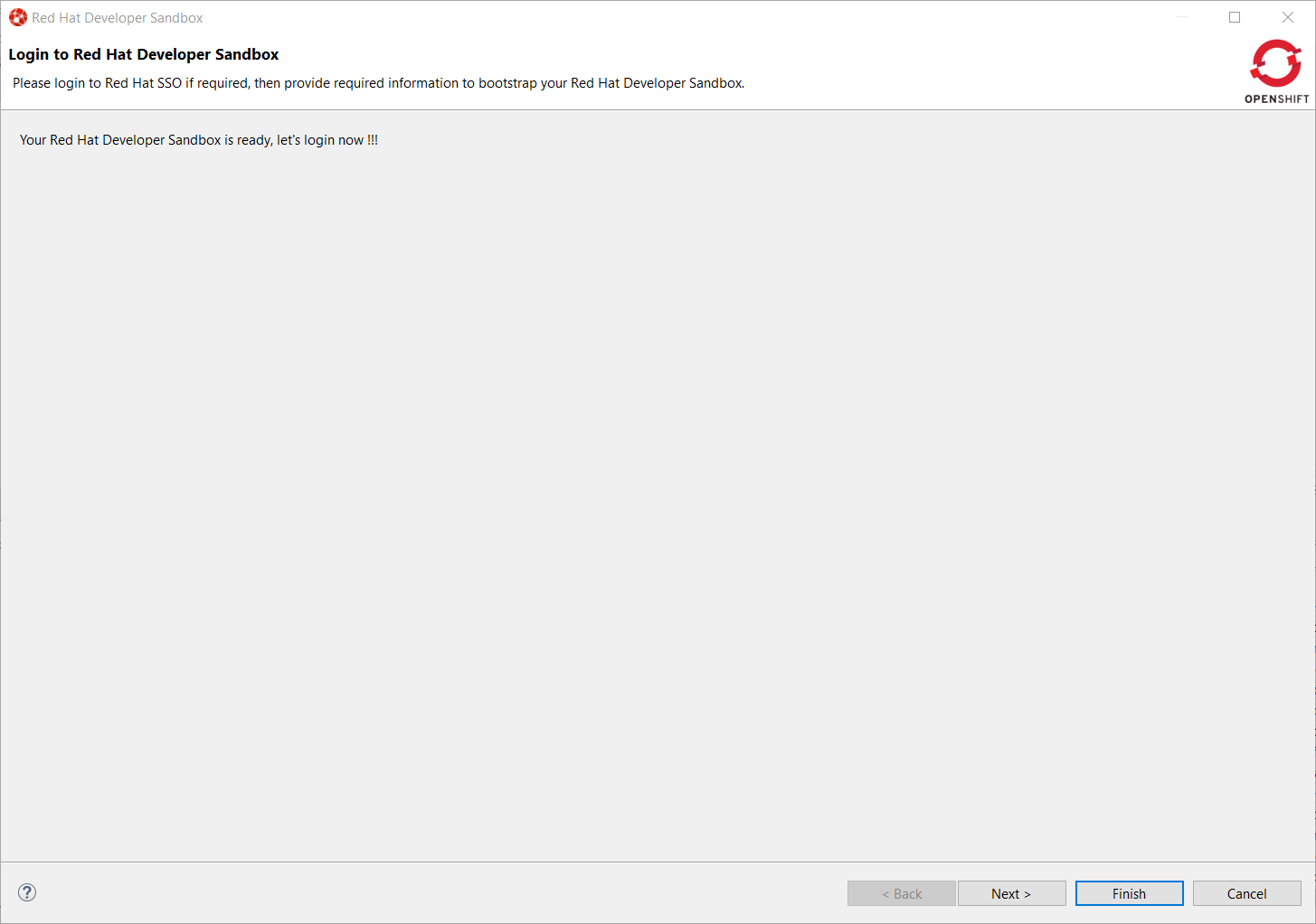
Once your Developer Sandbox environment is provisioned; you will see the following window:

devsandbox6

Click on the Ǹext button to log in to your Developer Sandbox environment:

devsandbox7

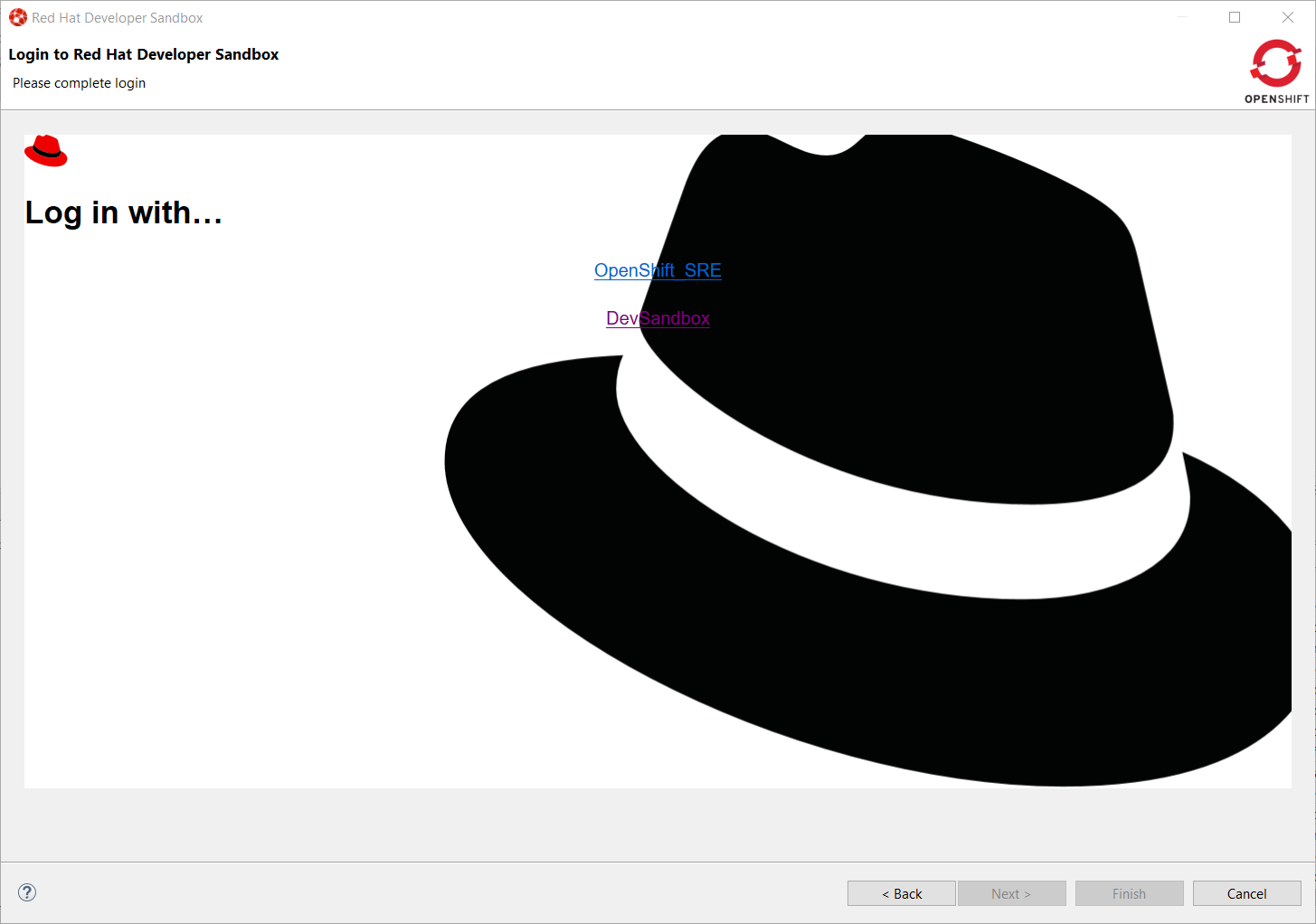
Click on the DevSandbox link and log in with the same credentials: you will see the following window:

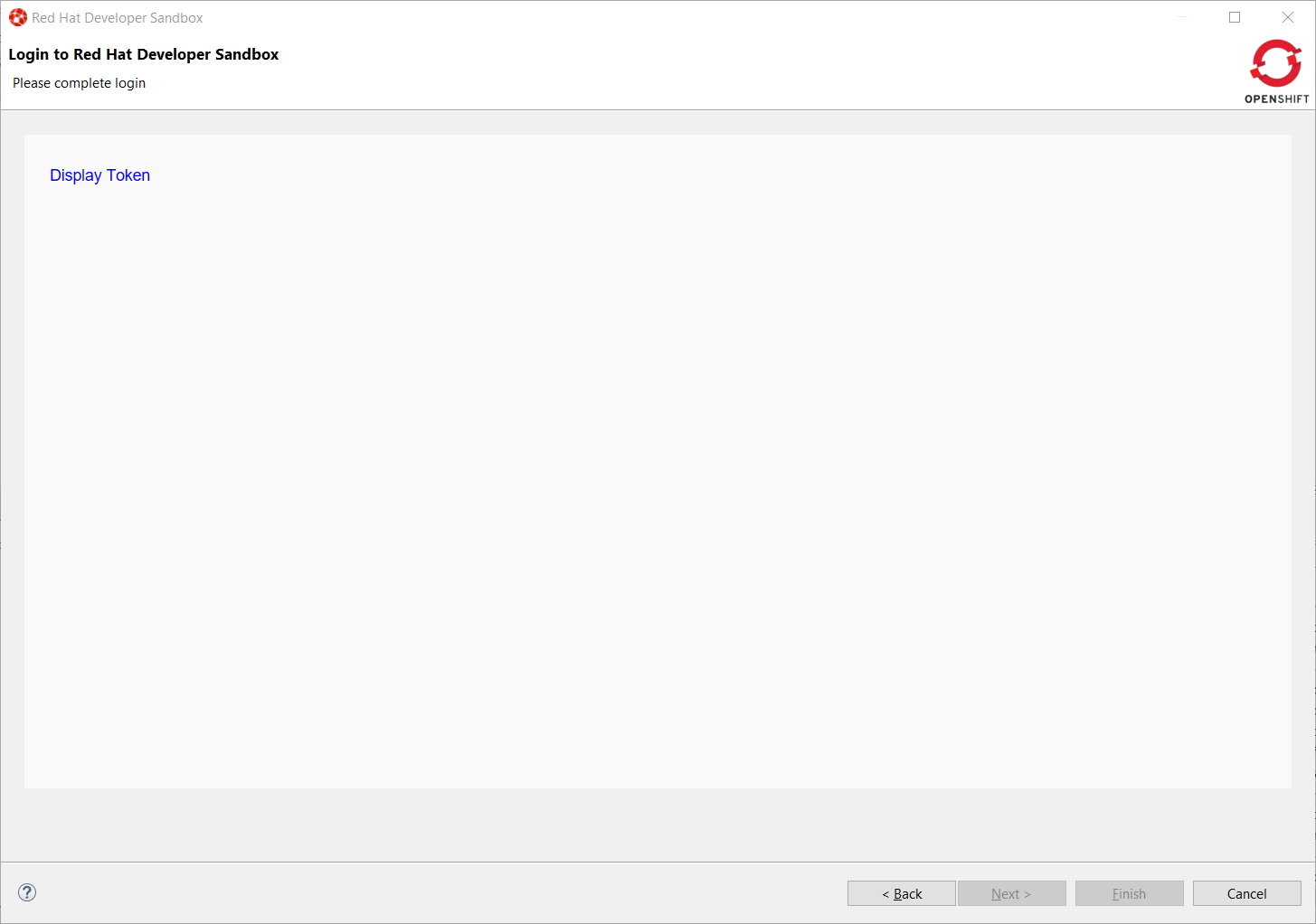
devsandbox8

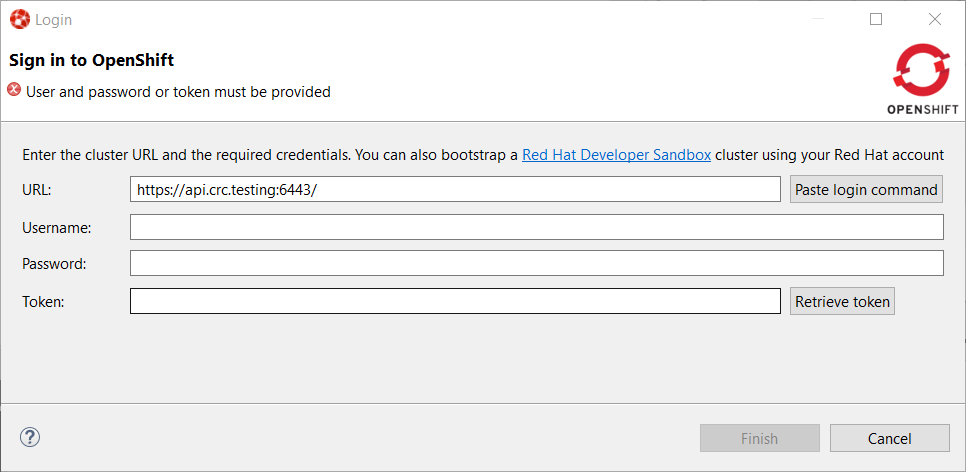
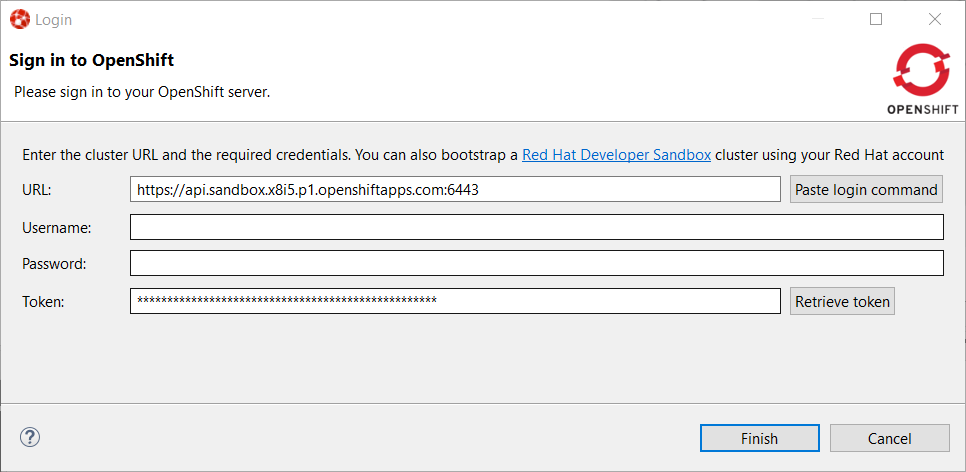
Click on the Display Token link and the click on the Finish button, you should be back to the Login wizard:

devsandbox9

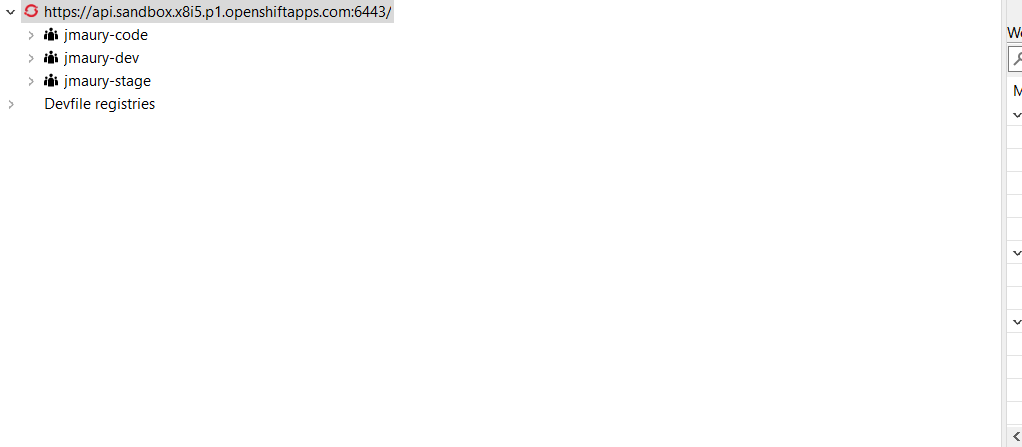
Please note that the URL and Token fields have been updated. Click the Finish button, the OpenShift Application Explorer will be updated with the Developer Sandbox URL and if you expand it, you will see 3 namespaces/projects available for you to start playing with:

devsandbox10

You’re now ready to work against this environment for free !!!.

Browser based login to an OpenShift cluster

When it comes to login to a cluster, OpenShift Tools supported two different authentication mechanisms:

  • user/password

  • token

The drawback is that it does not cover clusters where a more enhanced and modern authentication infrastructure is in place. So it is now possible to login to the cluster through an embedded web browser.

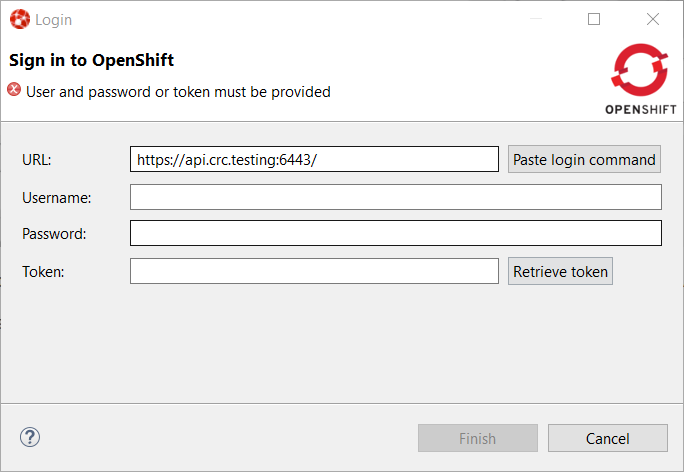
In order to use it, go to the Login context menu from the Application Explorer view:

weblogin1

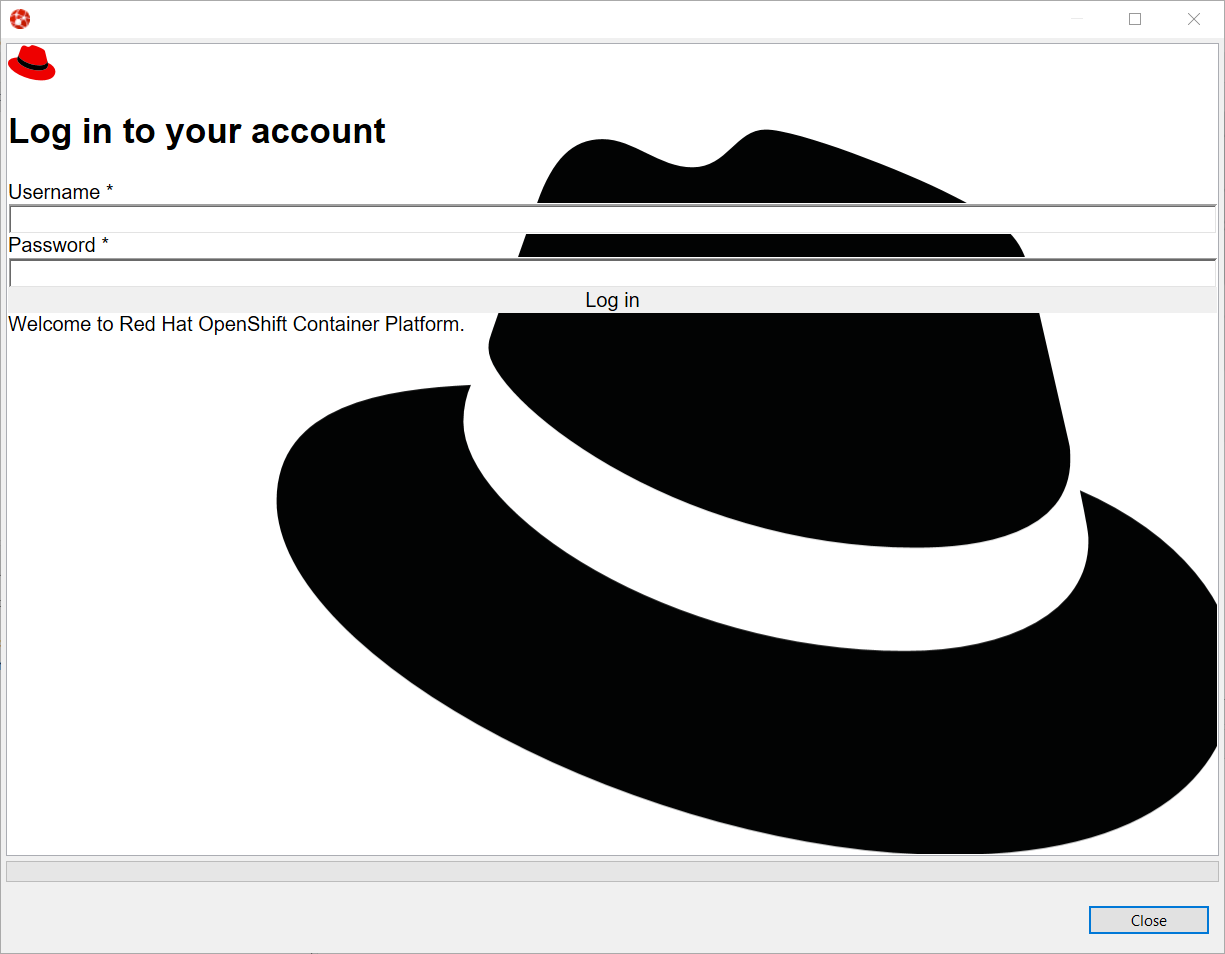
Click on the Retrieve token button and an embedded web browser will be displayed:

weblogin2

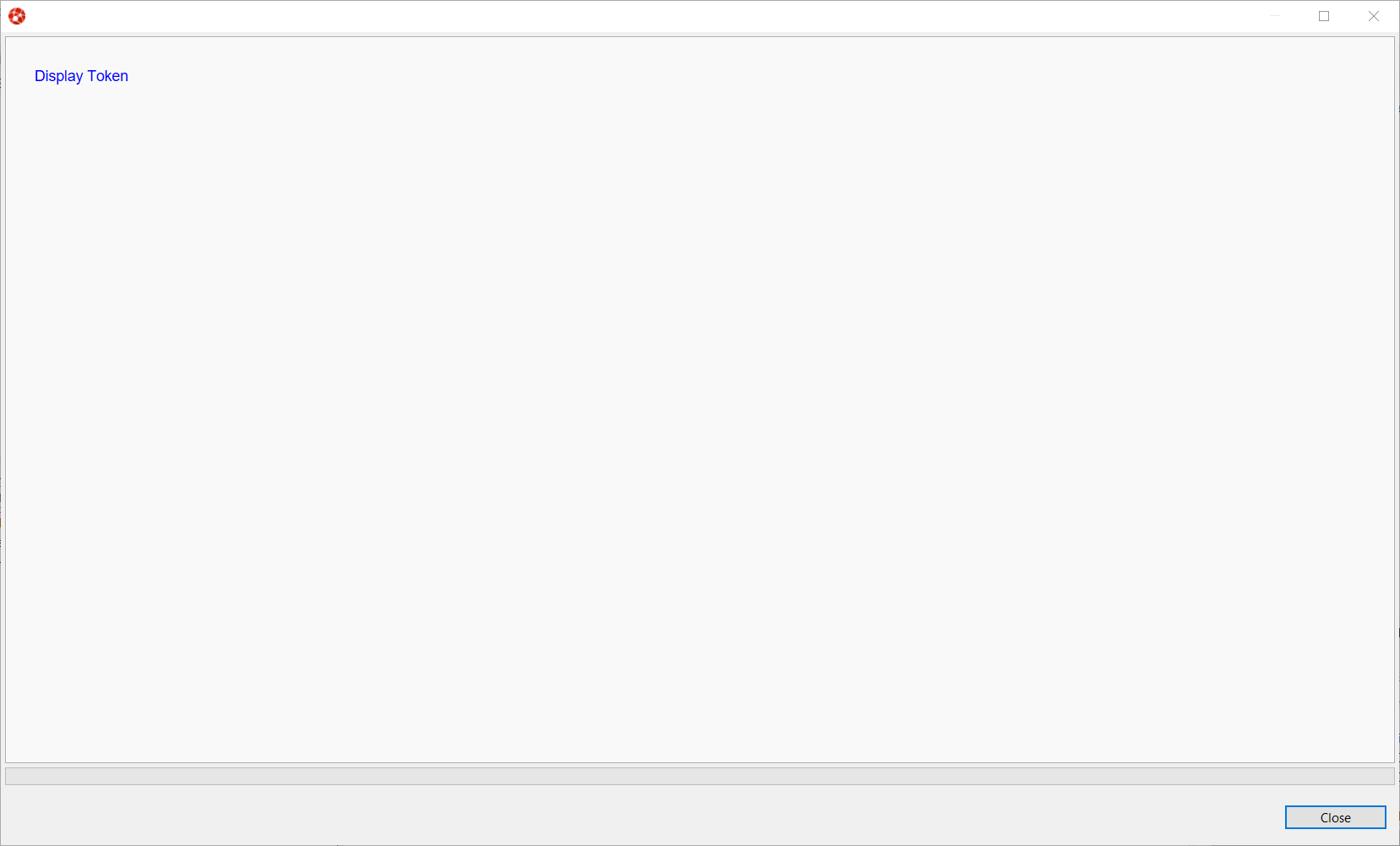
Complete the workflow until you see a page that contains Display Token:

weblogin3

Click on Display Token:

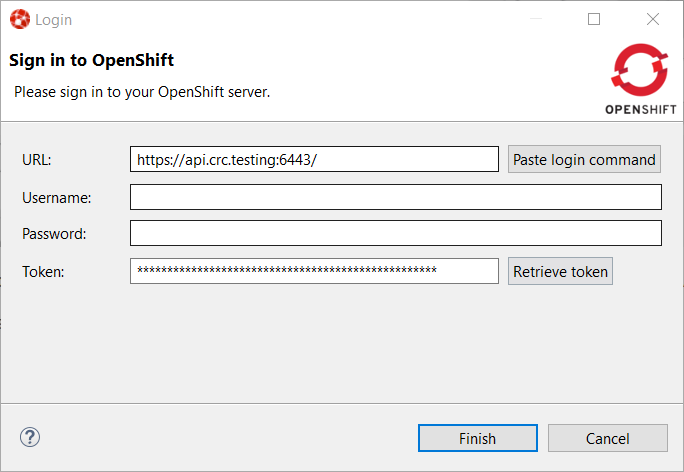
The web browser is automatically closed and you’ll notice that the retrieved token has been set in the original dialog:

weblogin4

Devfile registries management

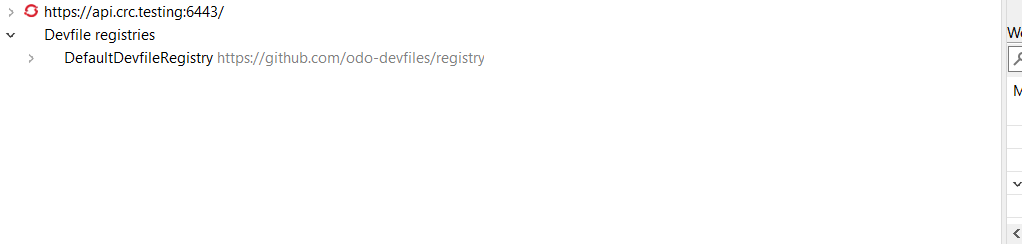
Since JBoss Tools 4.18.0.Final, the preferred way of developing components is now based on devfile, which is a YAML file that describe how to build the component and if required, launch other containers with other containers. When you create a component, you need to specify a devfile that describe your component. So either you component source contains its own devfile or you need to pick a devfile that is related to your component. In the second case, OpenShift Tools supports devfile registries that contains a set of different devfiles. There is a default registry (https://github.com/odo-devfiles/registry) but you may want to have your own registries. It is now possible to add and remove registries as you want.

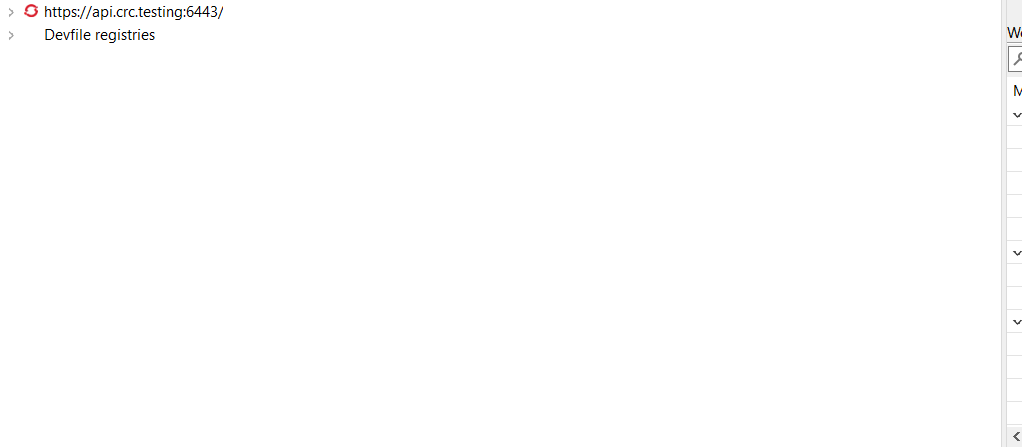
The registries are displayed in the OpenShift Application Explorer under the Devfile registries node:

registries1

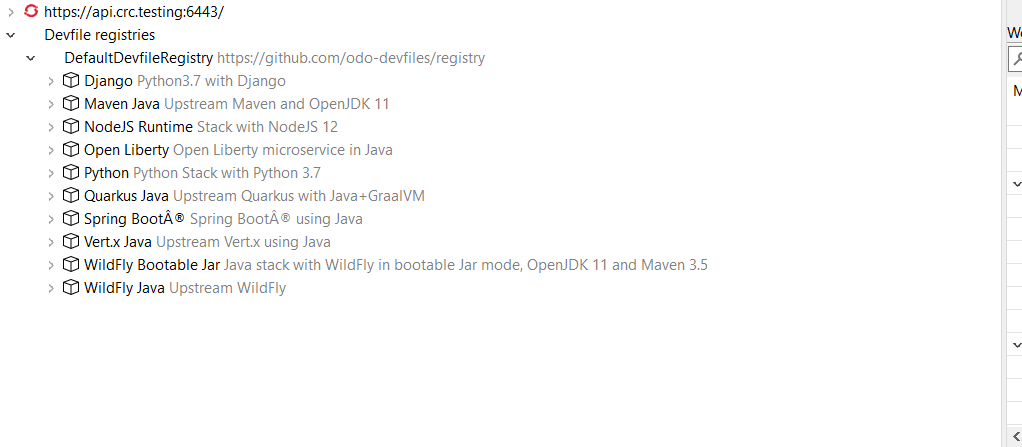
Please note that expanding the registry node will list all devfiles from that registry with a description:

registries2

A context menu on the Devfile registries node allows you to add new registries, and on the registry node to delete it.

Devfile enhanced editing experience

Although devfile registries can provide ready-to-use devfiles, there may be some advanced cases where users need to write their own devfile. As the syntax is quite complex, the YAML editor has been completed so that to provide:

  • syntax validation

  • content assist

Support for Python based components

Python-based components were supported but debugging was not possible. This release brings integration between the Eclipse debugger and the Python runtime.

Quarkus

Support for environment variables in Run/debug Quarkus configurations

Environment variables is one way to override properties values in the Quarkus properties file. It is now possible to specify environment variables in a Run/debug Quarkus configuration.

Server Tools

Wildfly 23 Server Adapter

A server adapter has been added to work with Wildfly 23.

EAP 7.4 Beta Server Adapter

The server adapter has been adapted to work with EAP 7.4 Beta.

Hibernate Tools

Hibernate Runtime Provider Updates

A number of additions and updates have been performed on the available Hibernate runtime providers.

Runtime Provider Updates

The Hibernate 5.4 runtime provider now incorporates Hibernate Core version 5.4.30.Final and Hibernate Tools version 5.4.30.Final.

Platform

Views, Dialogs and Toolbar

Filter field for configuration details

A filter field has been added to the Installation Details > Configuration tab. This allows much faster lookup of specific information from the system details by showing only lines containing the filter criteria.

configuration filter
Preference to remember the last used page in search dialog

The Remember last used page check box was previously available from the Search dialog > Customize…​ > Search Page Selection dialog, which was not intuitive and hard to find. Now, the check box is moved to the Search preference page.

A new preference Remember last used page in the Search dialog has been added to Preferences > General > Search page. This new preference is enabled by default. image::https://www.eclipse.org/eclipse/news/4.18/images/remember-last-used.png[]

Text Editors

Horizontal Scrolling in Text Editor

You can now scroll horizontally in the Text Editor using Shift+Mouse Wheel and touchpad gestures on Windows. Horizontal scrolling with touchpad already works on Linux and macOS.

Open-with does not store the editor relationship anymore

The menu entry Open With  …​ does not store the selected editor as default editor for the selected file as this was undesired in most cases and lead to confusion. Also, removing this association was not easy for the end user. The user can still assign a editor to a certain file type via the Open With  Other…​ dialog.

Debug

Find Next/Previous in Console View

In the Console view, you can repeat your last search in the forward or backward direction in the following ways:

  • Right-click in the Console view, then select Find Next or Find Previous.

  • Use the keyboard shortcuts Ctrl+K or Ctrl+Shift+K.

console find next find previous 45017
Disable All in Breakpoints view

In the Breakpoints view, you can disable all the breakpoints using the new Disable All context-menu option available on right-click.

disable allbreakpoints
Terminate descendants of operating-system processes launched by Eclipse

Some types of launch-configurations start operating-system processes when launched from Eclipse. When you terminate the corresponding process before it completes (for example by clicking the terminate button, the red square) that operating-system process is destroyed. Now the descendants of that process, its child-processes created by the main-process and their children recursively, are destroyed too.

Termination of child processes of launched OS processes can be configured

Since Eclipse 4.18 child processes (descendants) of an operating system process launched from Eclipse are terminated too, when the launched process is terminated (for example by clicking the terminate button).

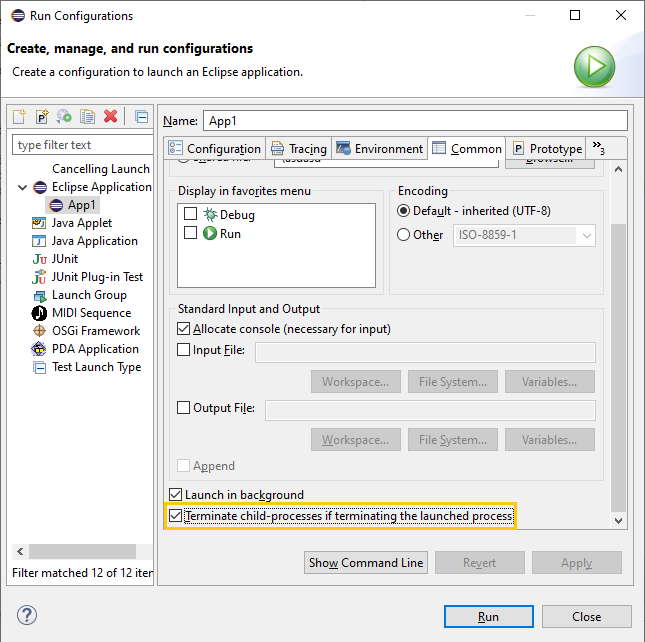
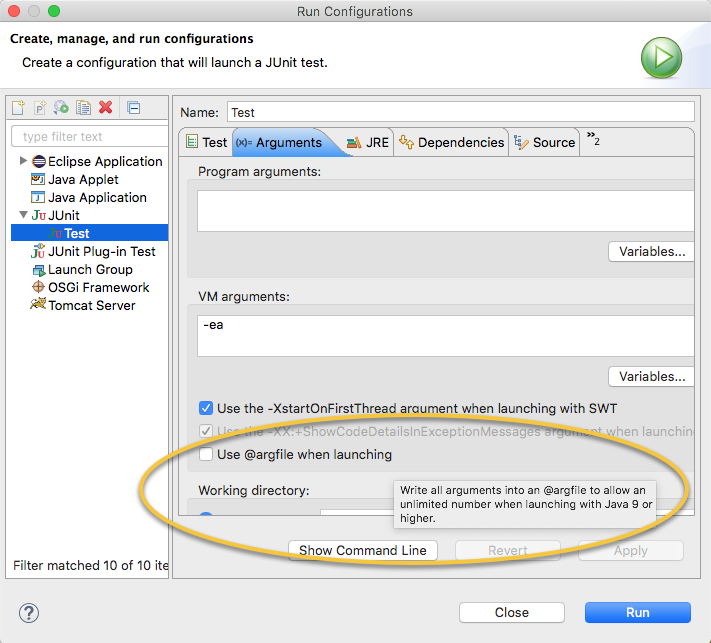
It is now possible to configure in the Launch Configuration whether the child processes of a launched process should be terminated too or if they should stay alive, in case the launched processes is terminated. You can control this with the checkbox Terminate child processes if terminating the launched process in the Common tab of the Run/Debug Configurations dialog. By default this checkbox is selected and child processes are terminated too.

configure child process termination

Preferences

External browsers on Windows

On Windows, the list of recognized External web browsers has been updated to include:

  • Microsoft Edge (%ProgramFiles(x86)%\Microsoft\Edge\Application\msedge.exe)

browsers windows update

Enable word wrap on console output

A new preference Enable word wrap is available in the Console preference page. This setting persists the current state of the "Word wrap" toggle on the console view between user sessions. By default, word wrapping is disabled on console output.

console preferences word wrap

Themes and Styling

New "System" theme

A new "System" theme is available in the Appearance preference page. This theme is built using system colors, and as a consequence integrates well in any OS and OS theme.

This screenshot shows the System theme in action under several GTK themes:

GTK Adwaita:

systemTheme gtkAdawaita

GTK Adwaita Dark:

systemTheme gtkAdawaitaDark

GTK Kripton:

systemTheme gtkKripton

GTK Dark Mint:

systemTheme gtkDarkMint
Windows dark theme styles progress bars

The progress bar in the dark theme on Windows OS is now styled:

progressbar dark win32
Light theme on macOS

The Light theme for macOS has been updated to fit the latest macOS design.

Old:

macTheme light old

New:

macTheme light new

General Updates

Equinox Linux Security JNA Fragment

A new fragment has been added for Linux password security using JNA. This new fragment replaces the old JNI x86_64-specific fragment and supports all Linux architectures.

Ant 1.10.9

Eclipse has adopted Ant version 1.10.9.

Java Developement Tools (JDT)

JUnit

JUnit 5.7.1

JUnit 5.7.1 is here and Eclipse JDT has been updated to use this version.

Java Editor

Quick assist to create try-with-resources

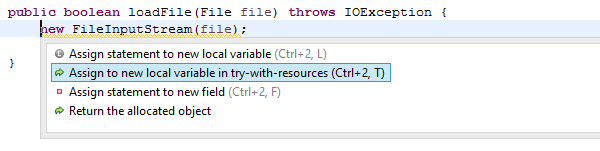
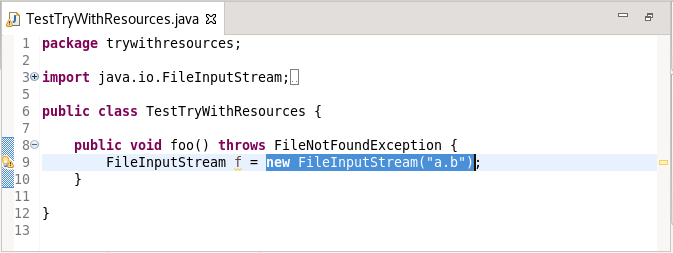
For expressions returning a type that is AutoCloseable there’s a new quick assist (Ctrl+1) available: Assign to new local variable in try-with-resources.

try with resources before

It creates a new try-with-resources block with the expression assigned to a resource variable. The variable type and name can be selected from a few suggestions:

try with resources after

The default hotkey sequence for this quick assist is Ctrl+2 followed by T.

Add catch clause to try-with-resources assists

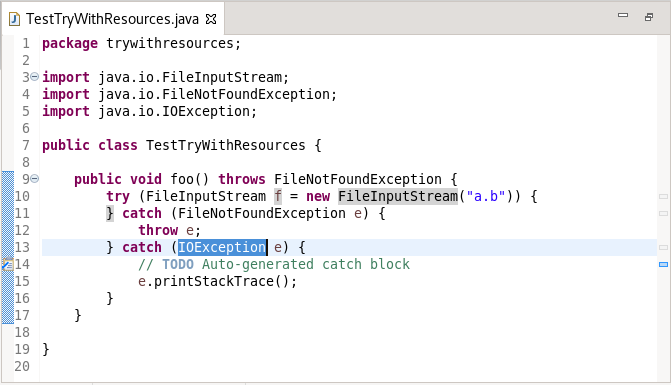
There are multiple assists to surround auto-closeable statements in a try-with-resources statement including Surround with > Try-with-resources Block. Now, all forms will add a catch clause for any exceptions (such as IOException) thrown by the auto-close if not already handled via an existing catch clause or throws directive. In the case where the existing code catches or throws an exception that sub-classes the exceptions of the new catch clause, an additional catch clause will be added to rethrow the exception to ensure code logic remains consistent.

add catch clause to try with resources before
add catch clause to try with resources after
Quick fix to create permitted type declaration

You can use the following quick fixes (Ctrl+1) to create a new permitted class or interface declaration:

create permitted type declaration

The created type will declare the sealed type as its super type and it can be declared as final, non-sealed, or sealed with the available quick fixes for further inheritance control.

Java Feature clean ups

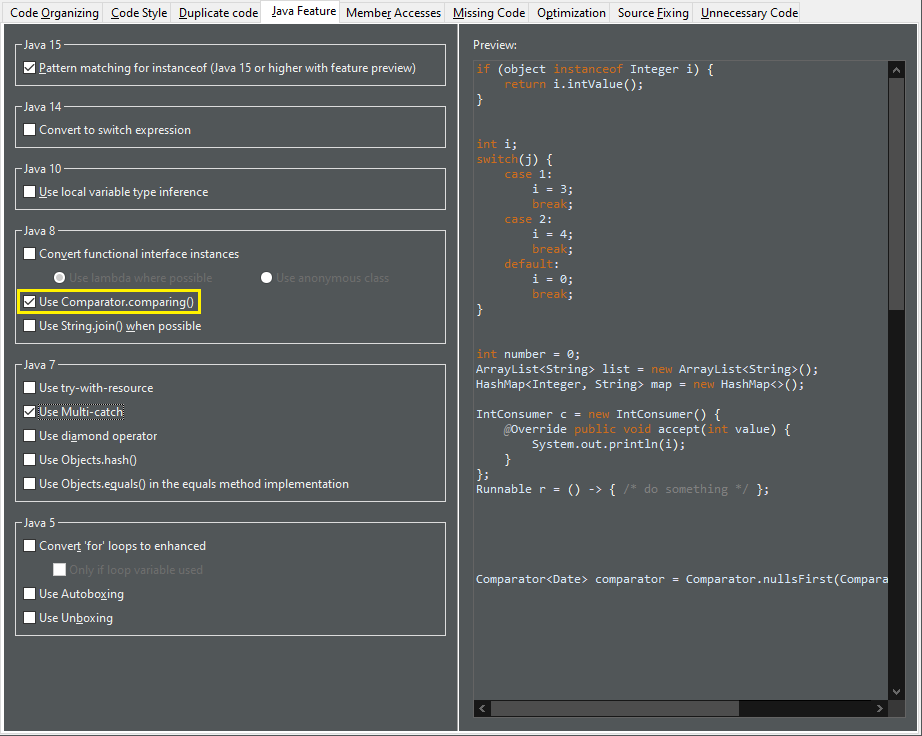
A new tab named Java Feature has been added to the Clean Up preferences. It lists the clean up options that introduce the use of language features from different Java versions. Relevant clean up options from other tabs have also been moved to this new tab.

You can use these clean ups while upgrading the Java version in your code.

java feature preferences
Pattern matching for instanceof clean up

A new clean up has been added that uses pattern matching for the instanceof operator when possible.

It is only applicable for Java 15 or higher when preview features are enabled.

To apply the clean up, select Pattern matching for instanceof check box on the Java Feature tab in your clean up profile.

pattern matching preferences

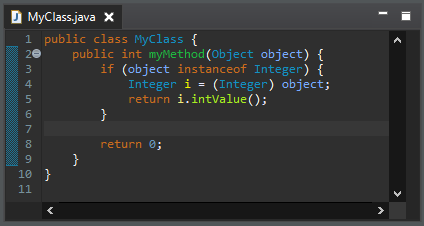
For the given code:

pattern matching before

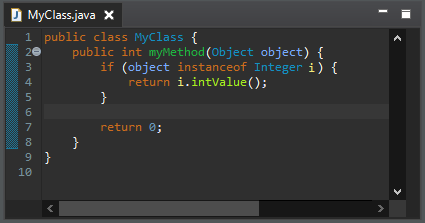
One gets:

pattern matching after
Reduce indentation clean up

A new clean up has been added that removes useless indentation when the opposite workflow falls through.

When several blocks fall through, it reduces the block with the greatest indentation. It can negate an if condition if the else statements fall through.

To apply the clean up, select Reduce indentation when possible check box on the Code Style tab in your clean up profile.

reduce indentation preferences

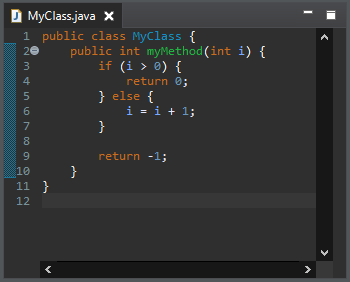
For the given code:

reduce indentation before

One gets:

reduce indentation after
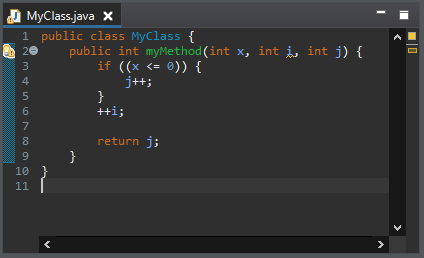
Extract increment clean up

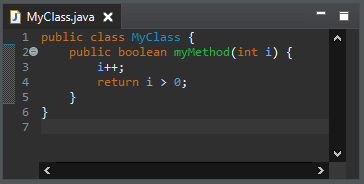
A new clean up has been added that moves increment or decrement outside an expression.

A prefix increment/decrement (i`) first changes the value of the variable and then returns the updated value. A postfix increment/decrement (`i) first returns the original value and then changes the value of the variable.

But let’s look at this code:

int i = j++;

Most of the developers hardly remember which from the increment or the assignment comes first. One way to make the code obvious is to write the increment/decrement in a dedicated statement:

int i = j;
j++;

And so for the prefix expressions:

int i = ++j;

…​it goes like this:

j++;
int i = j;

The cleanup moves a prefix expression above the statement and a postfix expression below. It does not move increments from loop condition and it does not cleanup several increments in the same statement. The increment/decrement is always rewritten as a postfix expression for standardization.

To apply the clean up, select Extract increment/decrement from statement check box on the Code Style tab in your clean up profile.

extract increment preferences

For the given code:

extract increment before

One gets:

extract increment after
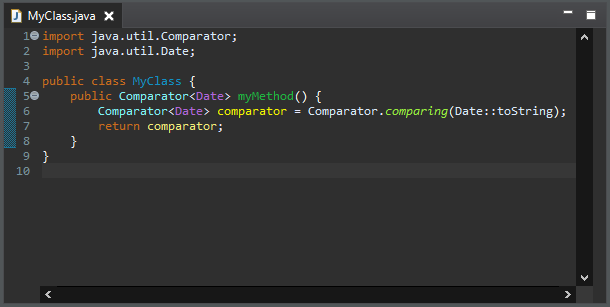
Use Comparator.comparing() clean up

A new clean up has been added that replaces a plain comparator instance by a lambda expression passed to a Comparator.comparing() method.

The feature is enabled only with Java 8 or higher.

The Comparator type must be inferred by the destination of the comparator. The algorithm of the comparator must be standard and based on one field or method. The cleanup can handle the null values and reversed orders.

To apply the clean up, select Use Comparator.comparing() check box on the Java Feature tab in your clean up profile.

comparator comparing preferences

For the given code:

comparator comparing before

One gets:

comparator comparing after
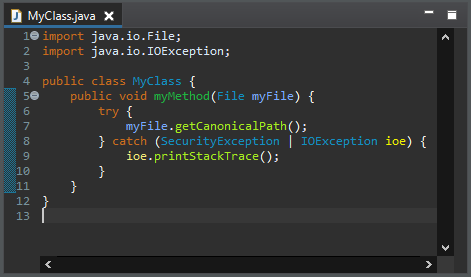
Multi-catch clean up

A new clean up has been added that converts catch clauses with same body to Java 7’s multi-catch.

The feature is enabled only with Java 7 or higher.

To apply the clean up, select Use Multi-catch check box on the Java Feature tab in your clean up profile.

multi catch preferences

For the given code:

multi catch before

One gets:

multi catch after
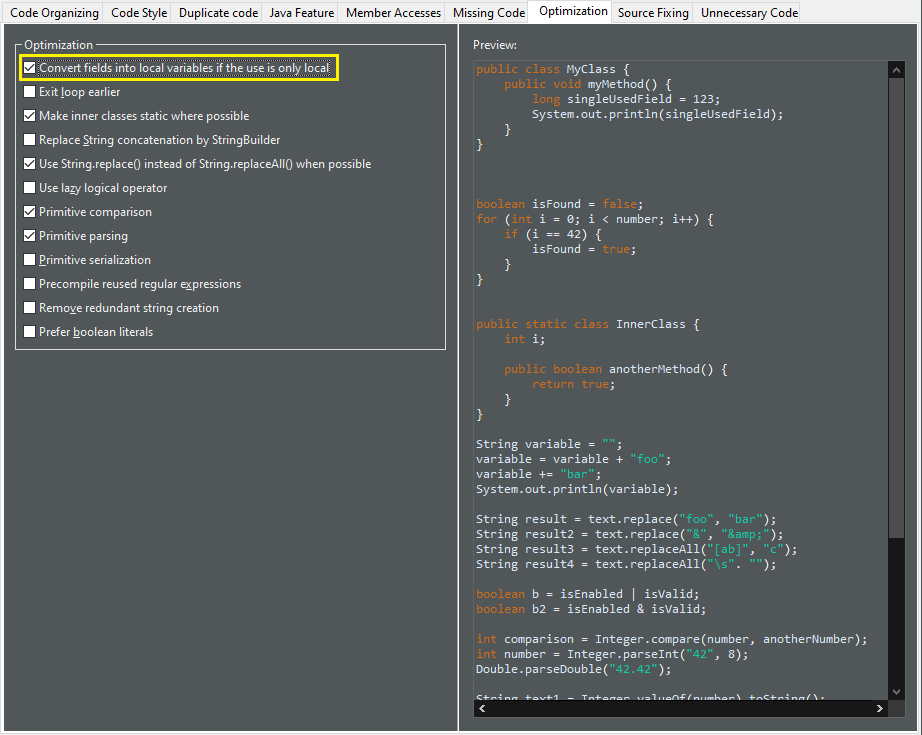
Convert fields into local variables

A new clean up has been added that refactors a field into a local variable if its use is only local.

The previous value should not be read. The field should be private. The field should not be final. The field should be primitive. The field should not have annotations.

To apply the clean up, select Convert fields into local variables if the use is only local check box on the Optimization tab in your clean up profile.

convert fields preferences

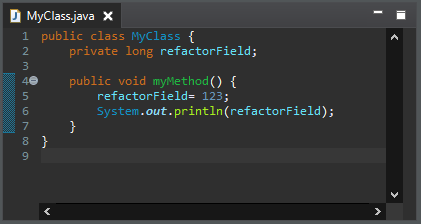
For the given code:

convert fields before

One gets:

convert fields after
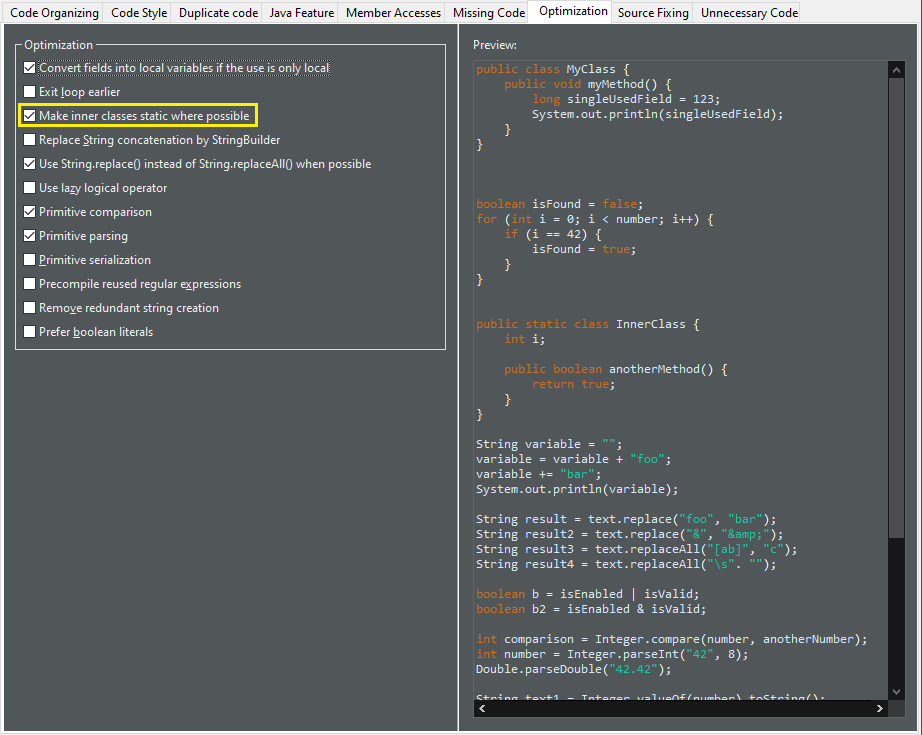
Static inner class clean up

A new clean up has been added that makes inner class static if it doesn’t use top level class members.

To apply the clean up, select Make inner classes static where possible check box on the Optimization tab in your clean up profile.

static inner class preferences

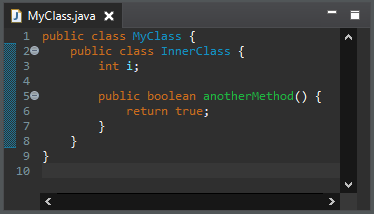
For the given code:

static inner class before

One gets:

static inner class after
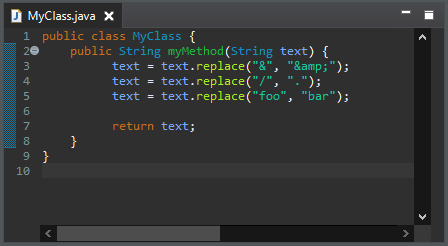
Use String.replace() clean up

A new clean up has been added that replaces String.replaceAll() by String.replace() when the pattern is a plain text.

The pattern must be constant.

To apply the clean up, select Use String.replace() instead of String.replaceAll() when no regex used check box on the Optimization tab in your clean up profile.

string replace preferences

For the given code:

string replace before

One gets:

string replace after
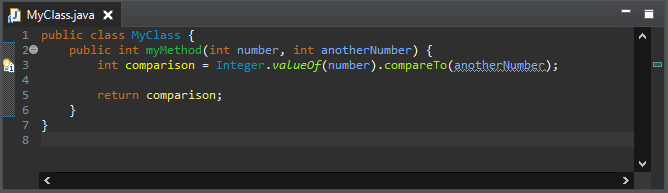
Primitive comparison clean up

A new clean up has been added that replaces the compareTo() method by a comparison on primitive.

It improves the space and time performance. The compared value must be a primitive.

To apply the clean up, select Primitive comparison check box on the Optimization tab in your clean up profile.

primitive comparison preferences

For the given code:

primitive comparison before

One gets:

primitive comparison after
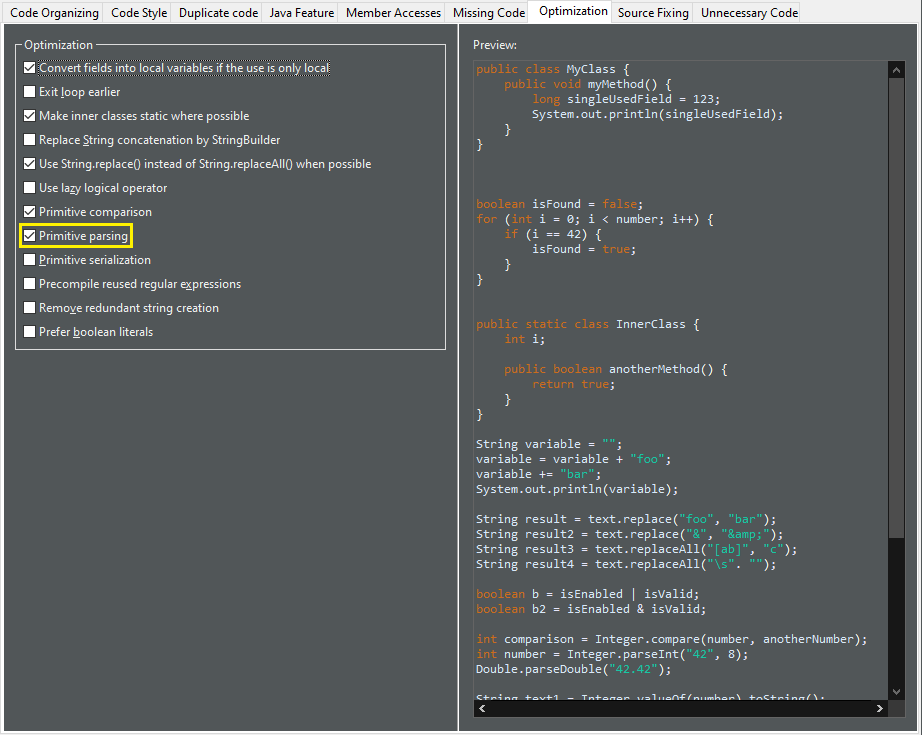
Primitive parsing clean up

A new clean up has been added that avoids to create primitive wrapper when parsing a string.

The object should be used as a primitive and not as a wrapper.

To apply the clean up, select Primitive parsing check box on the Optimization tab in your clean up profile.

primitive parsing preferences

For the given code:

primitive parsing before

One gets:

primitive parsing after
Pull down common code from if/else statement clean up

A new clean up has been added that extracts common code from the end of an if / else if / else control flow.

Ultimately it removes the empty and passive if conditions.

The control flow should have an else clause and the duplicate code should not rely on variables declared in the block.

The statement matching performs a deep analysis. All the blocks should end with the same set of statements, or the blocks with different code should fall through with a jump statement (return, throw, continue or break).

To apply the clean up, select Pull down common code from if/else statement check box on the Duplicate code tab in your clean up profile.
control flow merge preferences

For the given code:

control flow merge before

One gets:

control flow merge after

And for the given code where all tails of blocks are identical except one block which falls through:

control flow merge jump statement before

The identical tails of blocks have been pulled down from the control flow and the falling through block has been left as it is:

control flow merge jump statement after
String.substring() clean up

A new clean up has been added that removes the second substring() parameter if this parameter is the length of the string. It’s the default value.

It must reference the same expression.

The expression must be passive.

To apply the clean up, select Redundant String.substring() parameter check box on the Unnecessary code tab in your clean up profile.

substring preferences

For the given code:

substring before

One gets:

substring after
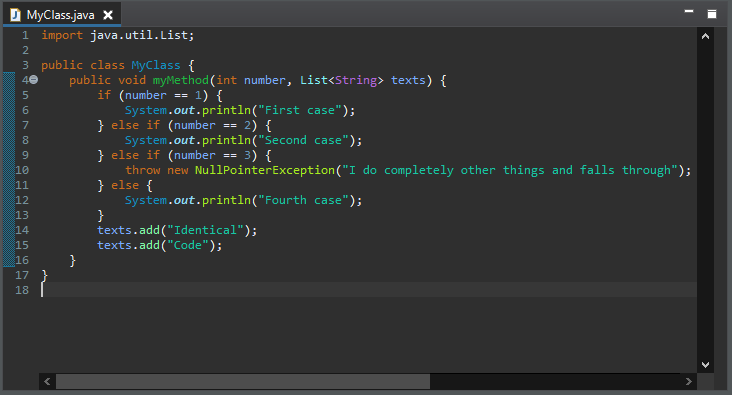
Unreachable block clean up

A new clean up has been added that detects two if conditions that are identical and removes the second one.

The conditions should be passive.

No exceptions should be awaited.

It doesn’t create unreachable code below the if statement which would create a compile error. That is to say it avoids the case where only the removed block doesn’t fall through, all the other cases fall through, there are an else clause (not only if/else clauses) and a statement after the control workflow.

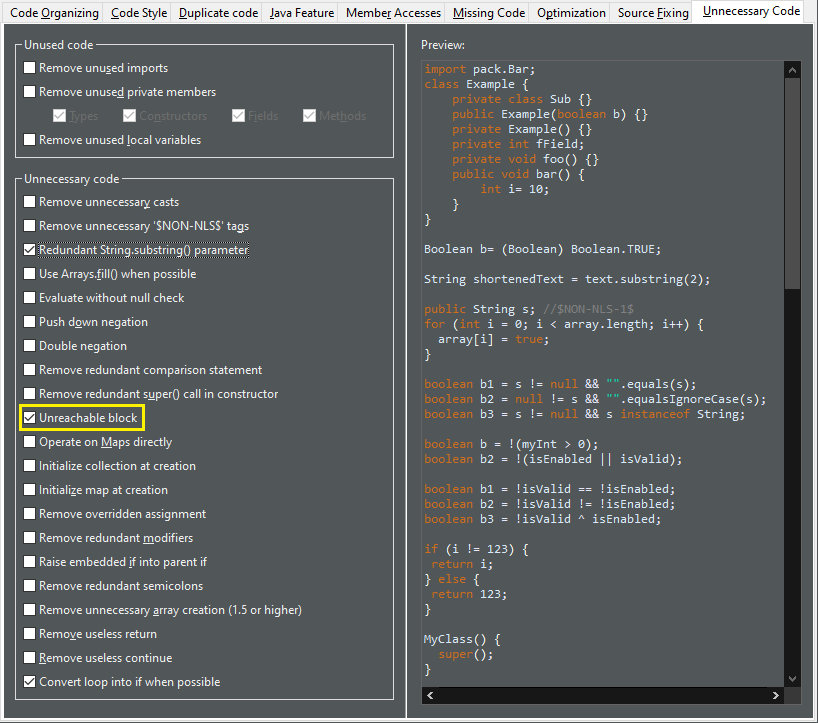
To apply the clean up, select Unreachable block check box on the Unnecessary code tab in your clean up profile.

unreachable block preferences

For the given code:

unreachable block before

One gets:

unreachable block after
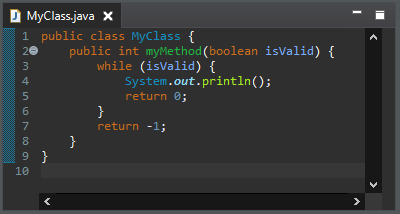
Unlooped while clean up

A new clean up has been added that replaces a while loop that always terminates during the first iteration by an if.

The loop should not contain any continue statement.

The loop should only contain break statements without statements after.

To apply the clean up, select Convert loop into if when possible check box on the Unnecessary code tab in your clean up profile.

unlooped while preferences

For the given code:

unlooped while before

One gets:

unlooped while after
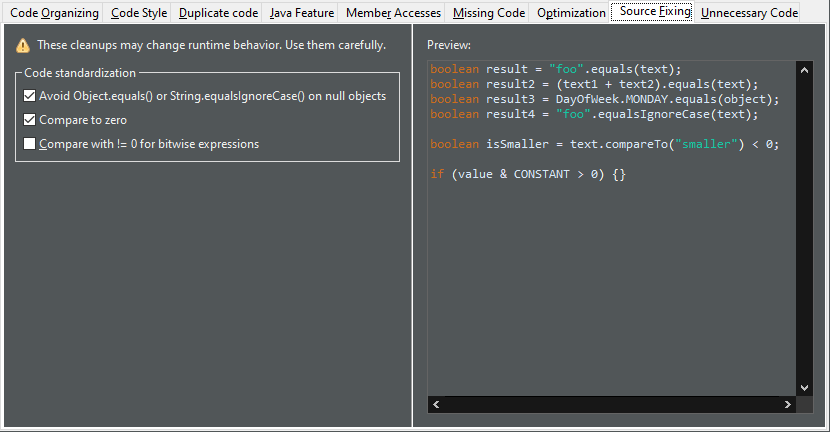
Source Fixing clean ups

A new tab named Source Fixing has been added to the Clean Up preferences. It lists the clean up options that fixes the behavior of the code. The Compare with != 0 for bitwise expression clean up option from Code style tab have also been moved to this new tab.

Use it carefully. You may get an unexpected behavior. It may trigger zombie code. A zombie code is a dead code that is dead because an error occurs before. The day someone fixes the error, the zombie code comes back to life and alters the behavior. Although most of the cleanups need review, those ones need testing.

source fixing preferences
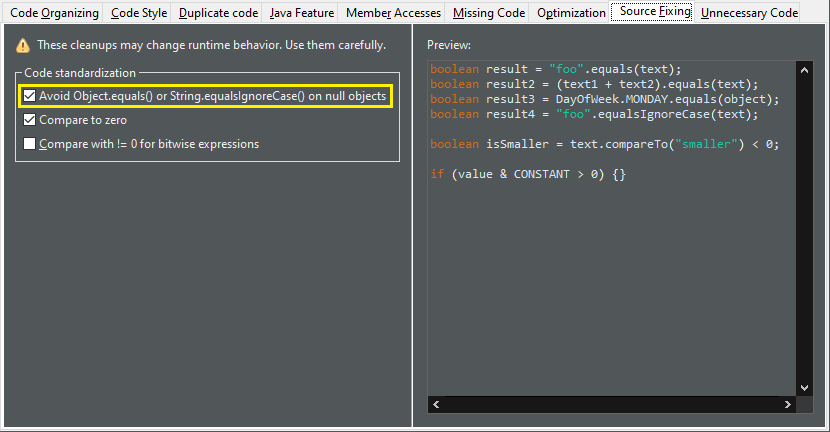
Object.equals() on non null clean up

A new clean up has been added that inverts calls to Object.equals(Object) and String.equalsIgnoreCase(String) to avoid useless null pointer exception.

The caller must be nullable.

The parameter must not be nullable.

Beware! By avoiding null pointer exceptions, the behavior may change!

To apply the clean up, select Avoid Object.equals() or String.equalsIgnoreCase() on null objects check box on the Source Fixing tab in your clean up profile.

invert equals preferences

For the given code:

invert equals before

One gets:

invert equals after
Comparison to zero clean up

A new clean up has been added that fixes Comparable.compareTo() usage.

The code is not supposed to predict the 1 and -1 values; it is supposed to get zero or a value lesser or greater than zero.

Beware! The behavior may change if you implement a custom comparator!

To apply the clean up, select Compare to zero check box on the Source Fixing tab in your clean up profile.

comparison zero preferences

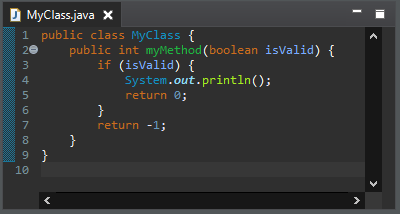
For the given code:

comparison zero before

One gets:

comparison zero after
Completion overwrites in Java editor

The Java Editor now uses Completion overwrites as the default. If Completion overwrites is on, the completion text replaces the characters following the caret position until the end of the word. If Completion inserts is on, the completion text is inserted at the caret position, so it never overwrites any existing text. Note that pressing Ctrl when applying a completion proposal toggles between the two insertion modes.

You can change the default in the Java > Editor > Content Assist preference page.

Insert best guessed parameters in Java editor

Instead of simply inserting the method parameter names as placeholders, when a method is completed, the Java Editor now inserts the best guessed parameters by default.

You can change the default in the Java > Editor > Content Assist preference page.

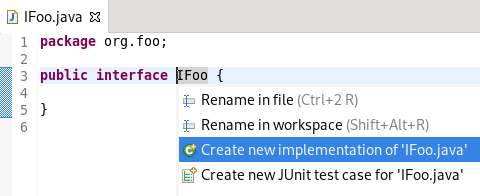
Quick assist to create new implementation

Invoking the Quick Assist (Ctrl+1) to create new implementation on an interface or abstract class declaration launches the New Java Class wizard:

quick assist interface
Quick fixes on permitted types

You can add sealed, non-sealed, or final modifiers on permitted type declarations, as applicable, using the new Quick Fixes (Ctrl+1).

On a permitted class declaration:

permitted class

On a permitted interface declaration:

permitted interface
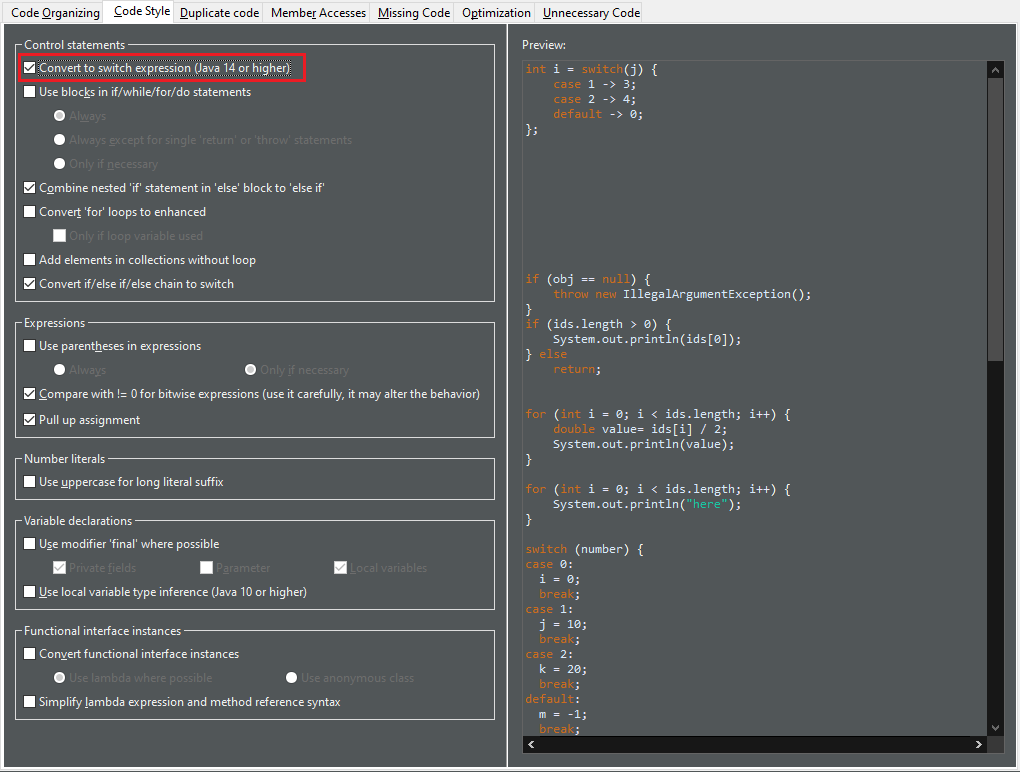
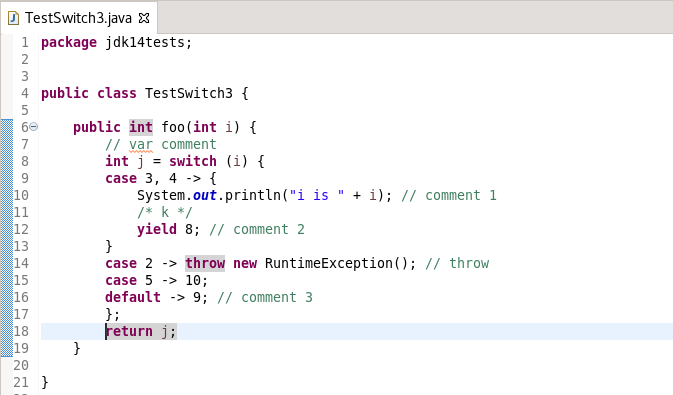
Convert to switch expression

A new quick assist and clean up has been added that converts switch statements to switch expressions (Java 14 or higher) where possible.

Switch statements that use control statements such as nested switch statements, if/else blocks, for/while loops are not considered as is the case for return/continue statements. All cases of the switch statement must either have a last assignment statement that sets the same variable/field as other cases, or else has a throw statement. Fall-through is allowed between cases but only if there are no other statements in between. The switch statement must have a default case unless the switch expression is an enum type and all possible enum values are represented in the cases.

To apply the quick assist, press Ctrl+1 on the target switch statement and select Convert to switch expression, if offered.

To apply the clean up, invoke Source > Clean Up…​, use a custom profile, and on the Configure…​ dialog, select Convert to switch expression check box on the Code Style tab (or the Java Feature tab starting from Eclipse 2021-03).

switch expressions preferences

For the given code:

switch expressions before

One gets:

switch expressions after
Uses the else-if pseudo keyword

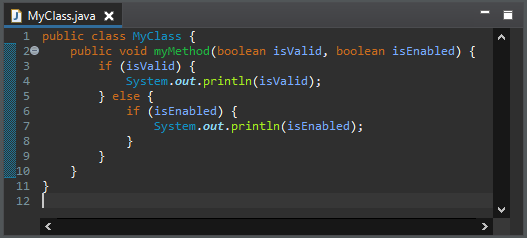
A new clean up has been added that combines nested if statement in else block to else if.

Beware for any comments after the else keyword. It will be lost.

To apply the clean up, invoke Source > Clean Up…​, use a custom profile, and on the Configure…​ dialog, select Combine nested 'if' statement in 'else' block to 'else if' check box on the Code Style tab.

For the given code:

else if before

One gets:

else if after
Bitwise expressions in comparisons

A new clean up has been added that replaces the > operator with != when the comparison expression has a bitwise expression operand and a 0 operand.

This resolves an anti-pattern for such kind of comparisons, which can also be a bug when the bitwise expression is involving a negative constant value. This code smell is further described by the FindBugs project as bug description "BIT: Check for sign of bitwise operation".

To apply the clean up, invoke Source > Clean Up…​, use a custom profile, and on the Configure…​ dialog select Compare with != 0 for bitwise expression on the Code Style tab (or the Source fixing tab starting from Eclipse 2021-03).

bitwise expressions preferences

For the given code:

bitwise expressions before

You get this after the clean up:

bitwise expressions after
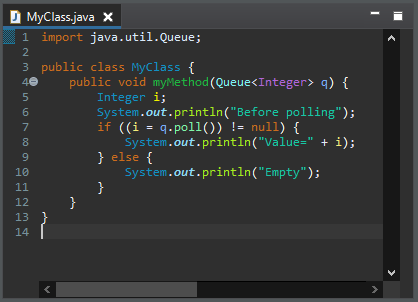
Pull up assignment

A new clean up has been added that moves assignments inside an if condition above the if node.

It improves the readability of the code.

To apply the clean up, invoke Source > Clean Up…​, use a custom profile, and on the Configure…​ dialog, select Pull up assignment check box on the Code Style tab.

For the given code:

pull up assignment before

One gets:

pull up assignment after
Use switch

A new clean up has been added that replaces if/else if/else blocks to use switch when possible.

It converts to switch when there are more than two cases.

It does not convert if the discriminant can be null, that is to say only primitive.

It does a variable conflict analyze.

The case value can be literals or constants.

To apply the clean up, invoke Source > Clean Up…​, use a custom profile, and on the Configure…​ dialog, select Convert if/else if/else chain to switch check box on the Code Style tab.

For the given code:

use switch before

One gets:

use switch after
Add elements in collections without loop

A new clean up has been added that uses Collection.addAll() or Collections.addAll() instead of a for loop.

It refactors for loops with index, for loops with iterator and foreach loops.

If the source is an array, the list is raw, and the Java version is 1.5 or higher, we use Arrays.asList() to handle the erasure type. It doesn’t decrease the performance.

To apply the clean up, invoke Source > Clean Up…​, use a custom profile, and on the Configure…​ dialog, select Add elements in collections without loop check box on the Code Style tab.

add remove preferences

For the given code:

add remove before

One gets:

add remove after
Use ternary operator

A new clean up has been added that replaces (X && Y) || (!X && Z) by X ? Y : Z.

The operands must be passive and boolean.

To apply the clean up, invoke Source > Clean Up…​, use a custom profile, and on the Configure…​ dialog, select Replace (X && Y) || (!X && Z) by X ? Y : Z check box on the Duplicate Code tab.

ternary operator preferences

For the given code:

ternary operator before

One gets:

ternary operator after
Use '==' or '^' on booleans

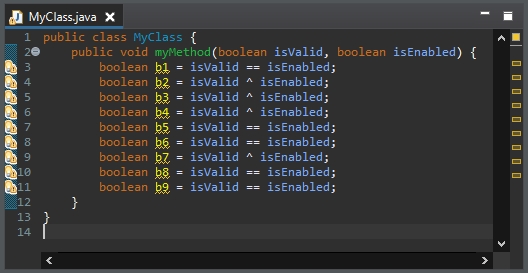
A new clean up has been added that replaces (X && !Y) || (!X && Y) by X ^ Y and replaces (X && Y) || (!X && !Y) by X == Y.

It only works on boolean.

It works with lazy or eager operators.

The operands must be passive.

It does not matter an operand is on the left or right.

It does a deep negation expression analyze.

To apply the clean up, invoke Source > Clean Up…​, use a custom profile, and on the Configure…​ dialog, select Use '==' or '^' on booleans check box on the Duplicate Code tab.

For the given code:

xor before

One gets:

xor after
Redundant falling through blocks

A new clean up has been added that detects a list of statements that ends with a jump statement (return, break, continue or throw), and has the same list of statements below that.

It detects similar statements. It also checks that the declarations of the variables in the statements are the same. It looks for redundant statements in if, else, catch and finally but not in loops.

To apply the clean up, invoke Source > Clean Up…​, use a custom profile, and on the Configure…​ dialog, select Remove redundant end of block with jump statement check box on the Duplicate Code tab.

For the given code:

redundant falling blocks before

One gets:

redundant falling blocks after
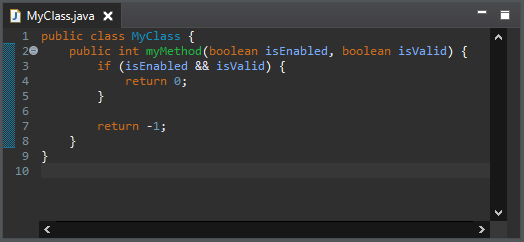
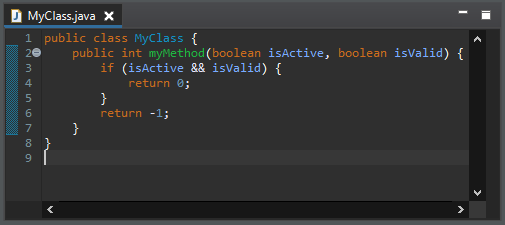
Redundant if condition

A new clean up has been added that removes a condition on an else that is negative to the condition of the previous if.

The condition must be passive. The removed code should not throw an expected exception. The cleanup uses a deep condition comparison algorithm.

To apply the clean up, invoke Source > Clean Up…​, use a custom profile, and on the Configure…​ dialog, select Redundant if condition check box on the Duplicate Code tab.

For the given code:

if condition before

One gets:

if condition after
Use Objects.hash()

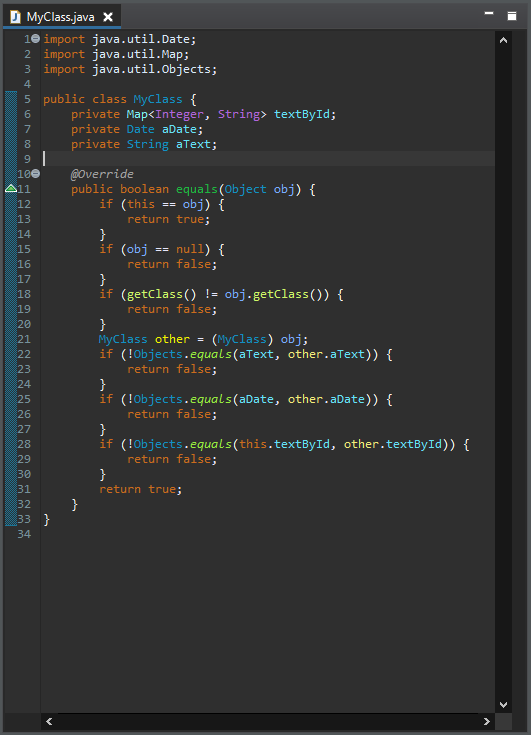
A new clean up has been added that rewrites Eclipse-autogenerated hashCode() method by Eclipse-autogenerated hashCode() method for Java 7 using Objects.hash().

Let’s remind that you can autogenerate your hashCode() and equals() methods by right-clicking on your class, selecting Source and clicking on Generate hashCode() and equals() methods…​. Since Eclipse 2018-09, a checkbox allows you to generate your methods using Java 7 API. This cleanup rewrites your method as if it has been generated using this option.

This clean up does not generate again your method from scratch, it rewrites it using a more modern syntax. That is to say, if your method is missing or voluntary does not process a field, this field still won’t be processed.

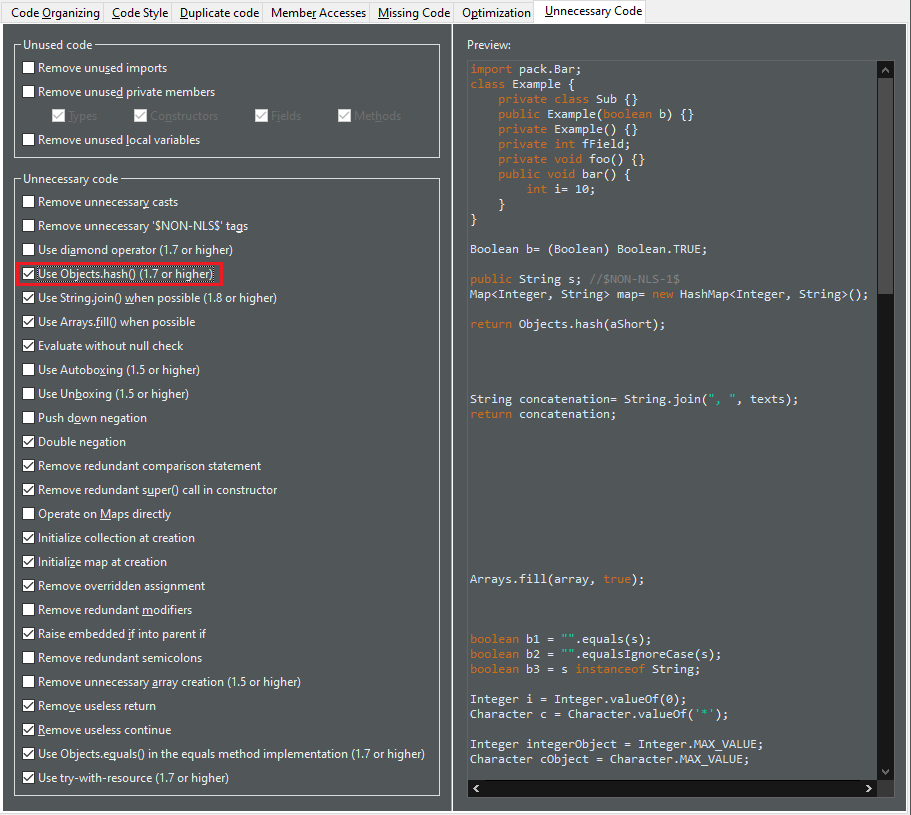
To apply the clean up, invoke Source > Clean Up…​, use a custom profile, and on the Configure…​ dialog, select Use Objects.hash() check box on the Unnecessary Code tab (or the Java Feature tab starting from Eclipse 2021-03).

hash preferences

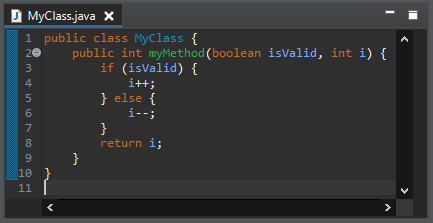
For the given code:

hash before

One gets:

hash after
Use String.join()

A new clean up has been added that uses String.join() when possible.

It detects all types of for loops. The delimiter can be added before or after. The condition can be a boolean or an index comparison.

To apply the clean up, invoke Source > Clean Up…​, use a custom profile, and on the Configure…​ dialog, select Use String.join() check box on the Unnecessary Code tab (or the Java Feature tab starting from Eclipse 2021-03).

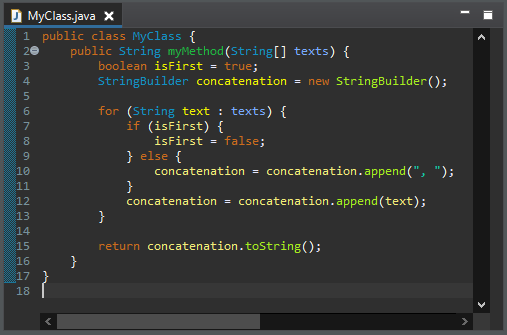
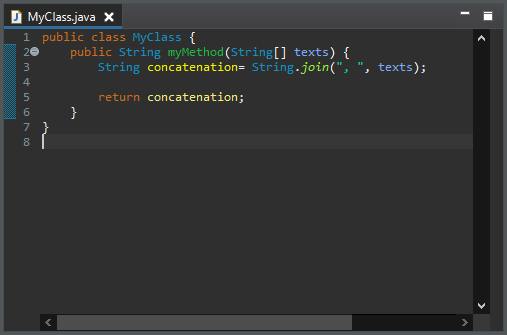
For the given code:

string join before

One gets:

string join after
Use Arrays.fill()

A new clean up has been added that replaces for loops to use Arrays.fill() where possible.

The value must be hard-coded.

To apply the clean up, invoke Source > Clean Up…​, use a custom profile, and on the Configure…​ dialog, select Use Arrays.fill() check box on the Unnecessary Code tab.

For the given code:

arrays fill before

One gets:

arrays fill after
Evaluate without null check

A new clean up has been added that removes redundant null checks.

It removes null check on value before equals() or equalsIgnoreCase() method and before instanceof expression.

It only removes redundant passive expressions.

To apply the clean up, invoke Source > Clean Up…​, use a custom profile, and on the Configure…​ dialog, select Evaluate without null check check box on the Unnecessary Code tab.

For the given code:

redundant null check before

One gets:

redundant null check after
Avoid double negation

A new clean up has been added that reduces double negation in boolean expression.

It removes negations on both operands in an equality/difference operation.

It prefers equality/difference operation rather than negated operand.

To apply the clean up, invoke Source > Clean Up…​, use a custom profile, and on the Configure…​ dialog, select Double negation check box on the Unnecessary Code tab.

For the given code:

double negation before

One gets:

double negation after
Redundant comparison statement

Removes useless bad value checks before assignments or return statements. Such useless bad value checks are comparing an expression against bad value, then either assigning bad value or the expression depending on the result of the bad value check. It is simpler to directly assign the expression.

The expression should be passive.

The excluded value should be hard coded.

To apply the clean up, invoke Source > Clean Up…​, use a custom profile, and on the Configure…​ dialog, select Remove redundant comparison statement check box on the Unnecessary Code tab.

For the given code:

redundant comparison statement before

One gets:

redundant comparison statement after
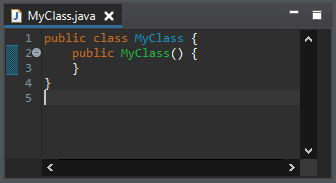
Unnecessary super() call

A new clean up has been added that removes call to super constructor with empty arguments.

Such a call is redundant. See JLS section 12.5 for more info.

To apply the clean up, invoke Source > Clean Up…​, use a custom profile, and on the Configure…​ dialog, select Remove redundant super() call in constructor check box on the Unnecessary Code tab.

For the given code:

redundant super before

One gets:

redundant super after
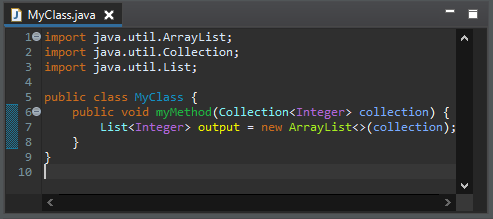
Initialize collection at creation

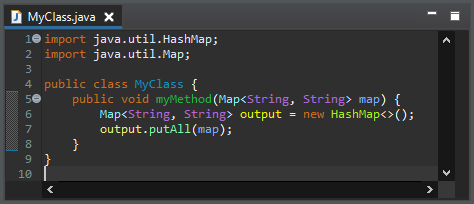
A new clean up has been added that replaces the creation of a new Collection, then invoking Collection.addAll() on it, by the creation of the new Collection with the other Collection as parameter.

Only well known collection classes are refactored to avoid behavior changes. The cleanup is enabled only if there is no useful instantiation parameters.

To apply the clean up, invoke Source > Clean Up…​, use a custom profile, and on the Configure…​ dialog, select Initialize collection at creation check box on the Unnecessary Code tab.

For the given code:

collection cloning before

One gets:

collection cloning after
Initialize map at creation

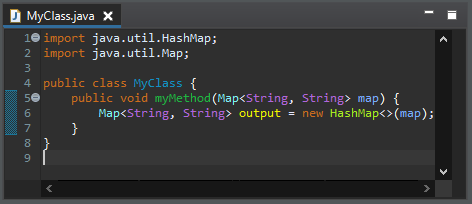
A new clean up has been added that replaces creating a new Map, then invoking Map.putAll() on it, by creating the new Map with the other Map as parameter.

Only well known map classes are refactored to avoid behavior changes. The cleanup is enabled only if there is no useful instantiation parameters.

To apply the clean up, invoke Source > Clean Up…​, use a custom profile, and on the Configure…​ dialog, select Initialize map at creation check box on the Unnecessary Code tab.

For the given code:

map cloning before

One gets:

map cloning after
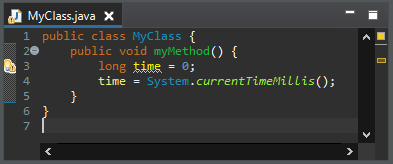
Remove overridden assignment

A new clean up has been added that removes passive assignment when the variable is reassigned before being read.

To apply the clean up, invoke Source > Clean Up…​, use a custom profile, and on the Configure…​ dialog, select Remove overridden assignment check box on the Unnecessary Code tab.

For the given code:

overridden assignment before

One gets:

overridden assignment after
Raise embedded if into parent if

A new clean up has been added that merges inner if statement into the parent if statement.

The cleanup checks that there is no else statement.

To apply the clean up, invoke Source > Clean Up…​, use a custom profile, and on the Configure…​ dialog, select Raise embedded if into parent if check box on the Unnecessary Code tab.

For the given code:

embedded if before

One gets:

embedded if after
Redundant return

A new clean up has been added that removes useless lone return at the end of a method or lambda.

The cleanup checks that there is no value on the return statement.

To apply the clean up, invoke Source > Clean Up…​, use a custom profile, and on the Configure…​ dialog, select Remove useless return check box on the Unnecessary Code tab.

For the given code:

redundant return before

One gets:

redundant return after
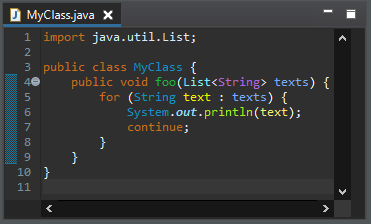
Redundant continue

A new clean up has been added that removes useless lone continue at the end of a loop.

A continue statement at the end of a loop is removed. A continue statement at the end of a control statement is removed if the control statement is at the end of a loop. A continue statement is kept if it has a label.

To apply the clean up, invoke Source > Clean Up…​, use a custom profile, and on the Configure…​ dialog, select Remove useless continue check box on the Unnecessary Code tab.

For the given code:

redundant continue before

One gets:

redundant continue after
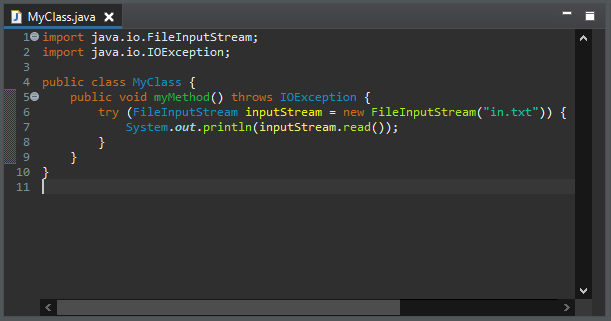
Use try-with-resource

A new clean up has been added that changes code to make use of Java 7 try-with-resources feature. In particular, it removes now useless finally clauses.

It may move an inner closeable assignment as a resource. It handles finally with a simple close() invocation, a null-check and remaining statements below.

It is only enabled from Java 7 and it also handles the Java 9 syntax.

To apply the clean up, invoke Source > Clean Up…​, use a custom profile, and on the Configure…​ dialog, select Use try-with-resource check box on the Unnecessary Code tab (or the Java Feature tab starting from Eclipse 2021-03).

For the given code:

try with resource before

One gets:

try with resource after
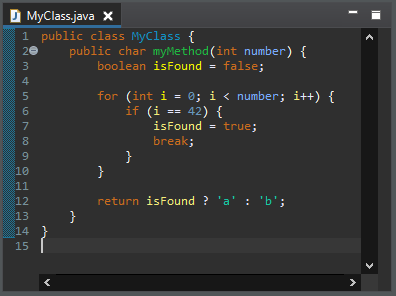
Exit loop earlier

A new clean up has been added that adds a break to avoid passive for loop iterations.

The inner assignments must not do other different assignments after (assign other values or assign into other variables).

There must be no side effects after the first assignments.

To apply the clean up, invoke Source > Clean Up…​, use a custom profile, and on the Configure…​ dialog, select Exit loop earlier check box on the Optimization tab.

For the given code:

break loop before

One gets:

break loop after
Use StringBuilder

A new clean up has been added that replaces String concatenation by StringBuilder when possible.

It uses StringBuffer for Java 1.4-.

It only replaces strings on several statements and the concatenation should have more than two pieces.

The variable should be only concatenated and it should retrieve the string once.

To apply the clean up, invoke Source > Clean Up…​, use a custom profile, and on the Configure…​ dialog, select Replace String concatenation by StringBuilder check box on the Optimization tab.

For the given code:

stringbuilder before

One gets:

stringbuilder after
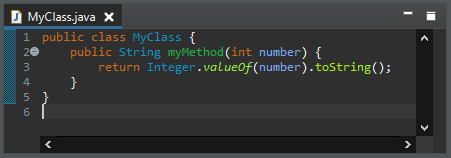
Primitive serialization

A new clean up has been added that replaces a primitive boxing to serialize by a call to the static toString() method.

It works for all the primitive types: boolean, char, byte, short, int, long, float and double.

To apply the clean up, invoke Source > Clean Up…​, use a custom profile, and on the Configure…​ dialog, select Primitive serialization check box on the Optimization tab.

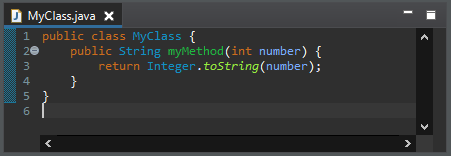
For the given code:

primitive serialization before

One gets:

primitive serialization after
Prefer boolean literal

A new clean up has been added that replaces Boolean.TRUE/Boolean.FALSE by true/false when used as primitive.

To apply the clean up, invoke Source > Clean Up…​, use a custom profile, and on the Configure…​ dialog, select Prefer boolean literals check box on the Optimization tab.

boolean literal preferences

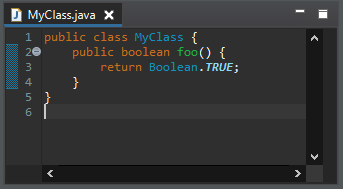
For the given code:

boolean literal before

One gets:

boolean literal after
Diamond operator <> (Remove redundant type arguments)

The clean up Remove redundant type arguments has been renamed Use diamond operator and is still available in the Unnecessary Code tab in Eclipse 2020-12.

The clean up will be moved to the future Java Feature tab in Eclipse 2021-03.

Java Views and Dialogs

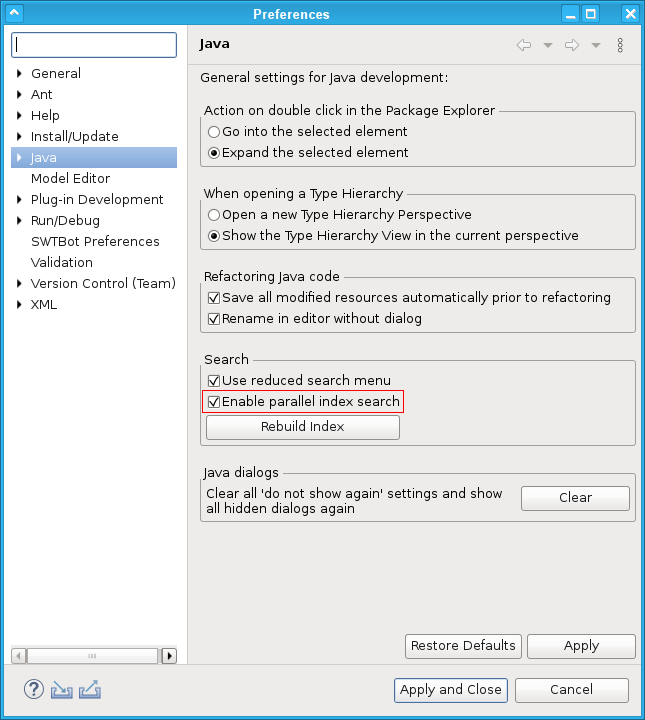
A new preference option has been added and enabled by default: Preferences > Java > Enable parallel index search. Depending on the available hardware, this option should improve performance for all index based Java search operations, but could also lead to possible regressions. To switch back to the old sequential index search, turn this option off:

parallel index search
Coloring restricted identifiers

A new option named Restricted identifiers has been added under Java category in Java > Editor > Syntax Coloring preferences.

Some identifiers (e.g. var, yield, record etc.) are restricted identifiers because they are not allowed in some contexts. Semantic highlighting options for such identifiers can be controlled by the element Restricted identifiers under Java category in Java > Editor > Syntax Coloring preference page.

restricted identifier preference
Externally annotate sources

The concept of external null annotations has been extended to apply to source folders, too.

External annotations were introduced in Eclipse 4.5 in order to overlay not-editable library classes with null annotations to specify the null contract against which library calls should be analysed. You can now apply the same concept for another kind of classes that should not be edited: generated source code.

In the Java Build Path dialog, also source folders now have a node External annotations where a path to Eclipse External Annotation files (.eea) can be configured.

annotate sources config

Given a project that is configured for annotation based null analysis, and given a Java class inside a source folder configured for external annotations, the editor now offers a quick assist (Ctrl+1) for annotating individual type references in the signatures of methods and fields.

annotate sources assist

The selected option will record that the return type should be interpreted as @NonNull List<Attribute> (the popup to the right showing the internal format how this annotation will be stored in an .eea file). With this annotation in place, the annotated signature will be shown in hovers and will be used for null analysis:

annotate sources effect
static import org.mockito.Mockito.* available as favorite

Imports for static org.mockito.Mockito. are added to the Java favorites in the preferences under *Java > Editor > Content Assists > Favorites. This way the organize imports action in the IDE will automatically add static imports to this class when you use the Mockito library in your tests.

Fine-grained search for permitted types

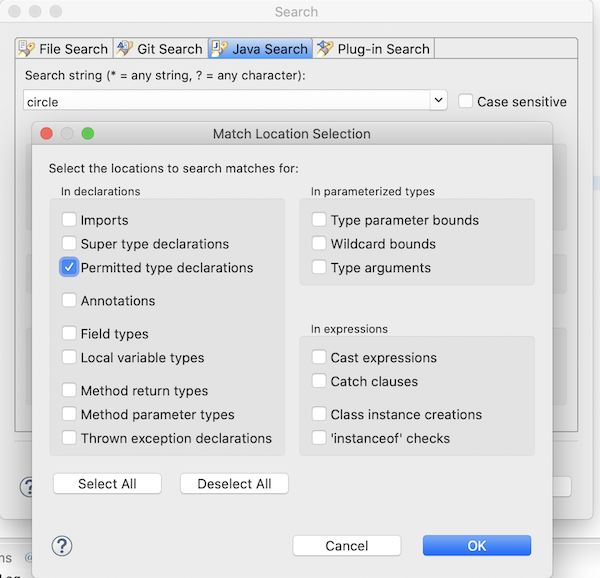
You can perform a fine-grained search for permitted type declarations in the Search dialog (Ctrl+H) > Java Search > Limit To > Match Locations with the new option:

search permitted type
Sort library entries alphabetically in Package Explorer enabled by default

The Preferences > Java > Appearance > [x] Sort library entries alphabetically in Package Explorer is now enabled by default. This makes it easier for you to see if a library is available or not.

If you want to see the order in which the libraries are added to the classpath, e.g. to understand classpath loading issues, you can disable the preference.

Debug

Toggle tracepoints in editor ruler

A new Toggle Tracepoint context-menu entry has been added to the Java Editor line ruler. Both the Toggle Tracepoint options i.e. the new context-menu entry and the existing option under Run menu have a new icon and are now available for Java class files also along with Java source files.

toggle tracepoints
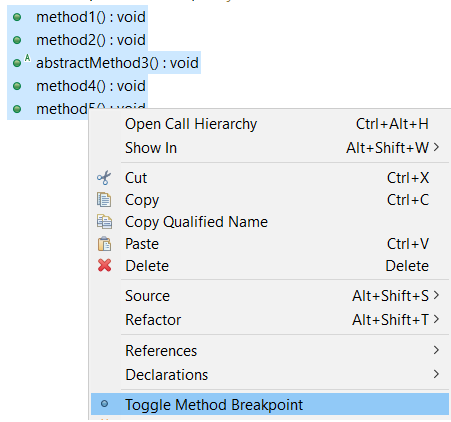
Toggle breakpoint on a list of methods including abstract method

You can now Toggle Method Breakpoint on a list of methods which includes an abstract method.

debug toggle breakpoint
Support for @argfiles when launching

A new check box was added to the Arguments tab for Java based launch configurations (Java Application, JUnit, and others) for writing arguments into an @argfile. This is disabled below Java 9 and can be enabled for Java programs launched with Java 9 and above.

launch with argfile
Stabilized logical structures in Variables view with active GC

The Debug view no longer breaks when logical structures are shown while the application’s garbage collector is active (com.sun.jdi.ObjectCollectedException occurred while retrieving value).

Java Formatter

Annotations wrapping

The formatter now allows more control over how multiple annotations on a single element should be divided into lines. Previously, they could either all be placed in a single line along with the annotated element, or each in a separate line. The settings that controlled this behavior (in the New Lines > After annotations section) now only control a line break between the last annotation and the annotated element. Line breaks between annotations are controlled by a new group of settings in the Line Wrapping > Wrapping Settings > Annotations section.

Just like with standard wrapping settings, they can be set to keep everything in a single line (Do not wrap), each annotation in a separate line (Wrap all elements), or only break lines that exceed the width limit (Wrap where necessary). The last option along with the Never join already wrapped lines setting effectively means manual control over each case. The annotation wrapping settings differ from other wrapping settings in that the indentation control is not available.

The formatter configuration sections can be found in the Profile Editor (Preferences > Java > Code Style > Formatter > Edit…​).

formatter wrap annotations

And more…​

You can find more noteworthy updates in on this page.
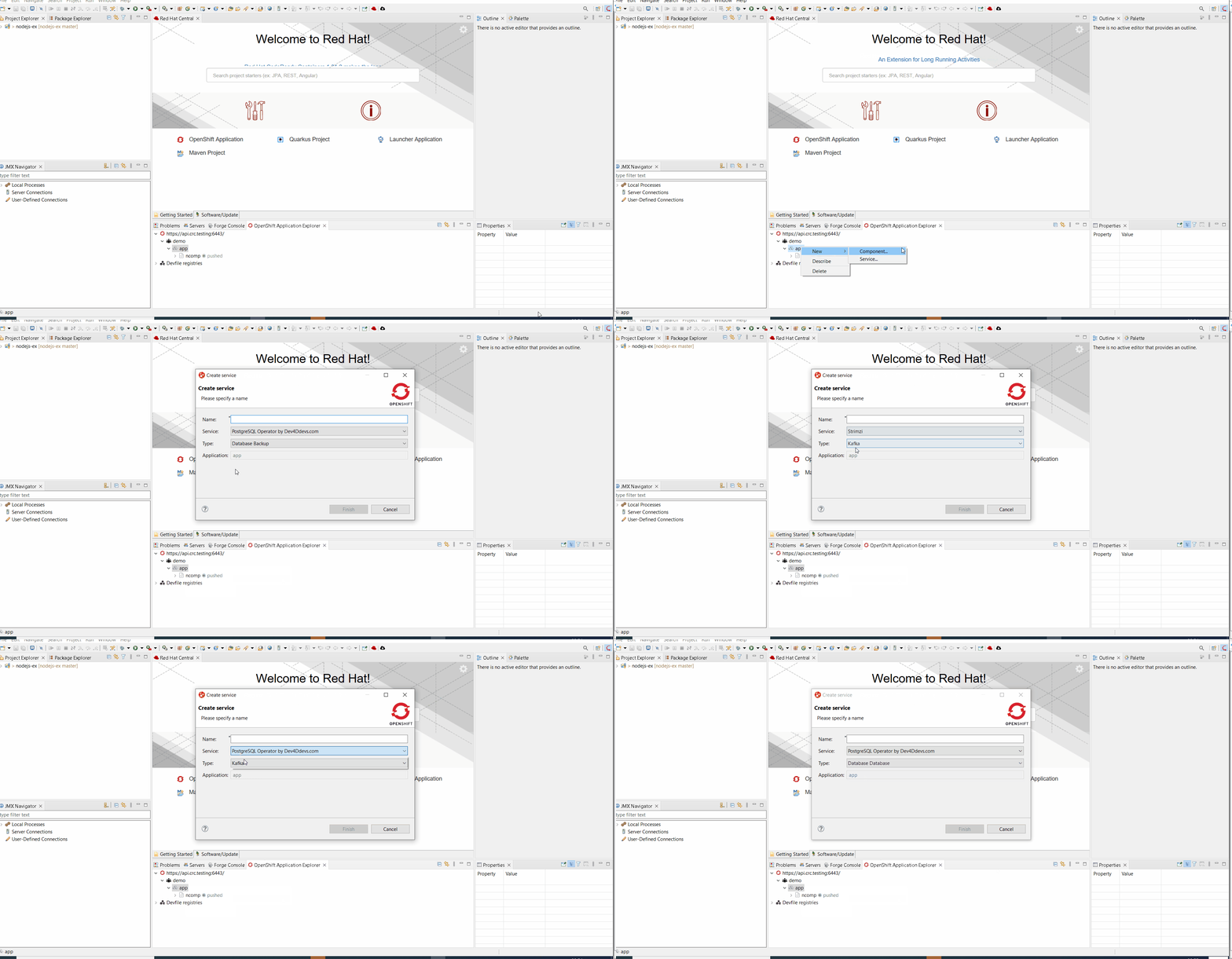
What is next?

Having JBoss Tools 4.19.0 and Red Hat CodeReady Studio 12.19 out we are already working on the next release.

Enjoy!

Jeff Maury

Happy to announce 4.19.0.AM1 (Developer Milestone 1) build for Eclipse 2021-03.

Downloads available at JBoss Tools 4.19.0 AM1.

What is New?

Full info is at this page. Some highlights are below.

OpenShift

Browser based login to an OpenShift cluster

When it comes to login to a cluster, OpenShift Tools supported two different authentication mechanisms:

  • user/password

  • token

The drawback is that it does not cover clusters where a more enhanced and modern authentication infrastructure is in place. So it is now possible to login to the cluster through an embedded web browser.

In order to use it, go to the Login context menu from the Application Explorer view:

weblogin1

Click on the Retrieve token button and an embedded web browser will be displayed:

weblogin2

Complete the workflow until you see a page that contains Display Token:

weblogin3

Click on Display Token:

The web browser is automatically closed and you’ll notice that the retrieved token has been set in the original dialog:

weblogin4

Devfile registries management

Since JBoss Tools 4.18.0.Final, the preferred way of developing components is now based on devfile, which is a YAML file that describe how to build the component and if required, launch other containers with other containers. When you create a component, you need to specify a devfile that describe your component. So either you component source contains its own devfile or you need to pick a devfile that is related to your component. In the second case, OpenShift Tools supports devfile registries that contains a set of different devfiles. There is a default registry (https://github.com/odo-devfiles/registry) but you may want to have your own registries. It is now possible to add and remove registries as you want.

The registries are displayed in the OpenShift Application Explorer under the Devfile registries node:

registries1

Please note that expanding the registry node will list all devfiles from that registry with a description:

registries2

A context menu on the Devfile registries node allows you to add new registries, and on the registry node to delete it.

Devfile enhanced editing experience

Although devfile registries can provide ready-to-use devfiles, there may be some advanced cases where users need to write their own devfile. As the syntax is quite complex, the YAML editor has been completed so that to provide:

  • syntax validation

  • content assist

Support for Python based components

Python-based components were supported but debugging was not possible. This release brings integration between the Eclipse debugger and the Python runtime.

Hibernate Tools

A number of additions and updates have been performed on the available Hibernate runtime providers.

Runtime Provider Updates

The Hibernate 5.4 runtime provider now incorporates Hibernate Core version 5.4.29.Final and Hibernate Tools version 5.4.29a.Final.

Server Tools

Wildfly 23 Server Adapter

A server adapter has been added to work with Wildfly 23.

EAP 7.4 Beta Server Adapter

The server adapter has been adapted to work with EAP 7.4 Beta.

Enjoy!

Jeff Maury

JBoss Tools 4.18.0 and Red Hat CodeReady Studio 12.18 for Eclipse 2020-09 are here waiting for you. Check it out!

crstudio12

Installation

Red Hat CodeReady Studio comes with everything pre-bundled in its installer. Simply download it from our Red Hat CodeReady product page and run it like this:

java -jar codereadystudio-<installername>.jar

JBoss Tools or Bring-Your-Own-Eclipse (BYOE) CodeReady Studio require a bit more:

This release requires at least Eclipse 4.17 (2020-09) but we recommend using the latest Eclipse 4.17 2020-09 JEE Bundle since then you get most of the dependencies preinstalled.

Java11 is now required to run Red Hat Developer Studio or JBoss Tools (this is a requirement from Eclipse 4.17). So make sure to select a Java11 JDK in the installer. You can still work with pre-Java11 JDK/JRE and projects in the tool.

Once you have installed Eclipse, you can either find us on the Eclipse Marketplace under "JBoss Tools" or "Red Hat CodeReady Studio".

For JBoss Tools, you can also use our update site directly.

http://download.jboss.org/jbosstools/photon/stable/updates/

What is new?

Our main focus for this release was an improved tooling for the Quarkus framework, improvements for container based development and bug fixing.

OpenShift

Devfile based deployments

The Application Explorer view is now based on odo 2.x, which allows deployments to be based on devfile (developer oriented manifest file). The components from the default odo registry are listed with legacy S2I components:

devfile

It is also now possible to bootstrap from an empty project as the components from the registry may expose starter projects (sample code that will initialize your empty project).

devfile1

Quarkus

Support for codestarts in New Quarkus project wizard

code.quarkus.io has added a new option codestart that allows extension that support this new feature to contribute sample code in the generated project. It is enabled by default and is accessible from the second step in the wizard:

quarkus30

Server Tools

Wildfly 22 Server Adapter

A server adapter has been added to work with Wildfly 22.

Hibernate Tools

Hibernate Runtime Provider Updates

A number of additions and updates have been performed on the available Hibernate runtime providers.

Runtime Provider Updates

The Hibernate 5.4 runtime provider now incorporates Hibernate Core version 5.4.27.Final and Hibernate Tools version 5.4.27.Final.

The Hibernate 5.3 runtime provider now incorporates Hibernate Core version 5.3.20.Final and Hibernate Tools version 5.3.20.Final.

And more…​

You can find more noteworthy updates in on this page.
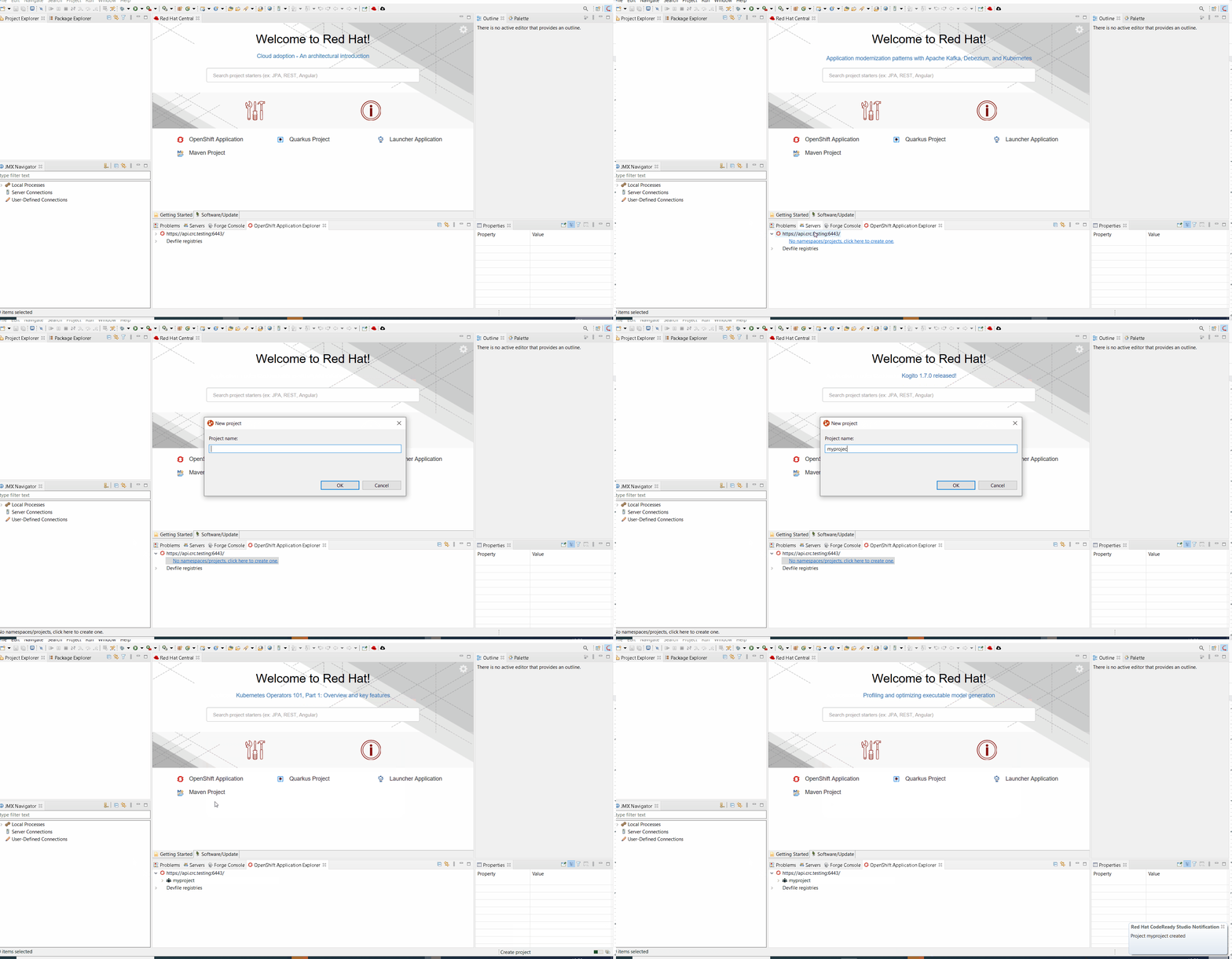
What is next?

Having JBoss Tools 4.18.0 and Red Hat CodeReady Studio 12.18 out we are already working on the next release.

Enjoy!

Jeff Maury

Happy to announce 4.18.0.AM1 (Developer Milestone 1) build for Eclipse 2020-09.

Downloads available at JBoss Tools 4.18.0 AM1.

What is New?

Full info is at this page. Some highlights are below.

Quarkus

Support for codestarts in New Quarkus project wizard

code.quarkus.io has added a new option codestart that allows extension that support this new feature to contribute sample code in the generated project. It is enabled by default and is accessible from the second step in the wizard:

quarkus30

OpenShift

Devfile based deployments

The Application Explorer view is now based on odo 2.x, which allows deployments to be based on devfile (developer oriented manifest file). The components from the default odo registry are listed with legacy S2I components:

devfile

It is also now possible to bootstrap from an empty project as the components from the registry may expose starter projects (sample code that will initialize your empty project).

devfile1

Hibernate Tools

A number of additions and updates have been performed on the available Hibernate runtime providers.

Runtime Provider Updates

The Hibernate 5.4 runtime provider now incorporates Hibernate Core version 5.4.25.Final and Hibernate Tools version 5.4.25.Final.

The Hibernate 5.3 runtime provider now incorporates Hibernate Core version 5.3.20.Final and Hibernate Tools version 5.3.20.Final.

Server Tools

Wildfly 22 Server Adapter

A server adapter has been added to work with Wildfly 22.

CDI Tools

Eclipse Microprofile support

CDI Tools now support Eclipse Microprofile. Eclipse Microprofile related assets are checked against @Inject injections points and are validated according to rules specified in various Eclipse Microprofile specifications.

Forge Tools

Forge Runtime updated to 3.9.8.Final

The included Forge runtime is now 3.9.8.Final.

Enjoy!

Jeff Maury

JBoss Tools 4.17.0 and Red Hat CodeReady Studio 12.17 for Eclipse 2020-09 are here waiting for you. Check it out!

crstudio12

Installation

Red Hat CodeReady Studio comes with everything pre-bundled in its installer. Simply download it from our Red Hat CodeReady product page and run it like this:

java -jar codereadystudio-<installername>.jar

JBoss Tools or Bring-Your-Own-Eclipse (BYOE) CodeReady Studio require a bit more:

This release requires at least Eclipse 4.17 (2020-09) but we recommend using the latest Eclipse 4.17 2020-06 JEE Bundle since then you get most of the dependencies preinstalled.

Java11 is now required to run Red Hat Developer Studio or JBoss Tools (this is a requirement from Eclipse 4.17). So make sure to select a Java11 JDK in the installer. You can still work with pre-Java11 JDK/JRE and projects in the tool.

Once you have installed Eclipse, you can either find us on the Eclipse Marketplace under "JBoss Tools" or "Red Hat CodeReady Studio".

For JBoss Tools, you can also use our update site directly.

http://download.jboss.org/jbosstools/photon/stable/updates/

What is new?

Our main focus for this release was an improved tooling for the Quarkus framework, improvements for container based development and bug fixing. Eclipse 2020-09 itself has a lot of new cool stuff but let me highlight just a few updates in both Eclipse 2020-09 and JBoss Tools plugins that I think are worth mentioning.

OpenShift

OpenShift Container Platform 4.6 support

With the new OpenShift Container Platform (OCP) 4.6 now available, JBoss Tools is compatible with this major release in a transparent way. Just define your connection to your OCP 4.6 based cluster as you did before for an OCP 3 cluster, and use the tooling !

Quarkus

Support for YAML configuration file

Quarkus supports configuration through YAML format. For more information, see the Quarkus documentation

In order to use it, follow the steps:

  • create a Quarkus project using the new Quarkus wizard

  • create a new application.yaml or application.yml next to the application.properties in src/main/resources

The editor will open and you will get content assist and syntax validation.

Server Tools

Wildfly 21 Server Adapter

A server adapter has been added to work with Wildfly 21. It adds support for Java EE 8, Jakarta EE 8 and Microprofile 3.3.

Hibernate Tools

Hibernate Runtime Provider Updates

A number of additions and updates have been performed on the available Hibernate runtime providers.

Runtime Provider Updates

The Hibernate 5.4 runtime provider now incorporates Hibernate Core version 5.4.21.Final and Hibernate Tools version 5.4.21.Final.

The Hibernate 5.3 runtime provider now incorporates Hibernate Core version 5.3.18.Final and Hibernate Tools version 5.3.18.Final.

Platform

Views, Dialogs and Toolbar

Adjustable view fonts

The font used for tree and table views can now be customized with a font preference. This preference is called "Tree and Table font for views" and can be found in Window > Preferences > General > Appearance > Colors and Fonts under the "View and Editor Folders" category.

adjustable view font preference

The Project Explorer is an example of a view that gets affected by this font preference.

adjustable view font
Remove gifs from views

Several years ago, the icons of the platform views were migrated to .png files. As already opened views store their reference to the image, the .gif files were left in the code. These have been removed now. If you are using the same workspace for multiple years and view icons are missing due to that removal, you have to close and reopen the view.

Default changed for confirm on exit for last window

By default, Eclipse now closes if you select the close icon on the last window without additional confirmation dialog. If you want to get a confirmation dialog, you can enable that via Window > Preferences > General > Startup and Shutdown > Confirm exit when closing last window.

Workbench models created in releases before 2014 are not automatically converted

Workbench models (workbench.xmi) stored in workspaces created with releases before 2014 and never opened with a later release are not automatically converted anymore if opened with the 2020-09 release.

Text Editors

Multiple Last Edit Locations

Previous Edit Location navigation (formerly named Last Edit Location) is now expanded to remember multiple edit locations.

The last 15 edit locations are now remembered. For convenience, similar edit locations in close proximity to each other are also merged so that each of the 15 remembered locations remains distinct.

multiple last edit locations

How to use

Two new keyboard shortcuts are introduced:

  • Ctrl+Alt+LEFT_ARROW (or on Mac Ctrl+Opt+LEFT_ARROW) navigates to the most recent edit location, just as Ctrl+Q always has in prior releases.

    However, now continuing to hold Ctrl+Alt and then pressing LEFT_ARROW again begins a traversal through the history of prior edit locations, with each additional press of LEFT_ARROW moving a step further back in history. Once traversal stops, future Ctrl+Alt+LEFT_ARROW actions are now temporarily anchored to this older historical location for easy exploration of that code region.

    The classic Ctrl+Q mapping has been likewise enhanced with this new functionality, so that Ctrl+Q and Ctrl+Alt+LEFT_ARROW are synonymous.

  • Ctrl+Alt+RIGHT_ARROW (or on Mac Ctrl+Opt+RIGHT_ARROW) conversely moves the anchor forward through edit history, so after traversing backward with Ctrl+Alt+LEFT_ARROW, you can go forward again by holding Ctrl+Alt and repeatedly pressing RIGHT_ARROW. A new menu item has likewise been added for this forward navigation as well.

New edit locations are always inserted at the end, so original historical ordering is always maintained. New edits also reset the last location "anchor" back to the most recent edit, so that pressing Ctrl+Alt+LEFT_ARROW once again brings you to the most recent edit rather than a historical one.

Printing editor content adds date in header

Printing editor content now includes the current date in addition to the filename in the header of each printed page.

print header date

Themes and Styling

Improved GTK light theme

The GTK light theme has been updated to align better with the default GTK3 Adwaita theme.

Old:

gtk light old

New:

gtk light new
Windows menus are styled in the dark theme

SWT now natively styles the menu under Windows in the dark theme.

Old:

menu background old

New:

menu background dark
Dropbox boxes (Combos) are styled under Windows in the dark theme

SWT now natively styles drop-down boxes under Windows in the dark theme.

Old:

combo win32 dark old

New:

combo win32 dark new
Selection highlighter for dark theme

The active tab selection highlighter has been enabled for Eclipse’s default dark themes. This will help users identify which tab is active at a glance.

dark selection highlighter
Selection highlighter for tables under Windows in the dark theme

SWT now natively supports selection highlighter in tables under Windows in the dark theme.

selection highlight

Debug

Filter null bytes from console output

The interpretation of ASCII control characters in the Console View was extended to recognize the characters: \0 - null byte. If interpretation is enabled, any null byte will be stripped and not shown in console view. This is most relevant for the Linux platform where a null byte in console view causes anything after it on the same line to be not rendered.

This feature is disabled by default. You can enable it on the Run/Debug > Console preference page.

General Updates

Builds for Linux AArch64 (aka Arm64) added

Binaries for Linux AArch64 (Arm64) are available for testing. With the raising popularity of this architecture people can continue using the Eclipse IDE even when changing their machine.

Java Developement Tools (JDT)

Java 15 Support

Java 15

Java 15 is out and Eclipse JDT supports Java 15 for 4.17 via Marketplace.

The release notably includes the following Java 15 features:

  • JEP 378: Text Blocks (Standard).

  • JEP 384: Records (Second Preview).

  • JEP 375: Pattern Matching for Instanceof (Second Preview).

  • JEP 360: Sealed Classes (Preview).

Please note that preview option should be on for preview language features. For an informal introduction of the support, please refer to Java 15 Examples wiki.

JUnit

Collapse all nodes in JUnit view

JUnit view now provides a context-menu option to collapse all nodes:

junit collapse all
Sort test results by execution time

JUnit view now provides the ability to sort results by execution time. By default, results will be sorted by execution order. Choosing Sort By > Execution Time from the JUnit View menu will reorder the results once all tests are complete. While tests are still running, they will be shown in execution order.

junit sort time before

Sorting by execution order results in:

junit sort time after

Java Editor

Substring/Subword matches for types

Content Assist now fully supports both substring and subword matches for types:

substring types

Substring matches are always shown and subword matches can be enabled/disabled with the existing Show subword matches option on the Java > Editor > Content Assist preference page.

Optimization tab

A new tab has been added that gathers cleanups that improve the time performance: the existing lazy operator cleanup and the regex precompiler cleanup.

regex preferences
Objects.equals()

A new clean up has been added that makes use of Objects.equals() to implement the equals(Object) method.

It reduces the code and improves the reading. The cleanup is only available for Java 7 or higher. Although this kind of comparison is almost exclusively seen in the equals(Object) method, it can also reduce code in other methods.

To select the clean up, invoke Source > Clean Up…​, use a custom profile, and on the Configure…​ dialog select Use Objects.equals() in the equals method implementation on the Unnecessary Code tab.

objects equals preferences

For the given code:

objects equals before

You get this after the clean up:

objects equals after
Precompiles the regular expressions

A new clean up has been added that optimizes the regular expression execution by precompiling it.

It replaces some usages of java.lang.String by usages of java.util.regex.Pattern. The cleanup is done only if it is sure that the string is used as a regular expression. If there is any doubt, nothing is done. The regular expression must be explicitly used several times to be sure the cleanup is useful.

To select the clean up, invoke Source > Clean Up…​, use a custom profile, and on the Configure…​ dialog select Precompiles reused regular expressions on the Optimization tab.

regex preferences

For the given code:

regex before

You get this after the clean up:

regex after
String.format quickfix

A new quickfix has been added to replace string concatenation with String.format, similar to the existing ones for StringBuilder and MessageFormat.

String.format quickfix
Method reference quickfix

A new quickfix has been added to create missing methods for method references.

Current restriction is that this quickfix is only available on current class.

Expect current implementation to work on simple cases only.

Method references invoking nested generics or type parameters might be problematic to resolve correct.

methodreference 1

Java Views and Dialog

Toggle Code Minings From Find Actions Menu

The code minings within an editor can be enabled/disabled through the Find Actions menu (Ctrl+3).

toggle code minings

Java Formatter

Assert statement wrapping

A new setting in the Formatter profile controls line wrapping of assert statements. A line wrap can be added between the assert condition and its error message. The setting can be found in the Profile Editor (Preferences > Java > Code Style > Formatter > Edit…​) in the Line Wrapping > Wrapping Settings > Statemtens > 'assert' messages node.

formatter wrap assert

Debug

Anonymous class instance in evaluation

The JDT debugger is now capable of inspecting/evaluating expressions with anonymous class instances.

anon instance inspection code
anon instance inspection
JEP 358: Helpful NullPointerExceptions

The JDT debugger has now a checkbox option to activate the command line support for JEP 358. This is disabled below Java 14 and enabled by default for Java programs launched with Java 14 and above.

-XX:+ShowCodeDetailsInExceptionMessages

helpfulNullPointerExceptions

JVM is now capable of analyzing which variable was null at the point of NullPointerException and describe the variable with a null-detail message in the NPE.

Actual type in Variables view

The option Show Type Names in the Variables and Expressions views now displays the value’s actual type instead of its declared type. This simplifies debugging especially when variable details (toString()) is shown As the label for all variables.

To enable Show Type Names in the Variables view, column mode must be disabled (View Menu > Layout > Show Columns).

Example:

Object s = "some string";
	Collection<?> c = Arrays.asList(s, 1);
	// breakpoint
variables actual type

And more…​

You can find more noteworthy updates in on this page.
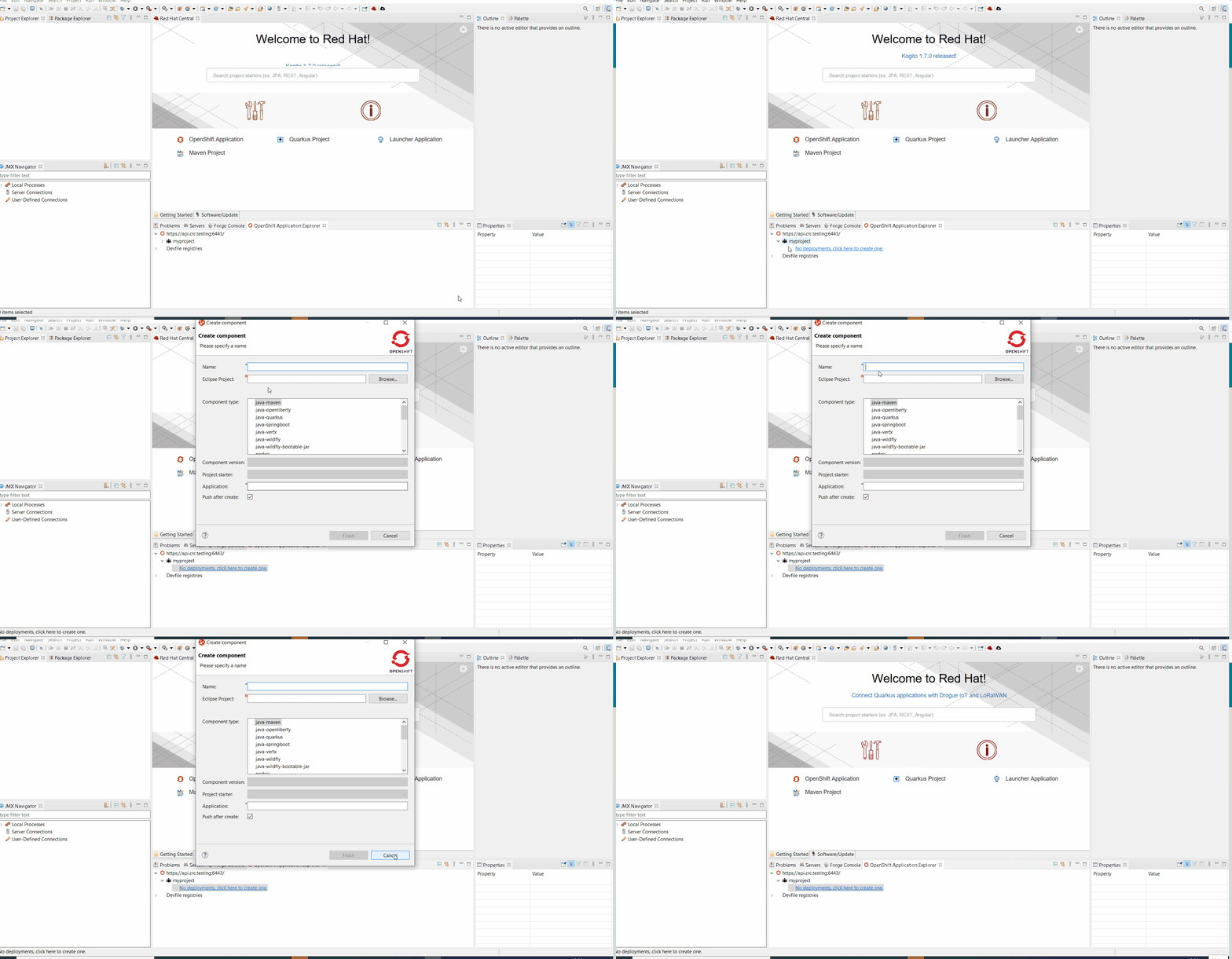
What is next?

Having JBoss Tools 4.17.0 and Red Hat CodeReady Studio 12.17 out we are already working on the next release.

Enjoy!

Jeff Maury

Happy to announce 4.17.0.AM1 (Developer Milestone 1) build for Eclipse 2020-09.

Downloads available at JBoss Tools 4.17.0 AM1.

What is New?

Full info is at this page. Some highlights are below.
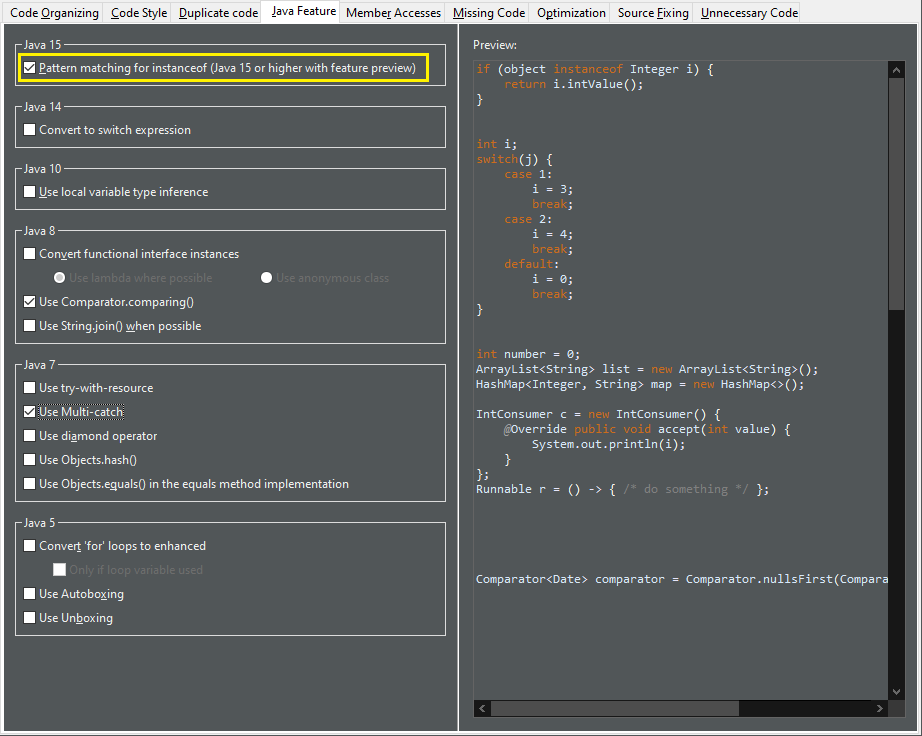
Quarkus

Support for YAML configuration file

Quarkus supports configuration through YAML format. For more information, see the Quarkus documentation
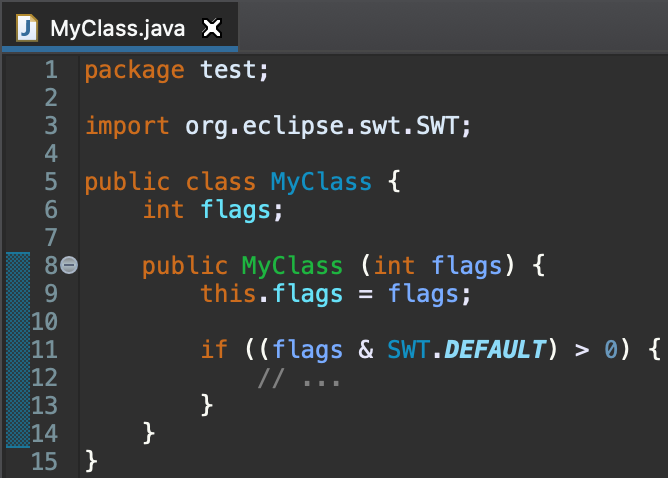
In order to use it, follow the steps:

  • create a Quarkus project using the new Quarkus wizard

  • create a new application.yaml or application.yml next to the application.properties in src/main/resources

The editor will open and you will get content assist and syntax validation.

Hibernate Tools

A number of additions and updates have been performed on the available Hibernate runtime providers.

New Runtime Provider

A new runtime provider has been added for Hibernate 6.0. It incorporates Hibernate Core version 6.0.0.Alpha6 and Hibernate Tools version 6.0.0.Alpha2.

Runtime Provider Updates

The Hibernate 5.4 runtime provider now incorporates Hibernate Core version 5.4.21.Final and Hibernate Tools version 5.4.21.Final.

The Hibernate 5.3 runtime provider now incorporates Hibernate Core version 5.3.18.Final and Hibernate Tools version 5.3.18.Final.

Enjoy!

Jeff Maury

Announcement - JBoss Tools reaches end of life

by Stéphane Bouchet on Aug 01, 2025.

JBoss Tools 4.29.1.Final for Eclipse 2023-09

by Stéphane Bouchet on Jun 13, 2024.

JBoss Tools 4.29.0.Final for Eclipse 2023-09

by Stéphane Bouchet on Nov 02, 2023.

JBoss Tools 4.28.0.Final for Eclipse 2023-06

by Stéphane Bouchet on Jul 03, 2023.

JBoss Tools for Eclipse 2023-06M2

by Stéphane Bouchet on Jun 05, 2023.

Looking for older posts ? See the Archived entries.
back to top